Basketball Game 2.0
Note
🌟 Welcome to the SunFounder Facebook Community! Whether you’re into Raspberry Pi, Arduino, or ESP32, you’ll find inspiration, help ideas here.
✅ Be the first to get free learning resources.
✅ Stay updated on new products & exclusive giveaways.
✅ Share your creations and get real feedback.
Kit purchase
Looking for parts? Check out our all-in-one kits below — packed with components, beginner-friendly guides, and tons of fun.
Name |
Includes Arduino board |
PURCHASE LINK |
|---|---|---|
Ultimate Sensor Kit |
Arduino Uno R4 Minima |
|
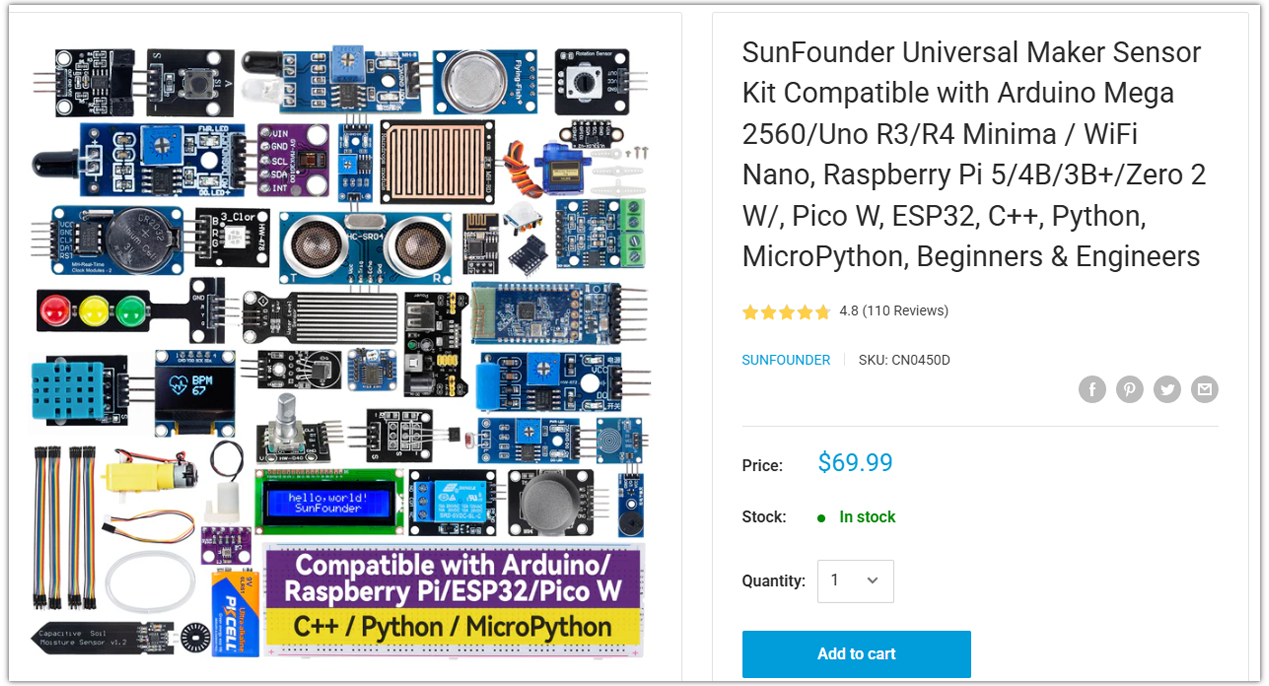
Universal Maker Sensor Kit |
× |
Course Introduction
In this lesson, we will learn how to use the Ultrasonic Sensor Module, a 4-digit display, and a buzzer with the Arduino Board to build an automatic scoring system.
When an object quickly passes within the detection range, the system registers a score, updates the display, and plays a short sound.
Note
If this is your first time working with an Arduino project, we recommend downloading and reviewing the basic materials first.
Required Components
In this project, we need the following components:
SN |
COMPONENT INTRODUCTION |
QUANTITY |
PURCHASE LINK |
|---|---|---|---|
1 |
Arduino UNO R4 Minima/Arduino UNO R4 WIFI |
1 |
|
2 |
USB Type-C cable |
1 |
|
3 |
Breadboard |
1 |
|
4 |
Wires |
Several |
|
5 |
4-Digit Segment Display Module |
1 |
|
6 |
Ultrasonic Sensor Module |
1 |
|
7 |
Buzzer Modudle |
1 |
Wiring
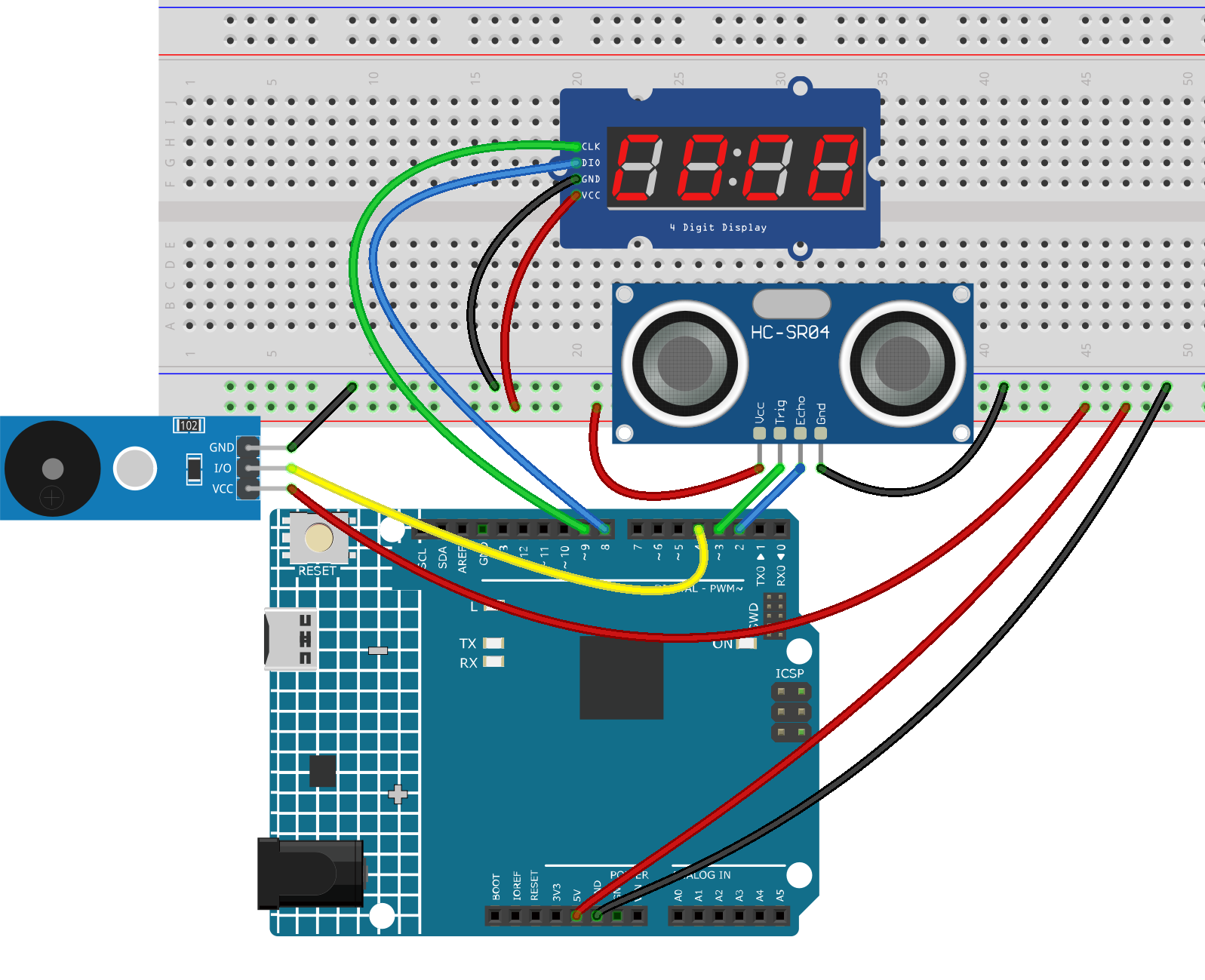
Common Connections:
Ultrasonic Sensor Module
Trig: Connect to 3 on the Arduino.
Echo: Connect to 2 on the Arduino.
GND: Connect to breadboard’s negative power bus.
VCC: Connect to breadboard’s red power bus.
4-Digit Segment Display Module
CLK: Connect to 9 on the Arduino.
DIO: Connect to 8 on the Arduino.
GND: Connect to breadboard’s negative power bus.
VCC: Connect to breadboard’s red power bus.
Buzzer Module
I/0: Connect to 4 on the Arduino.
+: Connect to breadboard’s red power bus.
-: Connect to breadboard’s negative power bus.
Writing the Code
Note
You can copy this code into Arduino IDE.
To install the library, use the Arduino Library Manager and search for TM1637Display and install it.
Don’t forget to select the board(Arduino UNO R4 Minima/WIFI) and the correct port before clicking the Upload button.
#include <TM1637Display.h>

// TM1637 pins
const int CLK_PIN = 9;
const int DIO_PIN = 8;

// Ultrasonic sensor pins
const int TRIG_PIN = 3;
const int ECHO_PIN = 2;

// Buzzer pin
const int BUZZER_PIN = 4;

// Create display object
TM1637Display display(CLK_PIN, DIO_PIN);

// Score value
int score = 0;

// Detection settings
const float DETECT_DISTANCE = 10.0;   // cm
const unsigned long cooldownTime = 800;   // ms
const unsigned long detectHoldTime = 120; // ms

bool ballDetected = false;
unsigned long detectHoldStart = 0;
unsigned long lastScoreTime = 0;

void setup() {
  pinMode(TRIG_PIN, OUTPUT);
  pinMode(ECHO_PIN, INPUT);
  pinMode(BUZZER_PIN, OUTPUT);

  display.setBrightness(7);
  display.showNumberDec(score, true);
}

// Get distance in cm
float getDistanceCM() {
  digitalWrite(TRIG_PIN, LOW);
  delayMicroseconds(2);

  digitalWrite(TRIG_PIN, HIGH);
  delayMicroseconds(10);
  digitalWrite(TRIG_PIN, LOW);

  long duration = pulseIn(ECHO_PIN, HIGH, 12000); // shorter timeout for faster response

  if (duration == 0) {
    return 999.0;
  }

  float distance = duration * 0.0343 / 2.0;
  return distance;
}

// Read multiple times quickly and use the minimum value
float getFastDistanceCM() {
  float minDistance = 999.0;

  for (int i = 0; i < 3; i++) {
    float d = getDistanceCM();
    if (d < minDistance) {
      minDistance = d;
    }
    delayMicroseconds(300);
  }

  return minDistance;
}

// Play a short goal sound
void playGoalBeep() {
  tone(BUZZER_PIN, 2000, 120);
}

void loop() {
  float distance = getFastDistanceCM();
  bool currentDetected = (distance <= DETECT_DISTANCE);
  unsigned long currentMillis = millis();

  if (currentDetected) {
    detectHoldStart = currentMillis;

    if (!ballDetected && (currentMillis - lastScoreTime > cooldownTime)) {
      ballDetected = true;
      score++;

      if (score > 9999) {
        score = 9999;
      }

      display.showNumberDec(score, true);
      playGoalBeep();
      lastScoreTime = currentMillis;
    }
  } else {
    if (ballDetected && (currentMillis - detectHoldStart > detectHoldTime)) {
      ballDetected = false;
    }
  }
}