Rrotary Sprinkler
Note
🌟 Welcome to the SunFounder Facebook Community! Whether you’re into Raspberry Pi, Arduino, or ESP32, you’ll find inspiration, help ideas here.
✅ Be the first to get free learning resources.
✅ Stay updated on new products & exclusive giveaways.
✅ Share your creations and get real feedback.
Kit purchase
Looking for parts? Check out our all-in-one kits below — packed with components, beginner-friendly guides, and tons of fun.

Name |
Includes Arduino board |
PURCHASE LINK |
|---|---|---|
Elite Explorer Kit |
Arduino Uno R4 WiFi |
|
3 in 1 Ultimate Starter Kit |
Arduino Uno R4 Minima |
Course Introduction
In this lesson, you’ll use a servo motor, a water pump driven by a TA6586 motor driver, and a button with Arduino to create a toggle-controlled watering system.
Pressing the button starts the pump and sweeps the servo back and forth to distribute water. Pressing it again stops the system, allowing for simple and hands-free operation.
Note
If this is your first time working with an Arduino project, we recommend downloading and reviewing the basic materials first.
Required Components
In this project, we need the following components:
SN |
COMPONENT INTRODUCTION |
QUANTITY |
PURCHASE LINK |
|---|---|---|---|
1 |
Arduino UNO R4 WIFI |
1 |
|
2 |
USB Type-C cable |
1 |
|
3 |
Breadboard |
1 |
|
4 |
Wires |
Several |
|
5 |
Power Supply |
1 |
|
6 |
Digital Servo Motor |
1 |
|
7 |
TA6586 - Motor Driver Chip |
1 |
|
8 |
Centrifugal Pump |
1 |
|
9 |
Button |
1 |
Wiring
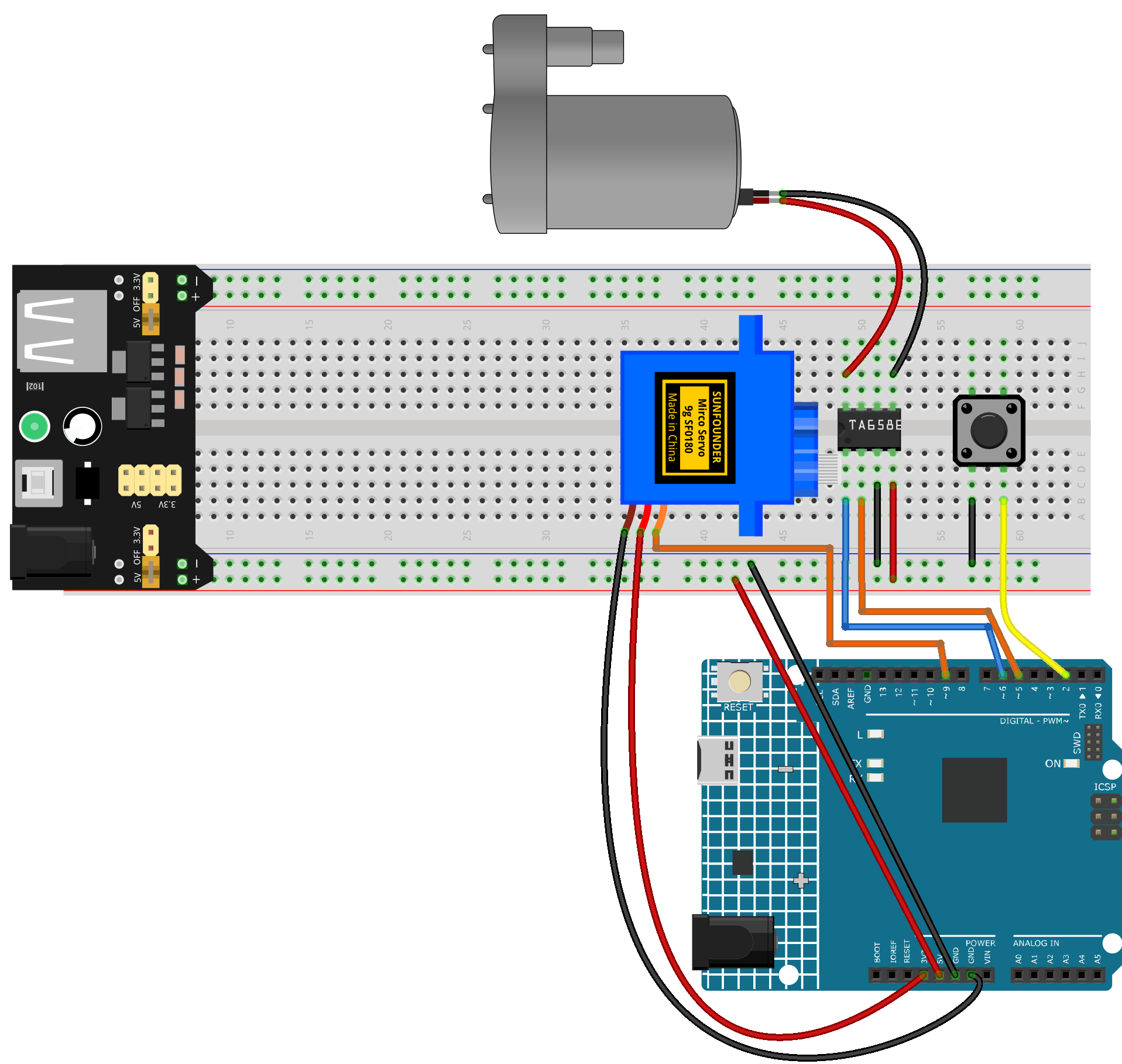
Common Connections:
Digital Servo Motor
Connect to breadboard’s positive power bus.
Connect to breadboard’s negative power bus.
Connect to 9 on the Arduino.
TA6586 - Motor Driver Chip
BI: Connect to 6 on the Arduino.
FI: Connect to 5 on the Arduino.
GND: Connect to breadboard’s negative power bus.
VCC: Connect to breadboard’s red power bus.
Centrifugal Pump
Connect to TA6586 B0.
Connect to TA6586 F0.
Button
Connect to the breadboard’s negative power bus, and the other end to 2 on the Arduino board.
Writing the Code
Note
You can copy this code into Arduino IDE.
Don’t forget to select the board(Arduino UNO R4 Minima/WIFI) and the correct port before clicking the Upload button.
#include <Servo.h>

Servo servo;

const int servoPin = 9;
const int motorIn1 = 5;  // TA6586 IN1 (FI)
const int motorIn2 = 6;  // TA6586 IN2 (BI)
const int buttonPin = 2;

bool isRunning = false;
bool lastButtonState = HIGH;

int servoPos = 0;    // Current servo position
int servoStep = 2;   // Servo movement step
unsigned long lastServoMove = 0;
const unsigned long servoInterval = 15; // Servo movement interval (ms)

void setup() {
  servo.attach(servoPin);
  pinMode(motorIn1, OUTPUT);
  pinMode(motorIn2, OUTPUT);
  pinMode(buttonPin, INPUT_PULLUP); // Use internal pull-up resistor
  stopSystem();
}

void loop() {
  bool buttonState = digitalRead(buttonPin);

  // Button toggle logic (falling edge detection)
  if (lastButtonState == HIGH && buttonState == LOW) {
    isRunning = !isRunning;
    delay(200); // Debounce
  }
  lastButtonState = buttonState;

  if (isRunning) {
    // Keep water pump running
    digitalWrite(motorIn1, HIGH);
    digitalWrite(motorIn2, LOW);

    // Non-blocking servo sweeping
    unsigned long currentMillis = millis();
    if (currentMillis - lastServoMove >= servoInterval) {
      lastServoMove = currentMillis;
      servoPos += servoStep;
      if (servoPos >= 180 || servoPos <= 0) {
        servoStep = -servoStep;
      }
      servo.write(servoPos);
    }

  } else {
    stopSystem();
  }
}

void stopSystem() {
  // Stop water pump
  digitalWrite(motorIn1, LOW);
  digitalWrite(motorIn2, LOW);

  // Stop servo at current position
  servo.write(servoPos);
}