Mini Piano
Note
🌟 Welcome to the SunFounder Facebook Community! Whether you’re into Raspberry Pi, Arduino, or ESP32, you’ll find inspiration, help ideas here.
✅ Be the first to get free learning resources.
✅ Stay updated on new products & exclusive giveaways.
✅ Share your creations and get real feedback.
👉 Need faster updates or support? Click [here] join our Facebook community
👉 Or join our WhatsApp group: Click [here]
🎁 Looking for parts?Check out our all-in-one kits below — packed with components, beginner-friendly guides, and tons of fun.
Name |
Includes Arduino board |
PURCHASE LINK |
|---|---|---|
Electronic Kit |
× |
|
Elite Explorer Kit |
Arduino Uno R4 WiFi |
|
3 in 1 Ultimate Starter Kit |
Arduino Uno R4 Minima |
Course Introduction
In this lesson, you’ll learn how to create a mini piano using LEDs, buttons, and a passive buzzer with Arduino.
Pressing different buttons will light up the corresponding LED and play the matching pitch on the buzzer.
Note
If this is your first time working with an Arduino project, we recommend downloading and reviewing the basic materials first.
Required Components
In this project, we need the following components:
SN |
COMPONENT INTRODUCTION |
QUANTITY |
PURCHASE LINK |
|---|---|---|---|
1 |
Arduino UNO R4 Minima |
1 |
|
2 |
USB Type-C cable |
1 |
|
3 |
Breadboard |
1 |
|
4 |
Wires |
Several |
|
5 |
1kΩ resistor |
Several |
|
6 |
Button |
3 |
|
7 |
LED |
Several |
|
8 |
Passive buzzer |
1 |
Wiring
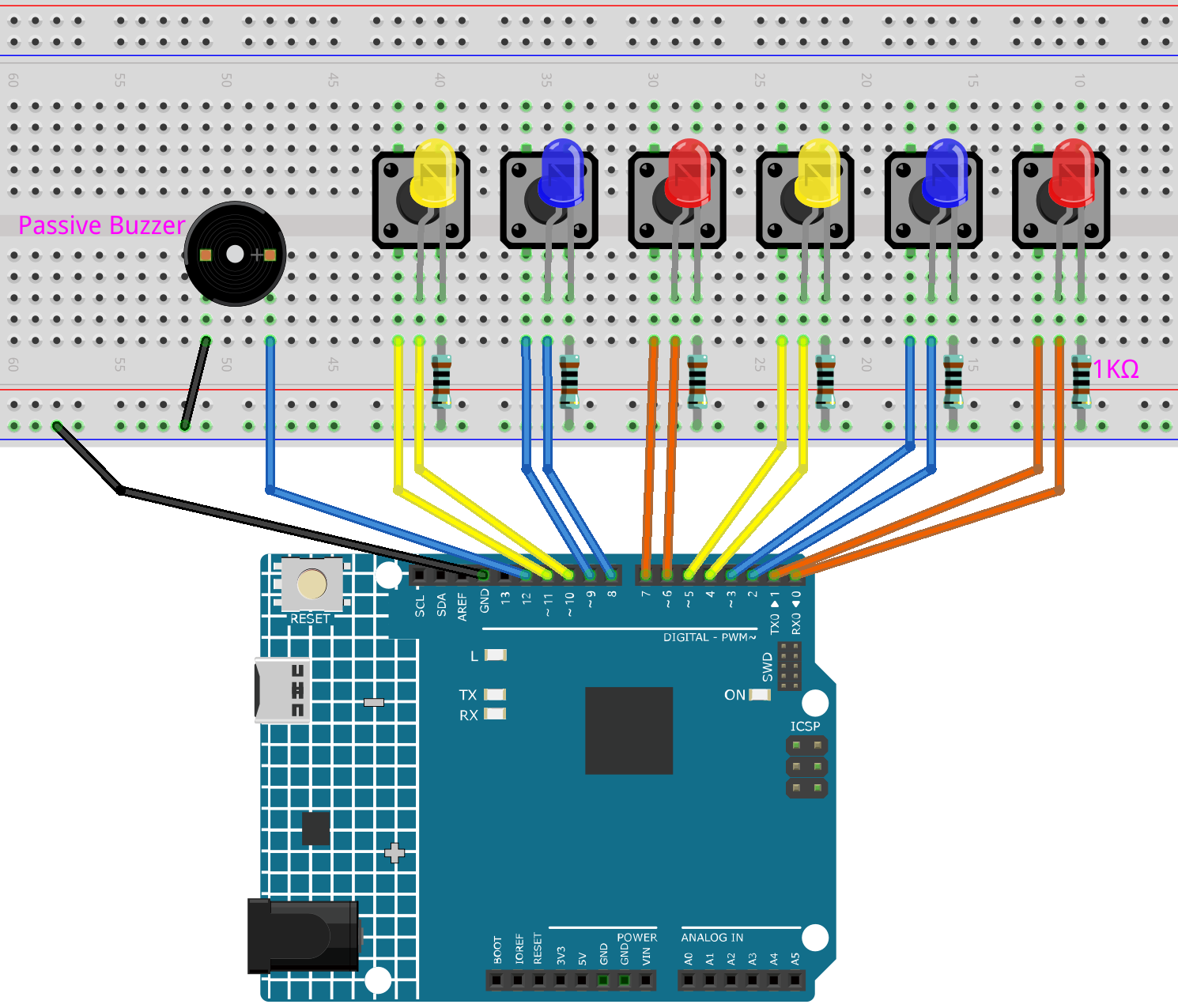
Common Connections:
LED
Connect the LEDs cathode to a 1kΩ resistor then to the negative power bus on the breadboard, and the LEDs anode to 10, 8, 6, 4, 2 on the Arduino.
Button
Connect to the LED’s cathode on the breadboard, then connect a 1kΩ resistor from the LED’s negative terminal to the negative power bus on the breadboard.
Connect to 11, 9, 7, 5, 3, 1 on the Arduino.
Passive Buzzer
+: Connect to 12 on the Arduino.
-: Connect to breadboard’s negative power bus.
Writing the Code
Note
Before you begin, you need to upload the pitches.h library to your Arduino. Copy the contents of the library into the Arduino IDE, save it as pitches.h and then upload it to your Arduino.
/*************************************************
* Public Constants
*************************************************/

#define NOTE_B0  31
#define NOTE_C1  33
#define NOTE_CS1 35
#define NOTE_D1  37
#define NOTE_DS1 39
#define NOTE_E1  41
#define NOTE_F1  44
#define NOTE_FS1 46
#define NOTE_G1  49
#define NOTE_GS1 52
#define NOTE_A1  55
#define NOTE_AS1 58
#define NOTE_B1  62
#define NOTE_C2  65
#define NOTE_CS2 69
#define NOTE_D2  73
#define NOTE_DS2 78
#define NOTE_E2  82
#define NOTE_F2  87
#define NOTE_FS2 93
#define NOTE_G2  98
#define NOTE_GS2 104
#define NOTE_A2  110
#define NOTE_AS2 117
#define NOTE_B2  123
#define NOTE_C3  131
#define NOTE_CS3 139
#define NOTE_D3  147
#define NOTE_DS3 156
#define NOTE_E3  165
#define NOTE_F3  175
#define NOTE_FS3 185
#define NOTE_G3  196
#define NOTE_GS3 208
#define NOTE_A3  220
#define NOTE_AS3 233
#define NOTE_B3  247
#define NOTE_C4  262
#define NOTE_CS4 277
#define NOTE_D4  294
#define NOTE_DS4 311
#define NOTE_E4  330
#define NOTE_F4  349
#define NOTE_FS4 370
#define NOTE_G4  392
#define NOTE_GS4 415
#define NOTE_A4  440
#define NOTE_AS4 466
#define NOTE_B4  494
#define NOTE_C5  523
#define NOTE_CS5 554
#define NOTE_D5  587
#define NOTE_DS5 622
#define NOTE_E5  659
#define NOTE_F5  698
#define NOTE_FS5 740
#define NOTE_G5  784
#define NOTE_GS5 831
#define NOTE_A5  880
#define NOTE_AS5 932
#define NOTE_B5  988
#define NOTE_C6  1047
#define NOTE_CS6 1109
#define NOTE_D6  1175
#define NOTE_DS6 1245
#define NOTE_E6  1319
#define NOTE_F6  1397
#define NOTE_FS6 1480
#define NOTE_G6  1568
#define NOTE_GS6 1661
#define NOTE_A6  1760
#define NOTE_AS6 1865
#define NOTE_B6  1976
#define NOTE_C7  2093
#define NOTE_CS7 2217
#define NOTE_D7  2349
#define NOTE_DS7 2489
#define NOTE_E7  2637
#define NOTE_F7  2794
#define NOTE_FS7 2960
#define NOTE_G7  3136
#define NOTE_GS7 3322
#define NOTE_A7  3520
#define NOTE_AS7 3729
#define NOTE_B7  3951
#define NOTE_C8  4186
#define NOTE_CS8 4435
#define NOTE_D8  4699
#define NOTE_DS8 4978
Note
You can copy this code into Arduino IDE.
Don’t forget to select the board(Arduino UNO R4 Minima) and the correct port before clicking the Upload button.
#include "pitches.h"

// LED pin numbers (C, D, E, F, G, A)
const int ledPins[6] = {0, 2, 4, 6, 8, 10};

// Button pin numbers (C, D, E, F, G, A)
const int buttonPins[6] = {1, 3, 5, 7, 9, 11};

// Passive buzzer pin
const int buzzerPin = 12;

// Note frequencies (C4 to A4)
const int noteFrequencies[6] = {
  NOTE_C4, NOTE_D4, NOTE_E4,
  NOTE_F4, NOTE_G4, NOTE_A4
};

// Length of each note in milliseconds
const int noteDuration = 250;

// Pause time between notes
const int pauseDuration = 30;

void setup() {
  // Set LED pins as outputs
  for (int i = 0; i < 6; i++) {
    pinMode(ledPins[i], OUTPUT);
  }

  // Set button pins as inputs with internal pull-up resistors
  for (int i = 0; i < 6; i++) {
    pinMode(buttonPins[i], INPUT_PULLUP);
  }

  pinMode(buzzerPin, OUTPUT);
}

void loop() {
  // Check each button
  for (int i = 0; i < 6; i++) {
    // Button is pressed when the pin reads LOW
    if (digitalRead(buttonPins[i]) == LOW) {
      playNote(i);
      delay(150); // Simple debounce delay
    }
  }
}

// Play a note and flash the matching LED
void playNote(int index) {
  tone(buzzerPin, noteFrequencies[index], noteDuration);
  digitalWrite(ledPins[index], HIGH);  // Turn on LED
  delay(noteDuration);                 // Wait for note to finish
  digitalWrite(ledPins[index], LOW);   // Turn off LED
  noTone(buzzerPin);                   // Stop sound
  delay(pauseDuration);               // Short pause between notes
}