Color Memory 2.0
Note
🌟 Welcome to the SunFounder Facebook Community! Whether you’re into Raspberry Pi, Arduino, or ESP32, you’ll find inspiration, help ideas here.
✅ Be the first to get free learning resources.
✅ Stay updated on new products & exclusive giveaways.
✅ Share your creations and get real feedback.
Kit purchase
Looking for parts? Check out our all-in-one kits below — packed with components, beginner-friendly guides, and tons of fun.

Name |
Includes Arduino board |
PURCHASE LINK |
|---|---|---|
Ultimate Sensor Kit |
Arduino Uno R4 Minima |
|
Elite Explorer Kit |
Arduino Uno R4 WiFi |
|
3 in 1 Ultimate Starter Kit |
Arduino Uno R4 Minima |
|
Universal Maker Sensor Kit |
× |
Course Introduction
In this lesson, you’ll use four LCDs, four buttons, and a passive buzzer with the Arduino R4 UNO to create a color memory game.
At the start of the game, an LED lights up at random. The player must press the corresponding button to proceed. A wrong input ends the game.
Note
If this is your first time working with an Arduino project, we recommend downloading and reviewing the basic materials first.
Required Components
In this project, we need the following components:
SN |
COMPONENT INTRODUCTION |
QUANTITY |
PURCHASE LINK |
|---|---|---|---|
1 |
Arduino UNO R4 Minima |
1 |
|
2 |
USB Type-C cable |
1 |
|
3 |
Breadboard |
1 |
|
4 |
Wires |
Several |
|
5 |
Passive Buzzer |
1 |
|
6 |
Button |
5 |
|
7 |
LED |
5 |
|
8 |
1kΩ resistor |
5 |
Wiring
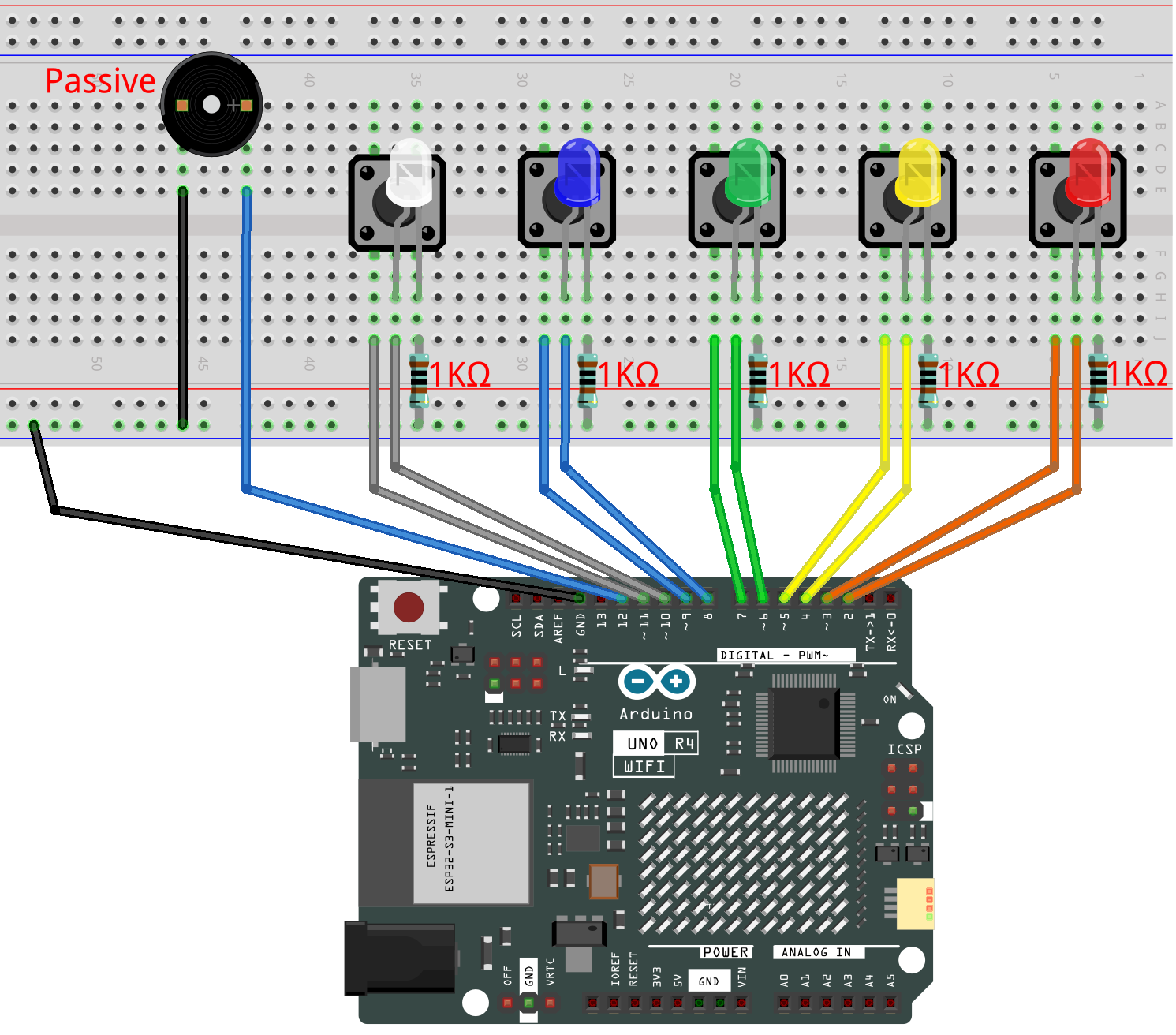
Common Connections:
LEDS
White: Connect the LED anode to 10 on the Arduino, and the cathode to a 1kΩ resistor, then to the negative power bus on the breadboard.
Blue: Connect the LED anode to 8 on the Arduino, and the cathode to a 1kΩ resistor, then to the negative power bus on the breadboard.
Green: Connect the LED anode to 6 on the Arduino, and the cathode to a 1kΩ resistor, then to the negative power bus on the breadboard.
Yellow: Connect the LED anode to 4**on the Arduino , and the **cathode to a 1kΩ resistor, then to the negative power bus on the breadboard.
Red: Connect the LED anode to 2 on the Arduino, and the cathode to a 1kΩ resistor, then to the negative power bus on the breadboard.
Passive Buzzer
+: Connect to 12 on the Arduino.
-: Connect to breadboard’s negative power bus.
Buttons
White Button: Connect to the White LED’s cathode on the breadboard, and the other end to 11 on the Arduino board.
Blue Button: Connect to the Blue LED’s cathode on the breadboard, and the other end to 9 on the Arduino board.
Green Butto: Connect to the Green LED’s cathode on the breadboard, and the other end to 7 on the Arduino board.
Yellow Butto: Connect to the Yellow LED’s cathode on the breadboard, and the other end to 5 on the Arduino board.
Red Butto: Connect to the Red LED’s cathode on the breadboard, and the other end to 3 on the Arduino board.
Writing the Code
Note
You can copy this code into Arduino IDE.
Don’t forget to select the board(Arduino UNO R4 Minima) and the correct port before clicking the Upload button.
// ==== LED and Button pin definitions ====
const int redLED = 2;      // Red LED pin
const int yellowLED = 4;   // Yellow LED pin
const int greenLED = 6;    // Green LED pin
const int blueLED = 8;     // Blue LED pin
const int whiteLED = 10;   // White LED pin (new)

const int redButton = 3;      // Red button pin
const int yellowButton = 5;   // Yellow button pin
const int greenButton = 7;    // Green button pin
const int blueButton = 9;     // Blue button pin
const int whiteButton = 11;   // White button pin (new)

const int buzzer = 12;     // Buzzer pin

// ==== Game data ====
int sequence[100];      // Store the game sequence (LED colors)
int playerInput[100];   // Store what the player presses
int level = 0;          // Current length of the sequence
bool gameOver = false;  // Flag to check if the game is over

void setup() {
  // Set LED pins as output
  pinMode(redLED, OUTPUT);
  pinMode(yellowLED, OUTPUT);
  pinMode(greenLED, OUTPUT);
  pinMode(blueLED, OUTPUT);
  pinMode(whiteLED, OUTPUT);

  // Set button pins as input with pull-up resistors
  pinMode(redButton, INPUT_PULLUP);
  pinMode(yellowButton, INPUT_PULLUP);
  pinMode(greenButton, INPUT_PULLUP);
  pinMode(blueButton, INPUT_PULLUP);
  pinMode(whiteButton, INPUT_PULLUP);

  pinMode(buzzer, OUTPUT);

  Serial.begin(9600);  // For debugging if needed

  // Start the game
  startGame();
}

void loop() {
  if (!gameOver) {
    // Show the sequence to the player
    playSequence();

    // Wait for player's input
    if (!getPlayerInput()) {
      // If wrong, end the game
      endGame();
    } else {
      delay(500); // Small pause before next round
    }
  } else {
    // Restart the game after short delay
    delay(1500);
    startGame();
  }
}

// Reset and start a new game
void startGame() {
  level = 0;       // Reset sequence length
  gameOver = false;

  // Flash all LEDs and play a tone to show game start
  allLEDsOn();
  tone(buzzer, 1000, 500);
  delay(500);
  allLEDsOff();

  // Make random numbers different each time
  randomSeed(analogRead(A0));
  delay(500);
}

// Add 2 new random colors to the sequence and replay all
void playSequence() {
  sequence[level] = random(1, 6);     // First new color (1–5)
  sequence[level + 1] = random(1, 6); // Second new color
  level += 2; // Increase sequence length by 2

  // Show the sequence step by step
  for (int i = 0; i < level; i++) {
    lightUpLED(sequence[i]);
    delay(300);
  }
}

// Read the player's input and check if correct
bool getPlayerInput() {
  for (int i = 0; i < level; i++) {
    bool inputReceived = false;

    // Wait until a button is pressed
    while (!inputReceived) {
      if (digitalRead(redButton) == LOW) {
        playerInput[i] = 1;
        lightUpLED(1);
        inputReceived = true;
      } else if (digitalRead(yellowButton) == LOW) {
        playerInput[i] = 2;
        lightUpLED(2);
        inputReceived = true;
      } else if (digitalRead(greenButton) == LOW) {
        playerInput[i] = 3;
        lightUpLED(3);
        inputReceived = true;
      } else if (digitalRead(blueButton) == LOW) {
        playerInput[i] = 4;
        lightUpLED(4);
        inputReceived = true;
      } else if (digitalRead(whiteButton) == LOW) {
        playerInput[i] = 5;
        lightUpLED(5);
        inputReceived = true;
      }
    }

    // Check if player's input matches the sequence
    if (playerInput[i] != sequence[i]) {
      return false;  // Wrong input
    }
    delay(200); // Small pause before next input
  }
  return true; // All correct
}

// Show "game over" animation
void endGame() {
  gameOver = true;

  for (int i = 0; i < 5; i++) {
    allLEDsOn();
    tone(buzzer, 1000, 200);
    delay(200);
    allLEDsOff();
    delay(200);
  }
}

// Turn on one LED and play its tone
void lightUpLED(int color) {
  switch (color) {
    case 1: digitalWrite(redLED, HIGH);    tone(buzzer, 500, 300); break;
    case 2: digitalWrite(yellowLED, HIGH); tone(buzzer, 600, 300); break;
    case 3: digitalWrite(greenLED, HIGH);  tone(buzzer, 700, 300); break;
    case 4: digitalWrite(blueLED, HIGH);   tone(buzzer, 800, 300); break;
    case 5: digitalWrite(whiteLED, HIGH);  tone(buzzer, 900, 300); break;
  }
  delay(300);

  noTone(buzzer); // Stop the sound
  allLEDsOff();   // Turn off all LEDs
}

// Helper: turn on all LEDs
void allLEDsOn() {
  digitalWrite(redLED, HIGH);
  digitalWrite(yellowLED, HIGH);
  digitalWrite(greenLED, HIGH);
  digitalWrite(blueLED, HIGH);
  digitalWrite(whiteLED, HIGH);
}

// Helper: turn off all LEDs
void allLEDsOff() {
  digitalWrite(redLED, LOW);
  digitalWrite(yellowLED, LOW);
  digitalWrite(greenLED, LOW);
  digitalWrite(blueLED, LOW);
  digitalWrite(whiteLED, LOW);
}