Speed Detection
Note
🌟 Welcome to the SunFounder Facebook Community! Whether you’re into Raspberry Pi, Arduino, or ESP32, you’ll find inspiration, help ideas here.
✅ Be the first to get free learning resources.
✅ Stay updated on new products & exclusive giveaways.
✅ Share your creations and get real feedback.
Kit purchase
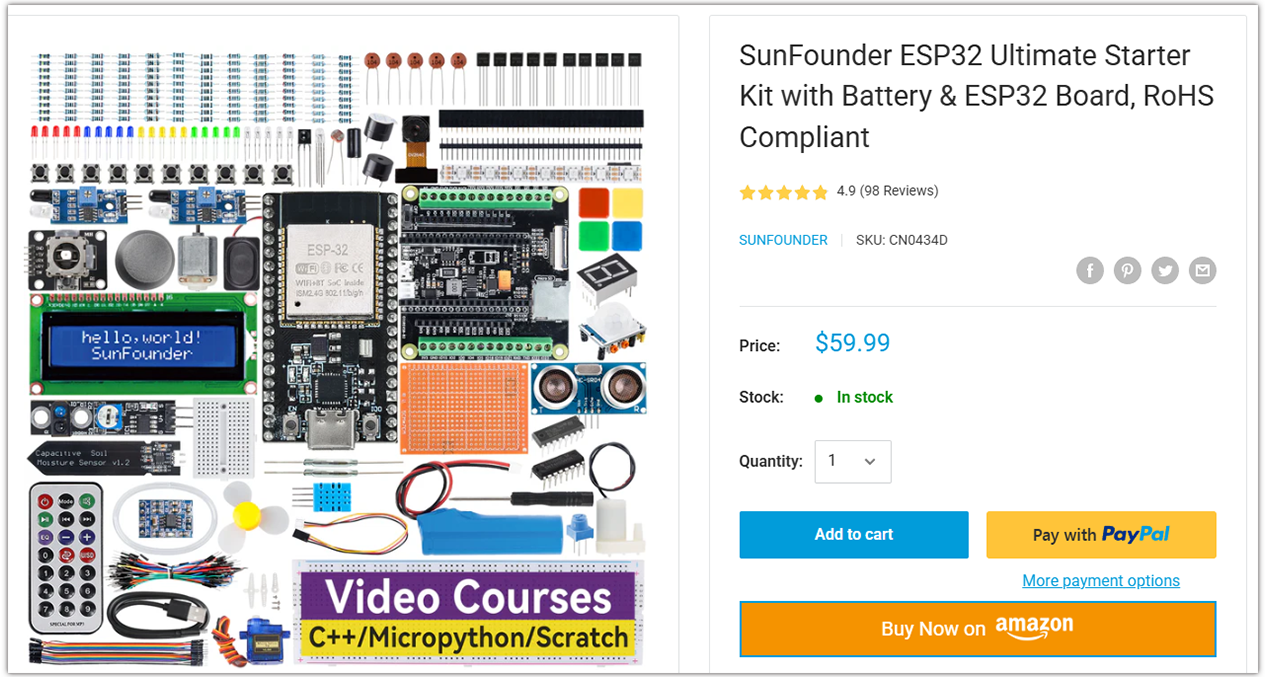
Looking for parts? Check out our all-in-one kits below — packed with components, beginner-friendly guides, and tons of fun.
Name |
Includes ESP32 board |
PURCHASE LINK |
|---|---|---|
ESP32 Ultimate Starter Kit |
ESP32 WROOM 32E + |
|
Universal Maker Sensor Kit |
Course Introduction
This project functions as a basic speed detection system using two infrared (IR) sensors and an LCD display.
When a vehicle passes the front sensor, the system starts a timer; it stops the timer once the vehicle triggers the back sensor.
Using the known distance between the sensors, the system calculates the vehicle’s speed and displays it in km/h on a 16x2 I2C LCD.
If the speed exceeds a set threshold (e.g., 60 km/h), a buzzer alerts for overspeeding. The LCD resets after each detection cycle, ready for the next vehicle.
Note
If this is your first time working with an ESP32 project, we recommend downloading and reviewing the basic materials first.
Required Components
In this project, we need the following components:
SN |
COMPONENT INTRODUCTION |
QUANTITY |
PURCHASE LINK |
|---|---|---|---|
1 |
ESP-WROOM-32 ESP32 ESP-32S Development Board |
1 |
|
2 |
USB Type-C cable |
1 |
|
3 |
Breadboard |
1 |
|
4 |
Wires |
Several |
|
5 |
I2C LCD 1602 |
1 |
|
6 |
IR Obstacle Avoidance Sensor Module |
2 |
|
7 |
Passive Buzzer |
1 |
Wiring

Common Connections:
Passive Buzzer
+: Connect to GPIO25 on the ESP32.
-: Connect to breadboard’s negative power bus.
I2C LCD 1602
SDA: Connect to GPIO21 on the ESP32.
SCL: Connect to GPIO22 on the ESP32.
GND: Connect to breadboard’s negative power bus.
VCC: Connect to breadboard’s 5V red power bus.
IR Obstacle Avoidance Sensor Module Front
OUT: Connect to GPIO32 on the Arduino.
GND: Connect to breadboard’s negative power bus.
VCC: Connect to breadboard’s 3.3V red power bus.
IR Obstacle Avoidance Sensor Module Back
OUT: Connect to GPIO33 on the Arduino.
GND: Connect to breadboard’s negative power bus.
VCC: Connect to breadboard’s 3.3V red power bus.
Writing the Code
Note
You can copy this code into Arduino IDE.
To install the library, use the Arduino Library Manager and search for LiquidCrystal I2C and install it.
Don’t forget to select the board(ESP32 Dev module) and the correct port before clicking the Upload button.
#include <Wire.h>
#include <LiquidCrystal_I2C.h>

// Use I2C address 0x27, 16x2 LCD
LiquidCrystal_I2C lcd(0x27, 16, 2);

// ---- Pin map (ESP32 DevKit v1 safe choices) ----
// IR sensors (digital, active LOW)
const int irFront = 32;   // Front IR sensor input (GPIO32)
const int irBack  = 33;   // Back IR sensor input  (GPIO33)

// Active buzzer (driven HIGH to beep)
const int buzzer  = 25;   // Buzzer output (GPIO25)

// Distance between the two sensors in meters
float distanceMeters = 1.30;

// Timing
unsigned long t1 = 0, t2 = 0;
bool carDetected = false;

void setup() {
  // ESP32 I2C pins: SDA=21, SCL=22 (set bus here before using lcd)
  Wire.begin(21, 22);

  // Inputs/outputs
  pinMode(irFront, INPUT);   // Use INPUT unless your sensor needs pull-ups
  pinMode(irBack,  INPUT);
  pinMode(buzzer,  OUTPUT);
  digitalWrite(buzzer, LOW);

  // LCD init
  lcd.init();
  lcd.backlight();
  lcd.setCursor(0, 0);
  lcd.print("No car detected");
}

void loop() {
  // Wait for a car to pass the front sensor (active LOW)
  if (!carDetected && digitalRead(irFront) == LOW) {
    carDetected = true;
    t1 = millis();

    lcd.clear();
    lcd.setCursor(0, 0);
    lcd.print("Searching...");

    // Wait until back sensor is triggered, with timeout safeguard
    const unsigned long waitTimeoutMs = 5000; // 5 s failsafe
    unsigned long startWait = millis();
    while (digitalRead(irBack) == HIGH) {
      if (millis() - startWait > waitTimeoutMs) {
        // Timeout: reset state and notify
        lcd.clear();
        lcd.setCursor(0, 0);
        lcd.print("Back sensor TO");
        delay(1500);
        lcd.clear();
        lcd.setCursor(0, 0);
        lcd.print("No car detected");
        carDetected = false;
        return;
      }
      delay(1);
    }

    t2 = millis();

    // Compute speed
    unsigned long deltaT = t2 - t1;          // ms
    float timeSec = deltaT / 1000.0f;        // s
    float speedKmh = (distanceMeters / timeSec) * 3.6f;

    lcd.clear();
    lcd.setCursor(0, 0);
    lcd.print("Speed: ");
    lcd.print((int)speedKmh);
    lcd.print(" km/h");

    lcd.setCursor(0, 1);
    if (speedKmh <= 60.0f) {
      lcd.print("Normal Speed");
    } else {
      lcd.print("Over Speeding");
      digitalWrite(buzzer, HIGH);
      delay(1000);
      digitalWrite(buzzer, LOW);
    }

    delay(3000);
    lcd.clear();
    lcd.setCursor(0, 0);
    lcd.print("No car detected");
    carDetected = false;
  }
}