Morse Code
Note
🌟 Welcome to the SunFounder Facebook Community! Whether you’re into Raspberry Pi, Arduino, or ESP32, you’ll find inspiration, help ideas here.
✅ Be the first to get free learning resources.
✅ Stay updated on new products & exclusive giveaways.
✅ Share your creations and get real feedback.
Kit purchase
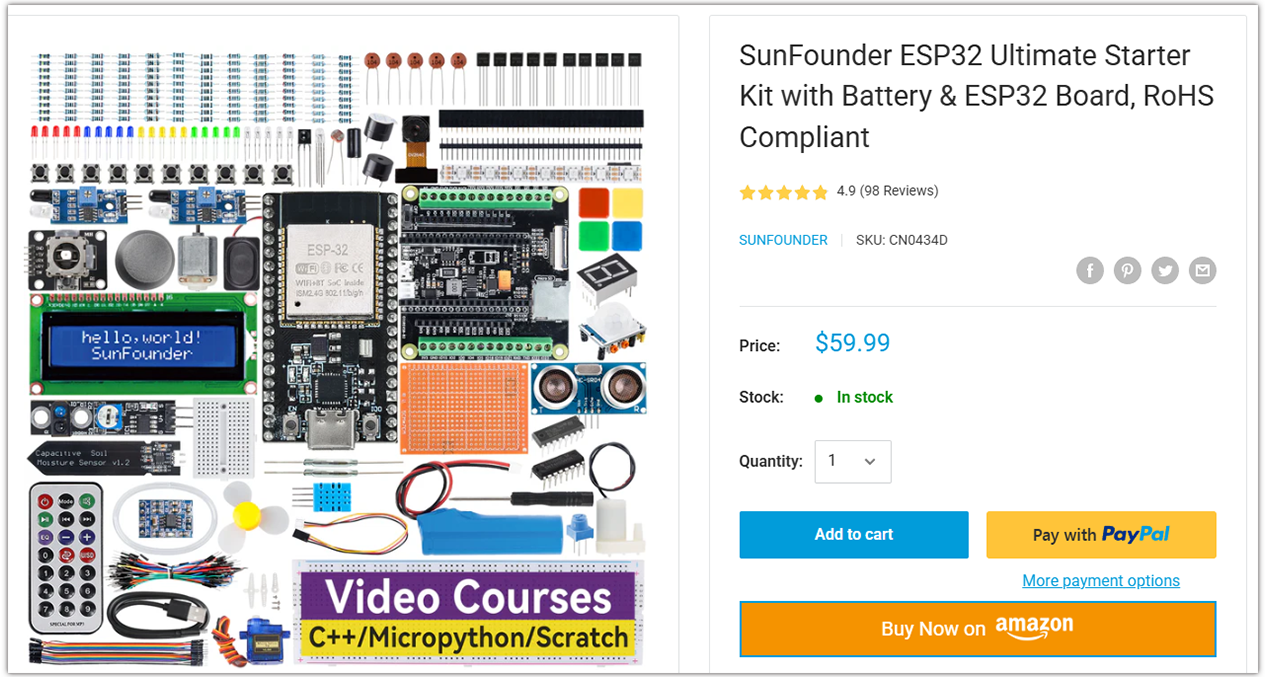
Looking for parts? Check out our all-in-one kits below — packed with components, beginner-friendly guides, and tons of fun.
Name |
Includes ESP32 board |
PURCHASE LINK |
|---|---|---|
ESP32 Ultimate Starter Kit |
ESP32 WROOM 32E + |
|
Universal Maker Sensor Kit |
Course Introduction
In this lesson, you’ll use a button, an LED, and a buzzer with the ESP32 to create a simple Morse code trainer.
By pressing the button for short or long durations, you can input dots and dashes. The LED and buzzer provide immediate feedback, and the serial monitor displays whether you sent a dot (·) or a dash (—). This project is great for learning Morse code basics interactively.
Note
If this is your first time working with an ESP32 project, we recommend downloading and reviewing the basic materials first.
Required Components
In this project, we need the following components:
SN |
COMPONENT INTRODUCTION |
QUANTITY |
PURCHASE LINK |
|---|---|---|---|
1 |
ESP-WROOM-32 ESP32 ESP-32S Development Board |
1 |
|
2 |
USB Type-C cable |
1 |
|
3 |
Breadboard |
1 |
|
4 |
Wires |
Several |
|
5 |
Active Buzzer |
1 |
|
6 |
Button |
1 |
|
7 |
LED |
1 |
|
8 |
1kΩ resistor |
1 |
Wiring
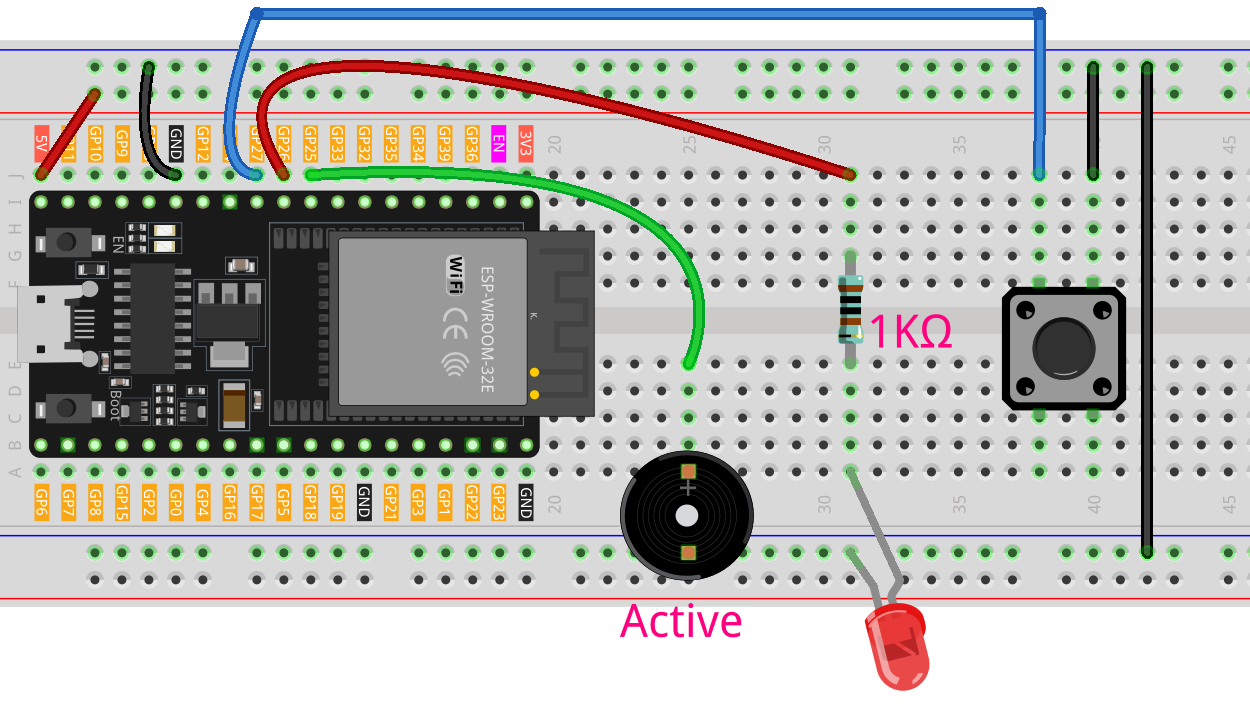
Common Connections:
LED
Connect the LED to a 1kΩ resistor, then to anode to GPIO26 on the ESP32, and the cathode to the negative power bus on the breadboard.
Passive Buzzer
+: Connect to 25 on the ESP32.
-: Connect to breadboard’s negative power bus.
Button
Connect to the breadboard’s negative power bus, and the other end to GPIO27 on the ESP32 board.
Writing the Code
Note
You can copy this code into Arduino IDE.
Don’t forget to select the board(ESP32 Dev module) and the correct port before clicking the Upload button.
// ===== ESP32-Compatible Morse Code Trainer =====
// NOTE:
// - Uses internal pull-up on the button (active LOW).
// - Active buzzer is driven by GPIO HIGH/LOW (no PWM needed).
// - Avoid ESP32 strapping pins and input-only pins.

#include <Arduino.h>

// ---------- Pin Definitions (ESP32 safe GPIOs) ----------
const int BUTTON_PIN = 27; // Push button to GND (has internal pull-up)
const int BUZZER_PIN = 25; // Active buzzer (+) to GPIO, (-) to GND
const int LED_PIN    = 26; // LED anode via 220Ω resistor to GPIO

// ---------- Timing Constants (milliseconds) ----------
const int DOT_DURATION   = 200;  // Standard dot duration
const int DASH_DURATION  = 600;  // Standard dash duration
const int DEBOUNCE_DELAY = 50;   // Button debounce time

// ---------- Global State ----------
bool lastButtonState = HIGH;        // Previous sampled button state
unsigned long pressStartTime = 0;   // Timestamp when button was pressed

void activateFeedback();    // Turn ON LED and buzzer
void deactivateFeedback();  // Turn OFF LED and buzzer
void handleMorseSymbol();   // Decide dot vs dash after release

void setup() {
  // Use a higher baud on ESP32 for snappier logs
  Serial.begin(115200);
  while (!Serial) { /* wait on native USB boards; harmless on ESP32 */ }

  // Configure I/O
  pinMode(BUTTON_PIN, INPUT_PULLUP); // Internal pull-up, active LOW
  pinMode(LED_PIN, OUTPUT);
  pinMode(BUZZER_PIN, OUTPUT);

  // Ensure outputs start OFF
  digitalWrite(LED_PIN, LOW);
  digitalWrite(BUZZER_PIN, LOW);

  Serial.println("Morse Code Trainer Ready (ESP32)");
  Serial.println("Short press: Dot (·)   Long press: Dash (—)");
}

void loop() {
  // Read current button state (LOW when pressed)
  int currentButtonState = digitalRead(BUTTON_PIN);

  // Detect press edge: HIGH -> LOW
  if (currentButtonState == LOW && lastButtonState == HIGH) {
    delay(DEBOUNCE_DELAY); // Debounce guard
    if (digitalRead(BUTTON_PIN) == LOW) {
      pressStartTime = millis(); // Mark press start time
      activateFeedback();        // Visual + audio ON
      Serial.println("Button PRESSED");
    }
  }

  // Detect release edge: LOW -> HIGH
  if (currentButtonState == HIGH && lastButtonState == LOW) {
    delay(DEBOUNCE_DELAY); // Debounce guard
    if (digitalRead(BUTTON_PIN) == HIGH) {
      deactivateFeedback(); // Turn feedback OFF immediately
      handleMorseSymbol();  // Classify the symbol
    }
  }

  // Update last state for next loop
  lastButtonState = currentButtonState;
}

// Turn ON both visual and audio feedback
void activateFeedback() {
  digitalWrite(LED_PIN, HIGH);
  digitalWrite(BUZZER_PIN, HIGH); // Active buzzer: HIGH = sound
}

// Turn OFF both feedback channels
void deactivateFeedback() {
  digitalWrite(LED_PIN, LOW);
  digitalWrite(BUZZER_PIN, LOW);
}

// Decide dot or dash based on press duration
void handleMorseSymbol() {
  unsigned long pressDuration = millis() - pressStartTime;

  if (pressDuration < DASH_DURATION) {
    Serial.println("Sent: DOT (·)");
    // Enforce minimum dot duration so the tempo feels consistent
    if (pressDuration < DOT_DURATION) {
      delay(DOT_DURATION - pressDuration);
    }
  } else {
    Serial.println("Sent: DASH (—)");
    // Enforce minimum dash duration
    if (pressDuration < DASH_DURATION) {
      delay(DASH_DURATION - pressDuration);
    }
  }
}