Digital Dice
Note
🌟 Welcome to the SunFounder Facebook Community! Whether you’re into Raspberry Pi, Arduino, or ESP32, you’ll find inspiration, help ideas here.
✅ Be the first to get free learning resources.
✅ Stay updated on new products & exclusive giveaways.
✅ Share your creations and get real feedback.
Kit purchase
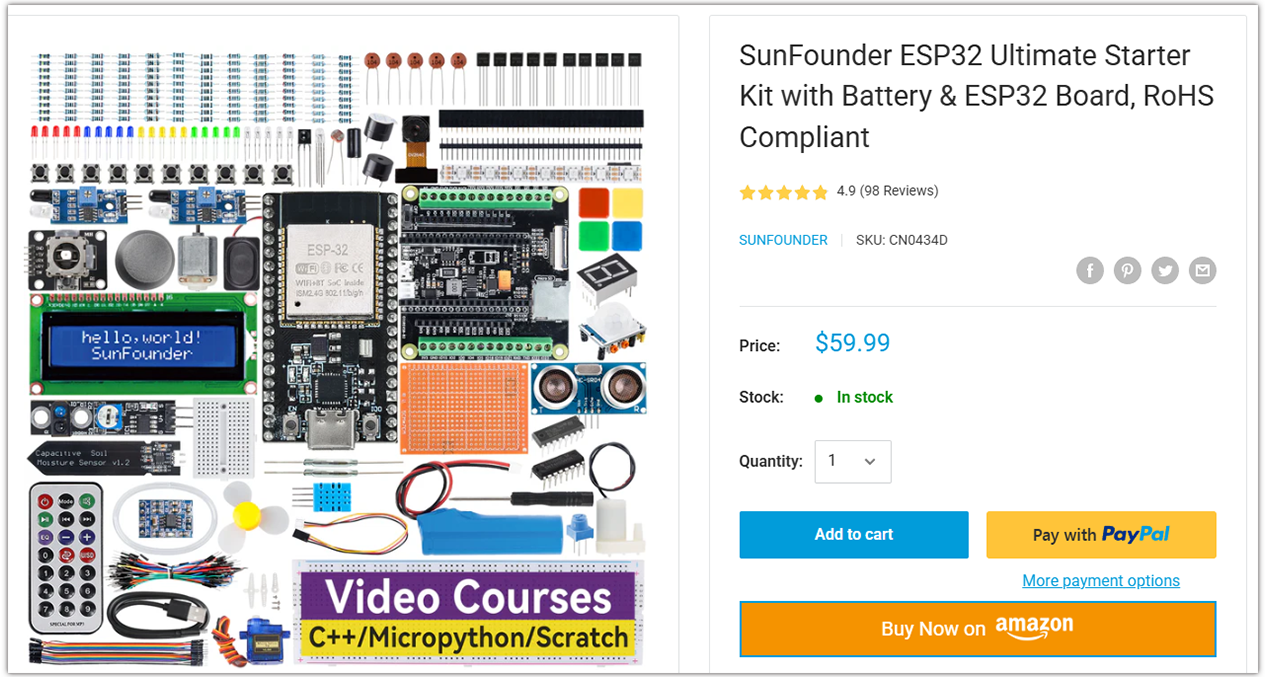
Looking for parts? Check out our all-in-one kits below — packed with components, beginner-friendly guides, and tons of fun.
Name |
Includes ESP32 board |
PURCHASE LINK |
|---|---|---|
ESP32 Ultimate Starter Kit |
ESP32 WROOM 32E + |
|
Universal Maker Sensor Kit |
Course Introduction
This program simulates a dice roll using an OLED display. The simulation is triggered by shaking the vibration switch, causing the display to cycle through numbers 1 to 6, akin to rolling a dice. The display halts after a short duration, revealing a randomly selected number that represents the dice roll outcome.
Note
If this is your first time working with an ESP32 project, we recommend downloading and reviewing the basic materials first.
Required Components
In this project, we need the following components:
SN |
COMPONENT INTRODUCTION |
QUANTITY |
PURCHASE LINK |
|---|---|---|---|
1 |
ESP-WROOM-32 ESP32 ESP-32S Development Board |
1 |
|
2 |
USB Type-C cable |
1 |
|
3 |
Breadboard |
1 |
|
4 |
Wires |
Several |
|
5 |
Vibration Switch Sensor Module |
1 |
|
6 |
OLED Display Module |
1 |
Wiring
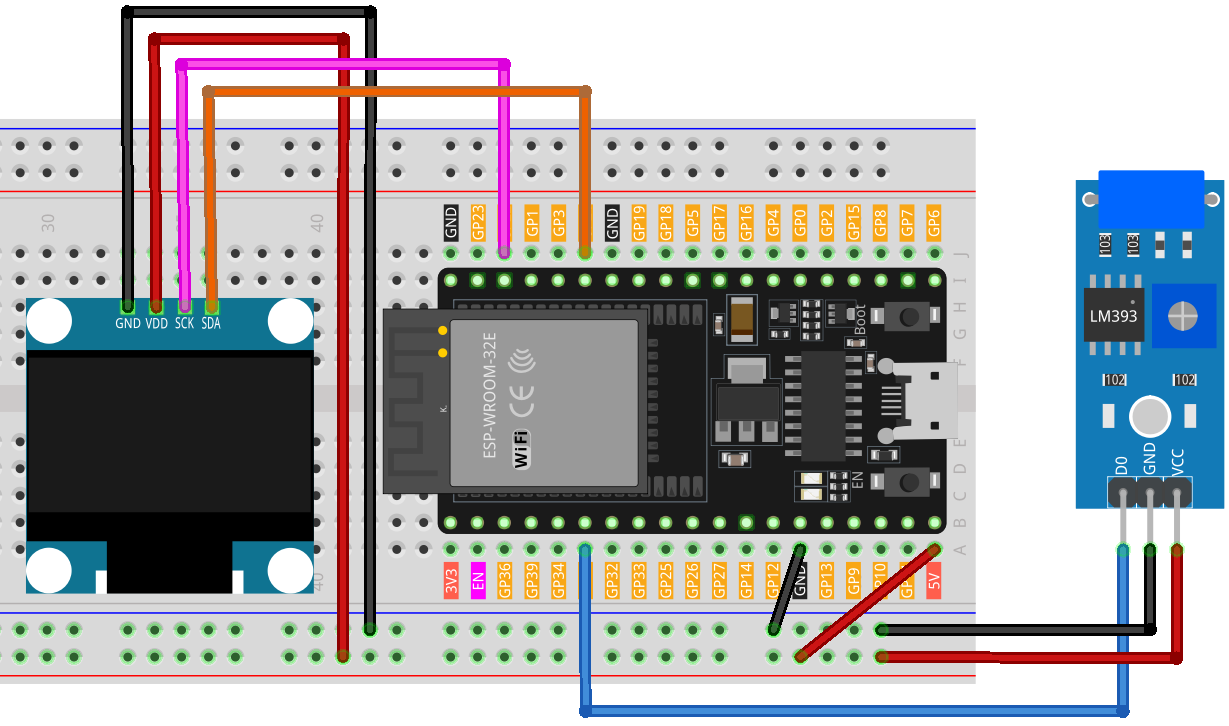
Common Connections:
OLED Display Module
SDA: Connect to GPIO21 on the ESP32.
SCK: Connect to GPIO22 on the ESP32.
GND: Connect to breadboard’s negative power bus.
VCC: Connect to breadboard’s red power bus.
Vibration Switch Sensor Module
D0: Connect to GPIO35 on the ESP32.
VCC: Connect to breadboard’s red power bus.
GND: Connect to breadboard’s negative power bus.
Writing the Code
Note
You can copy this code into Arduino IDE.
To install the library, use the Arduino Library Manager and search for Adafruit SSD1306 and Adafruit GFX and install it.
Don’t forget to select the board(ESP32 Dev module) and the correct port before clicking the Upload button.
/*
  This code simulates a dice roll on a OLED display. Shaking the device
  (vib switch activation) starts the roll, displaying random numbers rapidly
  and stopping after a short duration.

  Board: ESP32
  Component: OLED Display with 74HC595 and vib Switch
*/


#include <SPI.h>
#include <Wire.h>
#include <Adafruit_GFX.h>
#include <Adafruit_SSD1306.h>

#define SCREEN_WIDTH 128  // OLED display width, in pixels
#define SCREEN_HEIGHT 64  // OLED display height, in pixels

// Declaration for SSD1306 display connected using I2C
#define OLED_RESET -1  // Reset pin # (or -1 if sharing Arduino reset pin)
#define SCREEN_ADDRESS 0x3C
Adafruit_SSD1306 display(SCREEN_WIDTH, SCREEN_HEIGHT, &Wire, OLED_RESET);


const int vibPin = 35;    // The pin where the vib switch is connected

// State and timing variables
volatile bool rolling = false;
unsigned long lastShakeTime = 0;

void setup() {
  // Initialize pins
  pinMode(vibPin, INPUT);

  // initialize the OLED object
  if (!display.begin(SSD1306_SWITCHCAPVCC, SCREEN_ADDRESS)) {
    Serial.println(F("SSD1306 allocation failed"));
    for (;;)
      ;
  }

  // Attach an interrupt to the vibPin. When the vib switch is activated, the shakeDetected function will be called
  attachInterrupt(digitalPinToInterrupt(vibPin), rollDice, CHANGE);
}


void loop() {
  // Check if it's rolling
  if (rolling) {
    byte number = random(1, 7);  // Generate a random number between 1 and 6
    displayNumber(number);
    delay(80);  // Delay to make the rolling effect visible

    // Stop rolling after 1 second
    if ((millis() - lastShakeTime) > 1000) {
      rolling = false;
    }
  }
}

// Interrupt handler for shake detection
void rollDice() {
  if (digitalRead(vibPin) == LOW) {
    lastShakeTime = millis();  // Record the time of shake
    rolling = true;            // Start rolling
  }
}

// Function to display a number on the 7-segment display
void displayNumber(byte number) {
  display.clearDisplay();  // Clear the screen


  // Display Text
  display.setTextSize(4);       // Set text size
  display.setTextColor(WHITE);  // Set text color
  display.setCursor(54, 20);     // Set cursor position
  display.println(number);
  display.display();  // Display the content on the screen

}