Nota
Ciao, benvenuto nella Community di Appassionati di Raspberry Pi & Arduino & ESP32 di SunFounder su Facebook! Approfondisci Raspberry Pi, Arduino ed ESP32 insieme ad altri appassionati.
Perché Unirsi?
Supporto da Esperti: Risolvi problemi post-vendita e sfide tecniche con l’aiuto della nostra community e del nostro team.
Impara e Condividi: Scambia suggerimenti e tutorial per migliorare le tue competenze.
Anteprime Esclusive: Ottieni accesso anticipato agli annunci dei nuovi prodotti e alle anteprime.
Sconti Speciali: Approfitta di sconti esclusivi sui nostri prodotti più recenti.
Promozioni e Giveaway Festivi: Partecipa ai giveaway e alle promozioni festive.
👉 Pronto a esplorare e creare con noi? Clicca [Qui] e unisciti oggi stesso!
7.5 GIOCO - 10 Secondi
Per mettere alla prova la tua concentrazione, segui le istruzioni per creare un dispositivo di gioco. Realizza una bacchetta magica collegando l’interruttore a inclinazione a un bastoncino. Quando agiti la bacchetta, il display a 4 cifre inizia a contare, e quando la agiti di nuovo, il conteggio si ferma. Per vincere, devi mantenere il conteggio visualizzato su 10.00. Puoi giocare con i tuoi amici per vedere chi è il mago del tempo.
Componenti Necessari
In questo progetto, abbiamo bisogno dei seguenti componenti.
È sicuramente conveniente acquistare un kit completo, ecco il link:
Nome |
ELEMENTI IN QUESTO KIT |
LINK |
|---|---|---|
Kepler Kit |
450+ |
Puoi anche acquistarli separatamente dai link sottostanti.
SN |
COMPONENTE |
QUANTITÀ |
LINK |
|---|---|---|---|
1 |
1 |
||
2 |
Cavo Micro USB |
1 |
|
3 |
1 |
||
4 |
Diversi |
||
5 |
5(4-220Ω, 1-10KΩ) |
||
6 |
1 |
||
7 |
1 |
||
8 |
1 |
Schema
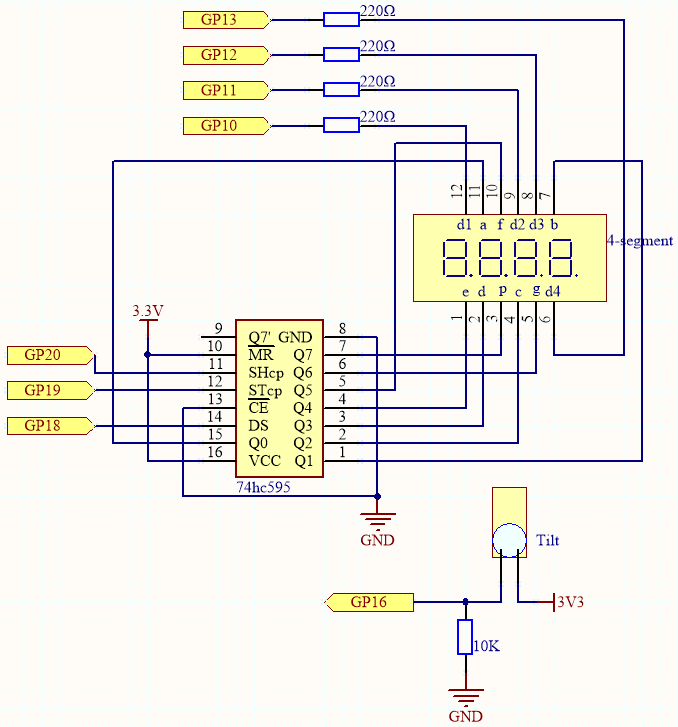
Questo circuito è basato su 5.3 Contatore di Tempo con l’aggiunta di un interruttore a inclinazione.
GP16 è alto quando l’interruttore è in posizione verticale; basso quando è inclinato.
Cablaggio

Codice
Nota
Apri il file
7.5_game_10_second.pynel percorsokepler-kit-main/micropythonoppure copia questo codice in Thonny, quindi clicca su «Run Current Script» o semplicemente premi F5 per eseguirlo.Non dimenticare di selezionare l’interprete «MicroPython (Raspberry Pi Pico)» nell’angolo in basso a destra.
Per tutorial dettagliati, fai riferimento a Aprire ed Eseguire Codice Direttamente.
import machine
import time

# 7-segment display codes for digits 0-9, using hexadecimal to represent LED segments
SEGCODE = [0x3f,0x06,0x5b,0x4f,0x66,0x6d,0x7d,0x07,0x7f,0x6f]

# Define pins for shift register communication (74HC595)
sdi = machine.Pin(18, machine.Pin.OUT)   # Serial Data Input
rclk = machine.Pin(19, machine.Pin.OUT)  # Register Clock (Latch)
srclk = machine.Pin(20, machine.Pin.OUT) # Shift Register Clock

# Initialize list to store 4 digit control pins
placePin = []

# Define control pins for each of the four digits (common anodes)
pin = [10,13,12,11]  # Pin numbers for the 4-digit display
for i in range(4):
    placePin.append(None)  # Reserve space in list
    placePin[i] = machine.Pin(pin[i], machine.Pin.OUT)  # Initialize pin as output

# Function to select which digit (0-3) to display by controlling the common anode pins
def pickDigit(digit):
    for i in range(4):
        placePin[i].value(1)  # Turn off all digits
    placePin[digit].value(0)  # Turn on the selected digit

# Function to clear the display by sending '0x00' to the shift register
def clearDisplay():
    hc595_shift(0x00)

# Function to send data to the shift register (74HC595)
def hc595_shift(dat):
    rclk.low()  # Pull latch low to prepare for data shifting
    time.sleep_us(200)  # Small delay for timing stability
    for bit in range(7, -1, -1):  # Loop through each bit (MSB first)
        srclk.low()  # Prepare to send the next bit
        time.sleep_us(200)
        value = 1 & (dat >> bit)  # Extract the current bit from the data
        sdi.value(value)  # Set the data line to the current bit value
        time.sleep_us(200)
        srclk.high()  # Pulse the shift clock to store the bit in the register
        time.sleep_us(200)
    time.sleep_us(200)
    rclk.high()  # Pulse the register clock to move the data to the output

# Function to display a number on the 7-segment display
# This function breaks down the number into its individual digits and displays them one at a time
def display(num):
    pickDigit(0)  # Select the units place
    hc595_shift(SEGCODE[num % 10])  # Display units

    pickDigit(1)  # Select the tens place
    hc595_shift(SEGCODE[num % 100 // 10])  # Display tens

    pickDigit(2)  # Select the hundreds place
    hc595_shift(SEGCODE[num % 1000 // 100] + 0x80)  # Display hundreds (with decimal point)

    pickDigit(3)  # Select the thousands place
    hc595_shift(SEGCODE[num % 10000 // 1000])  # Display thousands

# Initialize the tilt switch sensor on pin 16
tilt_switch = machine.Pin(16, machine.Pin.IN)

# Boolean flag to control whether the counting should continue
count_flag = False

# Interrupt handler for the tilt switch, toggles the counting flag on each trigger
def shake(pin):
    global timeStart, count_flag
    count_flag = not count_flag  # Toggle the counting state
    if count_flag == True:
        timeStart = time.ticks_ms()  # Record the time when counting starts

# Set up an interrupt on the tilt switch to detect shaking and call the shake() function
tilt_switch.irq(trigger=machine.Pin.IRQ_RISING, handler=shake)

# Initialize the count variable to zero
count = 0

# Main loop to continuously update the display based on the elapsed time since the tilt switch was triggered
while True:
    if count_flag == True:
        count = int((time.ticks_ms() - timeStart) / 10)  # Calculate the count in tenths of a second
    display(count)  # Update the display with the current count
Il display a 4 cifre inizia a contare quando agiti la bacchetta, e si ferma quando la agiti di nuovo. Vinci se riesci a mantenere il conteggio visualizzato su 10.00. Il gioco continuerà dopo un’altra scossa.