Nota
Ciao, benvenuto nella SunFounder Raspberry Pi & Arduino & ESP32 Enthusiasts Community su Facebook! Unisciti a noi per approfondire l’uso di Raspberry Pi, Arduino ed ESP32 insieme ad altri appassionati.
Perché Unirsi?
Supporto Esperto: Risolvi i problemi post-vendita e le sfide tecniche con l’aiuto della nostra comunità e del nostro team.
Impara e Condividi: Scambia suggerimenti e tutorial per migliorare le tue competenze.
Anteprime Esclusive: Ottieni accesso anticipato alle novità sui prodotti e anteprime esclusive.
Sconti Speciali: Goditi sconti esclusivi sui nostri prodotti più recenti.
Promozioni Festive e Omaggi: Partecipa a promozioni speciali e omaggi durante le festività.
👉 Pronto a esplorare e creare con noi? Clicca [Qui] e unisciti oggi stesso!
3.1.12 GIOCO – Indovina il Numero
Introduzione
«Indovina il Numero» è un gioco divertente da fare in gruppo: i giocatori inseriscono a turno un numero (da 0 a 99). Ad ogni tentativo, l’intervallo di ricerca si riduce fino a quando qualcuno indovina il numero giusto. Il giocatore che indovina perde e viene «punito». Per esempio, se il numero misterioso è 51, ma i giocatori non lo sanno, e il giocatore ① inserisce 50, il messaggio mostrerà l’intervallo aggiornato a 50~99; se il giocatore ② inserisce 70, l’intervallo diventa 50~70; se il giocatore ③ inserisce 51, è lui a perdere. In questo progetto, useremo un tastierino per inserire i numeri e un LCD per mostrare i risultati.
Componenti Necessari
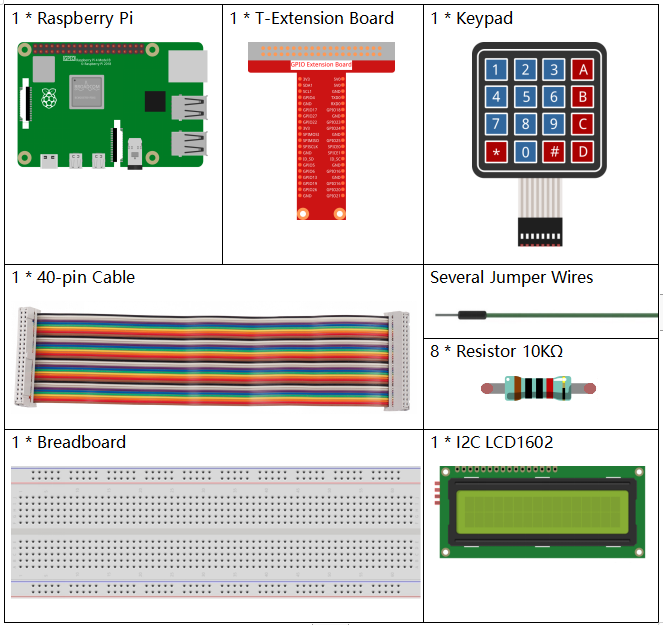
In questo progetto, ci servono i seguenti componenti.
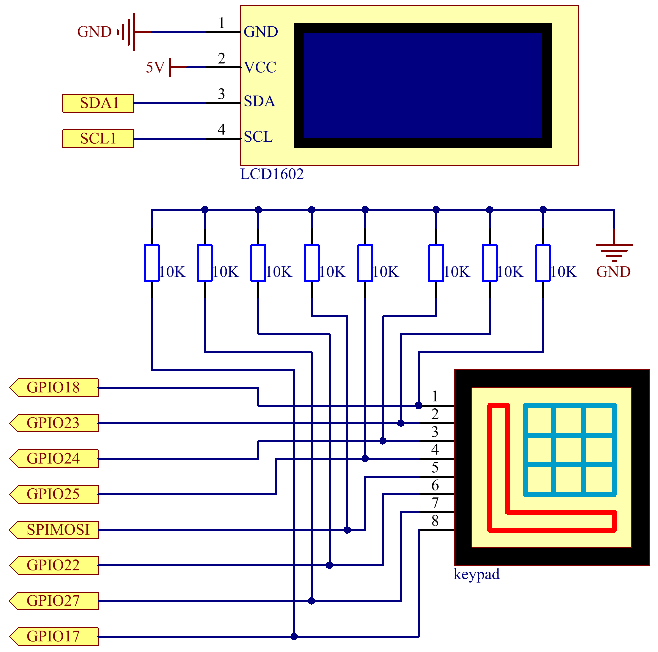
Schema del Circuito
T-Board Name |
physical |
wiringPi |
BCM |
GPIO18 |
Pin 12 |
1 |
18 |
GPIO23 |
Pin 16 |
4 |
23 |
GPIO24 |
Pin 18 |
5 |
24 |
GPIO25 |
Pin 22 |
6 |
25 |
SPIMOSI |
Pin 19 |
12 |
10 |
GPIO22 |
Pin 15 |
3 |
22 |
GPIO27 |
Pin 13 |
2 |
27 |
GPIO17 |
Pin 11 |
0 |
17 |
SDA1 |
Pin 3 |
SDA1(8) |
SDA1(2) |
SCL1 |
Pin 5 |
SCL1(9) |
SDA1(3) |
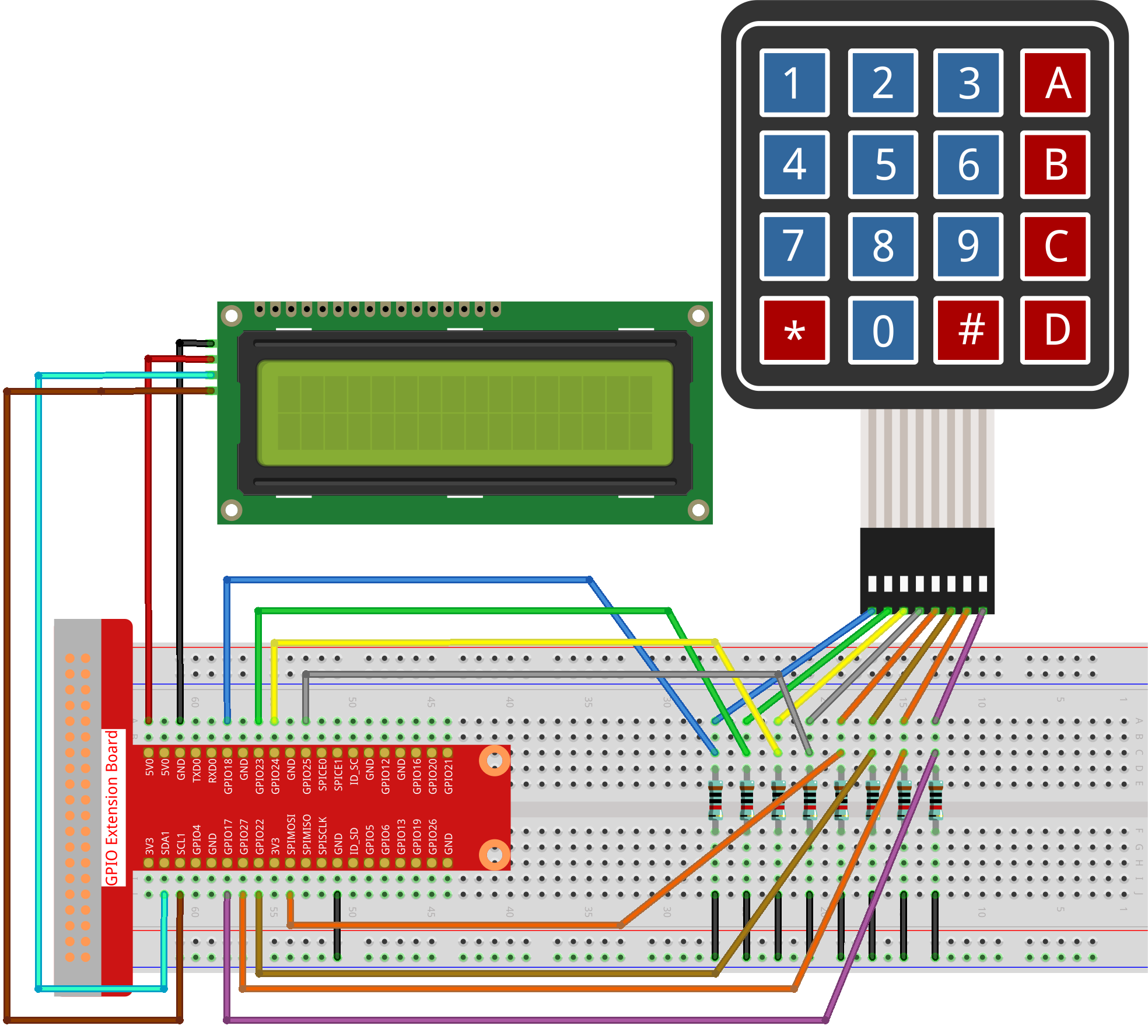
Procedure Sperimentali
Passo 1: Monta il circuito.
Passo 2: Configura l’I2C (vedi Configurazione I²C).
Passo 3: Cambia directory.
cd ~/davinci-kit-for-raspberry-pi/python-pi5
Passo 4: Avvia il programma.
sudo python3 3.1.12_GAME_GuessNumber.py
Dopo l’avvio del programma, sull’LCD comparirà la schermata iniziale:
Welcome!
Press A to go!
Premi “A” per iniziare il gioco e apparirà la schermata di gioco sul LCD.
Enter number:
0 ‹point‹ 99
Quando il gioco inizia, viene generato un numero casuale “point”, ma non viene mostrato sull’LCD. Il tuo compito è indovinare questo numero. Il numero che inserisci appare alla fine della prima riga fino a quando il confronto non viene effettuato. (Premi “D” per avviare il confronto; se il numero inserito è maggiore di 10, il confronto avverrà automaticamente.)
L’intervallo del numero “point” è mostrato sulla seconda riga. Devi inserire il numero entro questo intervallo. Ogni tentativo riduce l’intervallo; se indovini il numero, comparirà “You’ve got it!”
Nota
Se ricevi l’errore
FileNotFoundError: [Errno 2] No such file or directory: '/dev/i2c-1', consulta la sezione Configurazione I²C per abilitare l’I2C.Se ricevi l’errore
ModuleNotFoundError: No module named 'smbus2', esegui il comandosudo apt install python3-smbus2.Se appare l’errore
OSError: [Errno 121] Remote I/O error, significa che il modulo è cablato male o difettoso.Se il codice e i collegamenti sono corretti ma l’LCD non visualizza contenuti, regola il contrasto con il potenziometro sul retro.
Avvertimento
Se appare il messaggio di errore RuntimeError: Cannot determine SOC peripheral base address, consulta Se gpiozero non funziona.
Codice
Nota
Puoi Modificare/Resettare/Copiare/Eseguire/Fermare il codice qui sotto. Prima di fare ciò, però, è necessario accedere al percorso del codice sorgente come davinci-kit-for-raspberry-pi/python-pi5. Dopo aver modificato il codice, puoi eseguirlo direttamente per vedere l’effetto.
#!/usr/bin/env python3

from gpiozero import DigitalOutputDevice, Button
from time import sleep
import LCD1602
import random

class Keypad:
   def __init__(self, rows_pins, cols_pins, keys):
      """
      Initialize the keypad with specified row and column pins and key layout.
      :param rows_pins: List of GPIO pins for the rows.
      :param cols_pins: List of GPIO pins for the columns.
      :param keys: Layout of keys on the keypad.
      """
      self.rows = [DigitalOutputDevice(pin) for pin in rows_pins]  # Configura i pin delle righe
      self.cols = [Button(pin, pull_up=False) for pin in cols_pins]  # Configura i pin delle colonne
      self.keys = keys  # Definisci il layout del tastierino

   def read(self):
      """
      Read and return the currently pressed keys.
      :return: List of pressed keys.
      """
      pressed_keys = []
      for i, row in enumerate(self.rows):
            row.on()  # Attiva la riga corrente
            for j, col in enumerate(self.cols):
               if col.is_pressed:
                  index = i * len(self.cols) + j
                  pressed_keys.append(self.keys[index])  # Aggiungi il tasto premuto
            row.off()  # Disattiva la riga
      return pressed_keys

# Variabili relative al gioco
count = 0
pointValue = 0
upper = 99
lower = 0

def setup():
   """
   Setup function for initializing the keypad and LCD display.
   """
   global keypad, last_key_pressed, keys
   rowsPins = [18, 23, 24, 25]
   colsPins = [10, 22, 27, 17]
   keys = ["1", "2", "3", "A",
            "4", "5", "6", "B",
            "7", "8", "9", "C",
            "*", "0", "#", "D"]
   keypad = Keypad(rowsPins, colsPins, keys)
   last_key_pressed = []
   LCD1602.init(0x27, 1)  # Inizializza LCD
   LCD1602.clear()
   LCD1602.write(0, 0, 'Welcome!')
   LCD1602.write(0, 1, 'Press A to Start!')

def init_new_value():
   """
   Initialize a new target value and reset game parameters.
   """
   global pointValue, upper, lower, count
   pointValue = random.randint(0, 99)
   upper = 99
   lower = 0
   count = 0
   print('point is %d' % pointValue)

def detect_point():
   """
   Check if the guessed number is the target, too high, or too low.
   :return: 1 if correct guess, 0 otherwise.
   """
   global count, upper, lower
   if count > pointValue and count < upper:
      upper = count
   elif count < pointValue and count > lower:
      lower = count
   elif count == pointValue:
      count = 0
      return 1
   count = 0
   return 0

def lcd_show_input(result):
   """
   Display the current game state and results on the LCD.
   :param result: Result of the last guess (0 or 1).
   """
   LCD1602.clear()
   if result == 1:
      LCD1602.write(0, 1, 'You have got it!')
      sleep(5)
      init_new_value()
      lcd_show_input(0)
   else:
      LCD1602.write(0, 0, 'Enter number:')
      LCD1602.write(13, 0, str(count))
      LCD1602.write(0, 1, str(lower))
      LCD1602.write(3, 1, ' < Point < ')
      LCD1602.write(13, 1, str(upper))

def loop():
   """
   Main game loop for handling keypad input and updating game state.
   """
   global keypad, last_key_pressed, count
   while True:
      result = 0
      pressed_keys = keypad.read()
      if pressed_keys and pressed_keys != last_key_pressed:
            if pressed_keys == ["A"]:
               init_new_value()
               lcd_show_input(0)
            elif pressed_keys == ["D"]:
               result = detect_point()
               lcd_show_input(result)
            elif pressed_keys[0] in keys:
               if pressed_keys[0] in ["A", "B", "C", "D", "#", "*"]:
                  continue
               count = count * 10 + int(pressed_keys[0])
               if count >= 10:
                  result = detect_point()
               lcd_show_input(result)
            print(pressed_keys)
      last_key_pressed = pressed_keys
      sleep(0.1)

try:
   setup()
   loop()
except KeyboardInterrupt:
   LCD1602.clear()  # Pulisci l'LCD in caso di interruzione
Spiegazione del Codice
Questa sezione importa le classi essenziali dalla libreria GPIO Zero per gestire dispositivi di output digitale e pulsanti. Include anche la funzione sleep dal modulo time per introdurre ritardi nello script. La libreria LCD1602 è importata per gestire il display LCD, utile per mostrare testi o dati di output. Inoltre, viene importata la libreria random, utile per generare numeri casuali, vantaggiosa per vari aspetti del progetto.
#!/usr/bin/env python3

from gpiozero import DigitalOutputDevice, Button
from time import sleep
import LCD1602
import random
Definisce una classe per il tastierino, inizializzandolo con i pin di riga e colonna e definendo un metodo per leggere i tasti premuti.
class Keypad:
   def __init__(self, rows_pins, cols_pins, keys):
      """
      Initialize the keypad with specified row and column pins and key layout.
      :param rows_pins: List of GPIO pins for the rows.
      :param cols_pins: List of GPIO pins for the columns.
      :param keys: Layout of keys on the keypad.
      """
      self.rows = [DigitalOutputDevice(pin) for pin in rows_pins]  # Configura i pin delle righe
      self.cols = [Button(pin, pull_up=False) for pin in cols_pins]  # Configura i pin delle colonne
      self.keys = keys  # Definisce il layout del tastierino

   def read(self):
      """
      Read and return the currently pressed keys.
      :return: List of pressed keys.
      """
      pressed_keys = []
      for i, row in enumerate(self.rows):
            row.on()  # Attiva la riga corrente
            for j, col in enumerate(self.cols):
               if col.is_pressed:
                  index = i * len(self.cols) + j
                  pressed_keys.append(self.keys[index])  # Aggiungi il tasto premuto
            row.off()  # Disattiva la riga
      return pressed_keys
Inizializza una variabile
counta zero, usata potenzialmente per tracciare i tentativi o valori specifici nel gioco. Configura il tastierino e il display LCD con un messaggio di benvenuto e le istruzioni. Inizializza la variabilepointValuea zero, probabilmente rappresentante un valore o un punteggio obiettivo. Definisce un limiteupperper il gioco, inizialmente impostato a 99, che potrebbe essere il massimo in un gioco di indovinare i numeri. Imposta il limitelowera zero, probabilmente utilizzato come limite minimo nel gioco.# Variabili di gioco count = 0 pointValue = 0 upper = 99 lower = 0
Configura il tastierino e il display LCD, mostrando un messaggio di benvenuto e le istruzioni.
def setup():
   """
   Setup function for initializing the keypad and LCD display.
   """
   global keypad, last_key_pressed, keys
   rowsPins = [18, 23, 24, 25]
   colsPins = [10, 22, 27, 17]
   keys = ["1", "2", "3", "A",
            "4", "5", "6", "B",
            "7", "8", "9", "C",
            "*", "0", "#", "D"]
   keypad = Keypad(rowsPins, colsPins, keys)
   last_key_pressed = []
   LCD1602.init(0x27, 1)  # Inizializza LCD
   LCD1602.clear()
   LCD1602.write(0, 0, 'Welcome!')
   LCD1602.write(0, 1, 'Press A to Start!')
Inizializza un nuovo valore target per il gioco e reimposta i parametri di gioco.
def init_new_value():
   """
   Initialize a new target value and reset game parameters.
   """
   global pointValue, upper, lower, count
   pointValue = random.randint(0, 99)
   upper = 99
   lower = 0
   count = 0
   print('point is %d' % pointValue)
Controlla se il numero indovinato corrisponde al target e aggiorna di conseguenza l’intervallo di tentativi.
def detect_point():
   """
   Check if the guessed number is the target, too high, or too low.
   :return: 1 if correct guess, 0 otherwise.
   """
   global count, upper, lower
   if count > pointValue and count < upper:
      upper = count
   elif count < pointValue and count > lower:
      lower = count
   elif count == pointValue:
      count = 0
      return 1
   count = 0
   return 0
Mostra lo stato del gioco sul display LCD, visualizzando il tentativo corrente, l’intervallo e il risultato.
def lcd_show_input(result):
   """
   Display the current game state and results on the LCD.
   :param result: Result of the last guess (0 or 1).
   """
   LCD1602.clear()
   if result == 1:
      LCD1602.write(0, 1, 'You have got it!')
      sleep(5)
      init_new_value()
      lcd_show_input(0)
   else:
      LCD1602.write(0, 0, 'Enter number:')
      LCD1602.write(13, 0, str(count))
      LCD1602.write(0, 1, str(lower))
      LCD1602.write(3, 1, ' < Point < ')
      LCD1602.write(13, 1, str(upper))
Ciclo principale per gestire l’input del tastierino, aggiornare lo stato del gioco e visualizzare i risultati sul display LCD.
def loop():
   """
   Main game loop for handling keypad input and updating game state.
   """
   global keypad, last_key_pressed, count
   while True:
      result = 0
      pressed_keys = keypad.read()
      if pressed_keys and pressed_keys != last_key_pressed:
            if pressed_keys == ["A"]:
               init_new_value()
               lcd_show_input(0)
            elif pressed_keys == ["D"]:
               result = detect_point()
               lcd_show_input(result)
            elif pressed_keys[0] in keys:
               if pressed_keys[0] in ["A", "B", "C", "D", "#", "*"]:
                  continue
               count = count * 10 + int(pressed_keys[0])
               if count >= 10:
                  result = detect_point()
               lcd_show_input(result)
            print(pressed_keys)
      last_key_pressed = pressed_keys
      sleep(0.1)
Esegue il setup ed entra nel ciclo principale del gioco, permettendo un’uscita pulita utilizzando un’interruzione della tastiera.
try:
   setup()
   loop()
except KeyboardInterrupt:
   LCD1602.clear()  # Pulisci LCD in caso di interruzione