Nota
Ciao, benvenuto nella Community di SunFounder Raspberry Pi & Arduino & ESP32 su Facebook! Approfondisci il mondo di Raspberry Pi, Arduino ed ESP32 con altri appassionati.
Perché unirti a noi?
Supporto Esperto: Risolvi problemi post-vendita e sfide tecniche con l’aiuto della nostra community e del nostro team.
Impara e Condividi: Scambia consigli e tutorial per migliorare le tue competenze.
Anteprime Esclusive: Ottieni accesso anticipato a nuovi annunci di prodotti e anteprime.
Sconti Speciali: Goditi sconti esclusivi sui nostri prodotti più recenti.
Promozioni Festive e Giveaway: Partecipa a promozioni e concorsi durante le festività.
👉 Pronto a esplorare e creare con noi? Clicca [qui] e unisciti oggi stesso!
Combattimento del Toro
Trasforma PiCrawler in un toro infuriato! Usalo per seguire e caricare un panno rosso utilizzando la sua fotocamera!
Esegui il Codice
cd ~/picrawler/examples
sudo python3 bull_fight.py
Visualizza l’Immagine
Dopo aver eseguito il codice, il terminale mostrerà il seguente messaggio:
No desktop !
* Serving Flask app "vilib.vilib" (lazy loading)
* Environment: production
WARNING: Do not use the development server in a production environment.
Use a production WSGI server instead.
* Debug mode: off
* Running on http://0.0.0.0:9000/ (Press CTRL+C to quit)
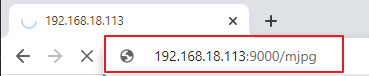
Puoi quindi inserire http://<il tuo IP>:9000/mjpg nel browser per visualizzare il feed video, ad esempio: https://192.168.18.113:9000/mjpg
Codice
Nota
Puoi Modificare/Reimpostare/Copiare/Eseguire/Fermare il codice qui sotto. Prima di farlo, devi accedere al percorso del codice sorgente, come picrawler\examples. Dopo aver modificato il codice, puoi eseguirlo direttamente per vedere il risultato.
from picrawler import Picrawler
from time import sleep, time
from robot_hat import Music
from vilib import Vilib

# Create robot and audio controller objects
crawler = Picrawler()
music = Music()

def main():
    # Start camera and enable preview window
    Vilib.camera_start(vflip=False, hflip=False)
    Vilib.display(local=False, web=True)

    # Enable red color detection
    Vilib.color_detect("red")

    speed = 80                  # Movement speed
    last_seen = False           # Indicates whether the red target was detected in previous loop
    last_beep = 0               # Timestamp of last sound playback
    BEEP_COOLDOWN = 1.0         # Minimum interval between sound effects (seconds)

    # Stand once before starting tracking
    crawler.do_step('stand', 40)
    sleep(1.0)

    try:
        while True:
            # Read detection result
            if Vilib.detect_obj_parameter.get('color_n', 0) != 0:

                # Get horizontal coordinate of detected red object
                coordinate_x = Vilib.detect_obj_parameter.get('color_x', 0)

                # Play sound effect with cooldown to avoid spamming
                now = time()
                if now - last_beep >= BEEP_COOLDOWN:
                    try:
                        music.sound_play_threading('./sounds/talk1.wav')
                    except Exception:
                        pass
                    last_beep = now

                # Steering logic based on horizontal position
                # Left side of image
                if coordinate_x < 100:
                    crawler.do_action('turn left', 1, speed)

                # Right side of image
                elif coordinate_x > 220:
                    crawler.do_action('turn right', 1, speed)

                # Center area → move forward
                else:
                    crawler.do_action('forward', 2, speed)

                last_seen = True
                sleep(0.05)

            else:
                # No red target detected

                # Stop movement only once when target is lost
                # This prevents repeated stand() calls that cause "push-up" effect
                if last_seen:
                    crawler.do_step('stand', 40)
                    last_seen = False

                sleep(0.15)

    except KeyboardInterrupt:
        # Stop program safely when Ctrl+C is pressed
        print("\nStop.")

    finally:
        # Cleanup section to avoid exit errors

        # Disable color detection
        try:
            Vilib.color_detect("close")
        except Exception:
            pass

        # Close camera safely
        try:
            Vilib.camera_close()
        except Exception:
            pass

        # Make the robot sit before exit
        try:
            crawler.do_step('sit', 40)
            sleep(1.0)
        except Exception:
            pass

if __name__ == "__main__":
    main()
Come Funziona?
Camera Initialization
Vilib.camera_start(vflip=False, hflip=False)
Vilib.display(local=False, web=True)
Vilib.color_detect("red")
The camera is started and web preview is enabled. Red color detection is activated. Vilib continuously processes frames in the background and stores detection results in detect_obj_parameter.
Robot Preparation
crawler.do_step('stand', 40)
sleep(1.0)
The robot performs a stand action before tracking begins. A short delay ensures the posture is stable.
Detecting the Target
if Vilib.detect_obj_parameter.get('color_n', 0) != 0:
    coordinate_x = Vilib.detect_obj_parameter.get('color_x', 0)
The program checks whether a red object is detected. If detected, it reads the horizontal center coordinate (x position) of the red object in the image.
Steering Decision Logic
if coordinate_x < 100:
    crawler.do_action('turn left', 1, speed)
elif coordinate_x > 220:
    crawler.do_action('turn right', 1, speed)
else:
    crawler.do_action('forward', 2, speed)
The image is divided into three horizontal zones: left, center, and right.
Left zone → turn left
Right zone → turn right
Center zone → move forward
This allows the robot to track and follow the red object.
Sound Cooldown Mechanism
now = time()
if now - last_beep >= BEEP_COOLDOWN:
    music.sound_play_threading('./sounds/talk1.wav')
    last_beep = now
A cooldown timer prevents repeated sound playback. The sound effect plays at most once per second even if the object remains detected.
Target Lost Handling
if last_seen:
    crawler.do_step('stand', 40)
    last_seen = False
When the red object disappears, the robot stops and returns to a stable stand position.
The last_seen flag ensures stand() is called only once. This prevents repeated posture reset that may cause shaking.
Safe Exit and Cleanup
finally:
    Vilib.color_detect("close")
    Vilib.camera_close()
    crawler.do_step('sit', 40)
When the program exits (for example, Ctrl+C), color detection is disabled, the camera is closed safely, and the robot performs a sit action.
This prevents camera errors and unstable shutdown behavior.