Note
Hello, welcome to the SunFounder Raspberry Pi & Arduino & ESP32 Enthusiasts Community on Facebook! Dive deeper into Raspberry Pi, Arduino, and ESP32 with fellow enthusiasts.
Why Join?
Expert Support: Solve post-sale issues and technical challenges with help from our community and team.
Learn & Share: Exchange tips and tutorials to enhance your skills.
Exclusive Previews: Get early access to new product announcements and sneak peeks.
Special Discounts: Enjoy exclusive discounts on our newest products.
Festive Promotions and Giveaways: Take part in giveaways and holiday promotions.
👉 Ready to explore and create with us? Click [here] and join today!
2.1.6 Joystick(MCP3008)
Note
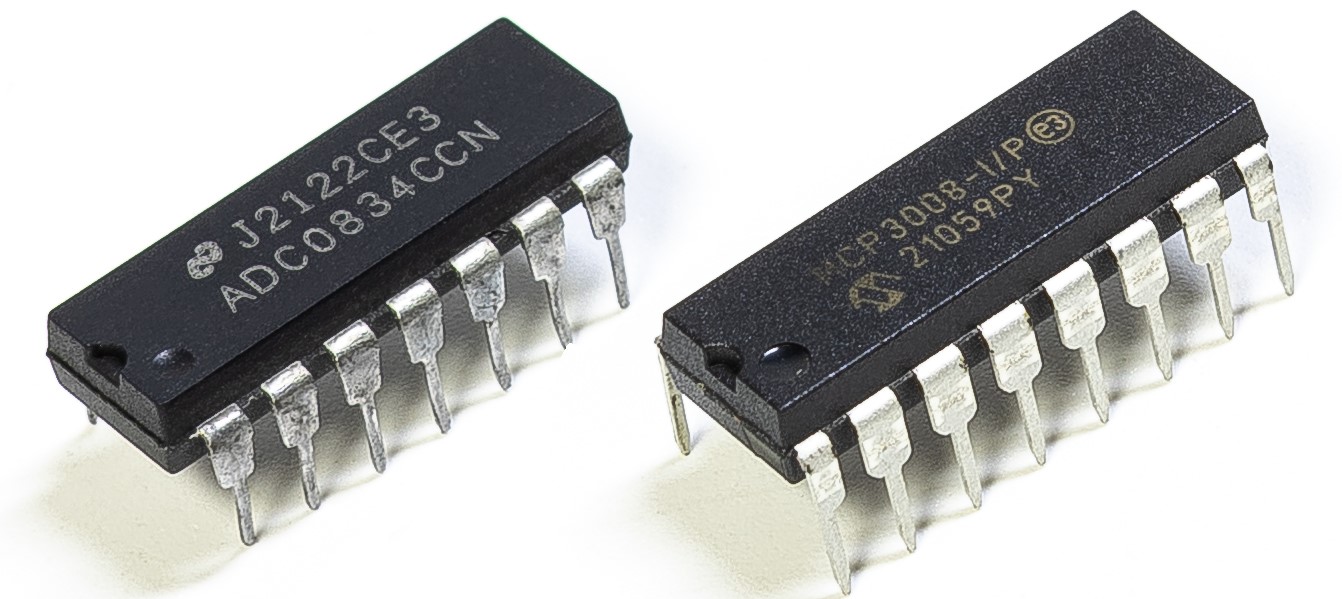
Depending on your kit version, please identify whether you have ADC0834 or MCP3008 and proceed with the matching section.
Introduction
In this project, We’re going to learn how joystick works. We manipulate the Joystick and display the results on the screen.
Required Components
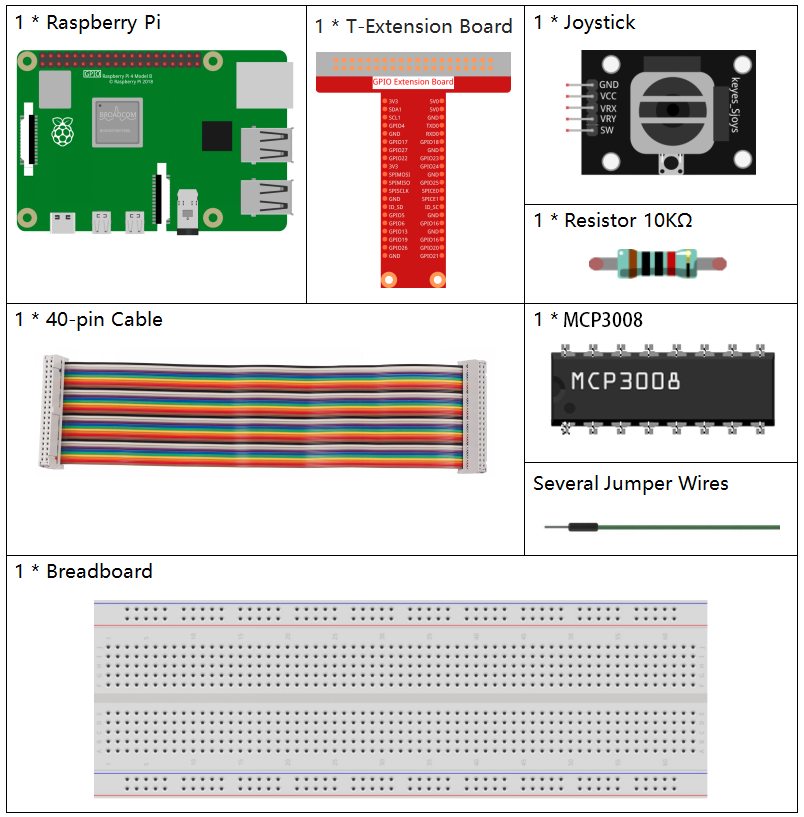
In this project, we need the following components.
Schematic Diagram
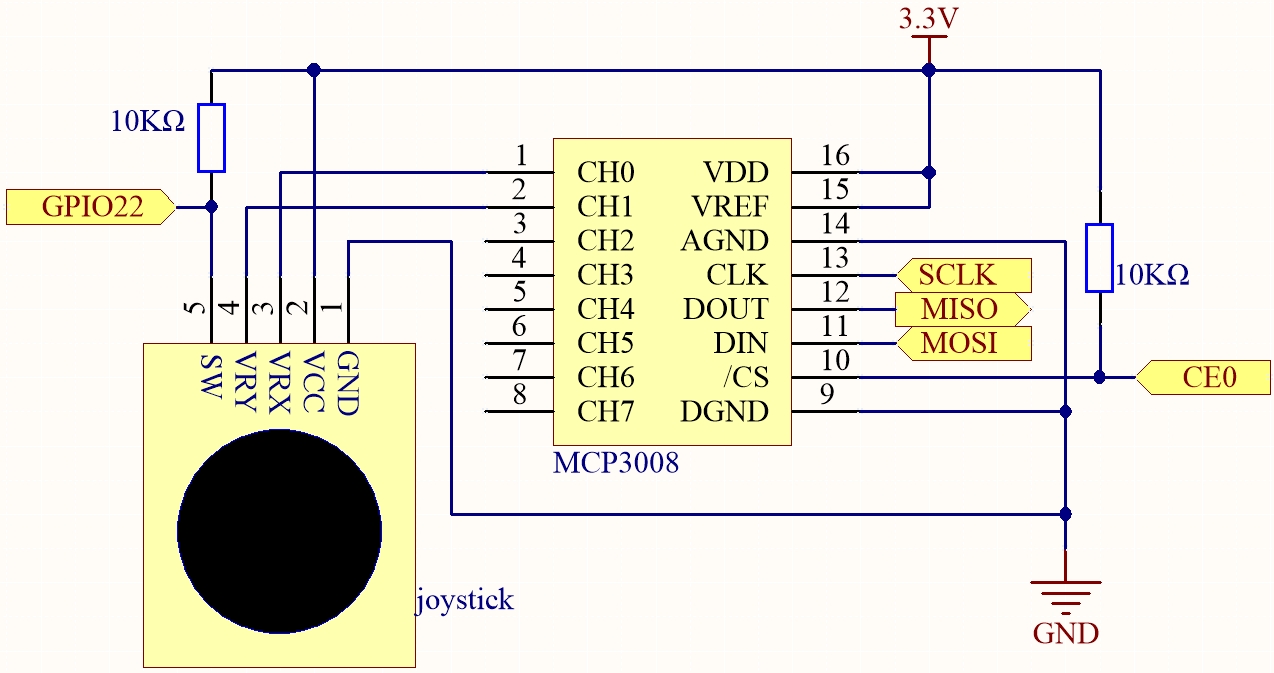
When the data of joystick is read, there are some differents between axis: data of X and Y axis is analog, which need to use MCP3008 to convert the analog value to digital value. Data of Z axis is digital, so you can directly use the GPIO to read, or you can also use ADC to read.
T-Board Name |
physical |
WiringPi |
BCM |
|---|---|---|---|
SPICE0 |
pin24 |
10 |
8 |
SPIMOSI |
pin19 |
12 |
10 |
SPIMISO |
pin21 |
13 |
9 |
SPISCLK |
pin23 |
14 |
11 |
GPIO22 |
pin15 |
3 |
22 |
Experimental Procedures
Step 1: Build the circuit.

Step 2: Set up the SPI interface and install the spidev library (see SPI Configuration for detailed instructions). If you have already completed these steps, you can skip this.
Step 3: Go to the folder of the code.
cd ~/davinci-kit-for-raspberry-pi/python-pi5
Step 4: Run.
sudo python3 2.1.6-2_Joystick_zero.py
After the code runs, turn the Joystick, then the corresponding values of x, y, Btn are displayed on screen.
Warning
If there is an error prompt RuntimeError: Cannot determine SOC peripheral base address, please refer to If gpiozero doesn’t work.
Code
Note
You can Modify/Reset/Copy/Run/Stop the code below. But before that, you need to go to source code path like davinci-kit-for-raspberry-pi/python-pi5. After modifying the code, you can run it directly to see the effect.
#!/usr/bin/env python3

from gpiozero import Button
import spidev
import time

# Initialize the button connected to GPIO pin 22 (joystick SW pin)
BtnPin = Button(22)

# Initialize SPI communication with MCP3008
spi = spidev.SpiDev()
spi.open(0, 0)  # Open SPI bus 0, device CE0
spi.max_speed_hz = 1000000  # Set SPI speed to 1 MHz

def read_adc(channel):
    """
    Reads analog value from the specified MCP3008 channel (0–7)
    :param channel: ADC channel number (0–7)
    :return: 10-bit integer value (0–1023)
    """
    if channel < 0 or channel > 7:
        return -1
    adc = spi.xfer2([1, (8 + channel) << 4, 0])
    value = ((adc[1] & 0x03) << 8) | adc[2]
    return value

try:
    # Main loop to read and print joystick values and button state
    while True:
        # Read X and Y values from MCP3008 channels 0 and 1
        x_val = read_adc(0)  # Joystick VRX connected to CH0
        y_val = read_adc(1)  # Joystick VRY connected to CH1

        # Read the state of the joystick button (SW)
        Btn_val = BtnPin.value  # 0 = pressed, 1 = released

        # Print the read values
        print('X: %d  Y: %d  Btn: %d' % (x_val, y_val, Btn_val))

        # Wait 0.2 seconds before the next reading
        time.sleep(0.2)

# Gracefully handle Ctrl+C interruption
except KeyboardInterrupt:
    spi.close()
Code Explanation
This section imports the required libraries:
gpiozero.Buttonis used to read the digital state of the joystick button (SW pin).spidevis used for SPI communication with the MCP3008 ADC chip.timeis used for timing delays between readings.
#!/usr/bin/env python3
from gpiozero import Button
import spidev
import time
Initializes the button connected to GPIO22 (joystick SW pin), and sets up the SPI interface on bus 0, chip select 0 (CE0). The SPI speed is configured to 1 MHz.
# Initialize the button connected to GPIO pin 22 (joystick SW pin)
BtnPin = Button(22)

# Initialize SPI communication with MCP3008
spi = spidev.SpiDev()
spi.open(0, 0)  # Open SPI bus 0, device CE0
spi.max_speed_hz = 1000000  # Set SPI speed to 1 MHz
Defines a function
read_adc(channel)to read the analog value from a specific MCP3008 channel (0–7). It sends three bytes using SPI protocol and returns a 10-bit value (0–1023).def read_adc(channel): """ Reads analog value from the specified MCP3008 channel (0–7) :param channel: ADC channel number (0–7) :return: 10-bit integer value (0–1023) """ if channel < 0 or channel > 7: return -1 adc = spi.xfer2([1, (8 + channel) << 4, 0]) value = ((adc[1] & 0x03) << 8) | adc[2] return value
In the main loop, it reads the analog values from VRX (connected to CH0) and VRY (connected to CH1), as well as the joystick button state. The values are printed to the console every 0.2 seconds. When Ctrl+C is pressed, the SPI interface is cleanly closed.
try:
    # Main loop to read and print joystick values and button state
    while True:
        # Read X and Y values from MCP3008 channels 0 and 1
        x_val = read_adc(0)  # Joystick VRX connected to CH0
        y_val = read_adc(1)  # Joystick VRY connected to CH1

        # Read the state of the joystick button (SW)
        Btn_val = BtnPin.value  # 0 = pressed, 1 = released

        # Print the read values
        print('X: %d  Y: %d  Btn: %d' % (x_val, y_val, Btn_val))

        # Wait 0.2 seconds before the next reading
        time.sleep(0.2)

# Gracefully handle Ctrl+C interruption
except KeyboardInterrupt:
    spi.close()