Note
Hello, welcome to the SunFounder Raspberry Pi & Arduino & ESP32 Enthusiasts Community on Facebook! Dive deeper into Raspberry Pi, Arduino, and ESP32 with fellow enthusiasts.
Why Join?
Expert Support: Solve post-sale issues and technical challenges with help from our community and team.
Learn & Share: Exchange tips and tutorials to enhance your skills.
Exclusive Previews: Get early access to new product announcements and sneak peeks.
Special Discounts: Enjoy exclusive discounts on our newest products.
Festive Promotions and Giveaways: Take part in giveaways and holiday promotions.
👉 Ready to explore and create with us? Click [here] and join today!
5.11.1 Liquid Crystal Display
An I2C LCD1602 is composed of an LCD1602 and an I2C module, LCD1602 can be used to display characters, numbers, etc., but need to take up a lot of pins of the main control, after configuring an I2C module, only 2 I/0 pins are needed to drive this LCD1602.
Now look at how to make this I2C CDL1602 work.
Required Components
In this project, we need the following components.
It’s definitely convenient to buy a whole kit, here’s the link:
Name |
ITEMS IN THIS KIT |
LINK |
|---|---|---|
3 in 1 Starter Kit |
380+ |
You can also buy them separately from the links below.
COMPONENT INTRODUCTION |
PURCHASE LINK |
|---|---|
Schematic

Wiring

Note
The SDA and SCL of the R3 board are the pins A4 and A5.
Code
Note
Open the
5.11.liquid_crystal_display.inofile under the path of3in1-kit\basic_project\5.11.liquid_crystal_display.Or copy this code into Arduino IDE.
The
LiquidCrystal I2Clibrary is used here, you can install it from the Library Manager.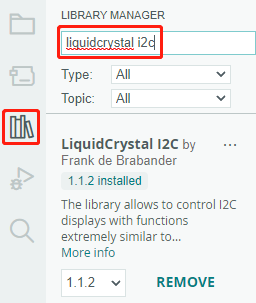
After the code is uploaded successfully, you will see “SunFounder”, “Hello World” on the I2C LCD1602.
Note
If the code and wiring are fine, but the LCD still does not display content, you can turn the potentiometer on the back.
How it works?
By calling the library LiquidCrystal_I2C.h, you can easily drive the LCD.
#include "LiquidCrystal_I2C.h"
Library Functions:
LiquidCrystal_I2C(uint8_t lcd_Addr,uint8_t lcd_cols,uint8_t lcd_rows)
Creates a new instance of the LiquidCrystal_I2C class that represents a
particular LCD attached to your Arduino board.
lcd_AddR: The address of the LCD defaults to 0x27.lcd_cols: The LCD1602 has 16 columns.lcd_rows: The LCD1602 has 2 rows.
void init()
Initialize the lcd.
void backlight()
Turn the (optional) backlight on.
void nobacklight()
Turn the (optional) backlight off.
void display()
Turn the LCD display on.
void nodisplay()
Turn the LCD display off quickly.
void clear()
Clear display, set cursor position to zero.
void setCursor(uint8_t col,uint8_t row)
Set the cursor position to col,row.
void print(data,BASE)
Prints text to the LCD.
data: The data to print (char, byte, int, long, or string).BASE (optional): The base in which to print numbers: BIN for binary (base 2), DEC for decimal (base 10), OCT for octal (base 8), HEX for hexadecimal (base 16).