Note
Hello, welcome to the SunFounder Raspberry Pi & Arduino & ESP32 Enthusiasts Community on Facebook! Dive deeper into Raspberry Pi, Arduino, and ESP32 with fellow enthusiasts.
Why Join?
Expert Support: Solve post-sale issues and technical challenges with help from our community and team.
Learn & Share: Exchange tips and tutorials to enhance your skills.
Exclusive Previews: Get early access to new product announcements and sneak peeks.
Special Discounts: Enjoy exclusive discounts on our newest products.
Festive Promotions and Giveaways: Take part in giveaways and holiday promotions.
👉 Ready to explore and create with us? Click [here] and join today!
20. Treasure Hunt
In this lesson, you will turn your PiCar-X into a treasure hunter robot. Arrange a maze in your room and place six different color cards in different corners. Your PiCar-X will search, recognize, and celebrate when it finds the target color.
This project combines three skills you’ve learned so far:
Computer Vision – detecting colored cards with the Pi camera.
Keyboard Control – driving the robot manually through the maze.
Speech Feedback – Pico2Wave announces the target color and success.
It’s a fun game that shows how robots can see, think, and act just like treasure hunters!
Note
You can download and print the PDF Color Cards for reliable color detection.
Before You Start
Make sure you‘ve completed:
Install All the Modules (Important) — Install
robot-hat,vilib,picar-xmodules, then run the scripti2samp.sh.
Run the Code
cd ~/picar-x/example
sudo python3 20.treasure_hunt.py
After running, you’ll see a message like this:
* Running on http://0.0.0.0:9000/ (Press CTRL+C to quit)
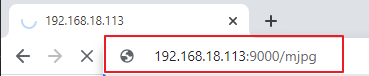
Then, open http://<your IP>:9000/mjpg in your browser to view the live video feed.
Example: http://192.168.18.113:9000/mjpg
Game Rules
The robot randomly selects a target color and says: “Look for red!”
You drive PiCar-X with the keyboard:
w= forwarda= turn lefts= backwardd= turn rightspace= repeat targetCtrl+C= quit
When the camera sees the target color card, PiCar-X says “Well done!”
A new target color is chosen, and the hunt continues!
Code
#!/usr/bin/env python3

from picarx import Picarx
from vilib import Vilib
from picarx.tts import Pico2Wave

from time import sleep
import threading
import readchar
import random

# -----------------------
# Settings
# -----------------------
COLORS = ["red", "orange", "yellow", "green", "blue", "purple"]
DETECTION_WIDTH_THRESHOLD = 100  # how wide the color blob must be
DRIVE_SPEED = 80
TURN_ANGLE = 30

MANUAL = """
Press keys to control PiCar-X:
  w: forward    a: turn left    s: backward    d: turn right
  space: repeat target          Ctrl+C: quit
"""

# -----------------------
# Init
# -----------------------
px = Picarx()

tts = Pico2Wave()
tts.set_lang("en-US")

current_color = "red"
key = None
lock = threading.Lock()

def say(line: str):
    print(f"[SAY] {line}")
    tts.say(line)

def renew_color_detect():
    """Choose a new target color and start detection."""
    global current_color
    current_color = random.choice(COLORS)
    Vilib.color_detect(current_color)
    say(f"Look for {current_color}!")

def key_scan_thread():
    """Background thread reading keys."""
    global key
    while True:
        k = readchar.readkey()
        # Map special keys before lowercasing
        if k == readchar.key.SPACE:
            mapped = "space"
        elif k == readchar.key.CTRL_C:
            mapped = "quit"
        else:
            mapped = k.lower()

        with lock:
            key = mapped

        if mapped == "quit":
            return
        sleep(0.01)

def car_move(k: str):
    if k == "w":
        px.set_dir_servo_angle(0)
        px.forward(DRIVE_SPEED)
    elif k == "s":
        px.set_dir_servo_angle(0)
        px.backward(DRIVE_SPEED)
    elif k == "a":
        px.set_dir_servo_angle(-TURN_ANGLE)
        px.forward(DRIVE_SPEED)
    elif k == "d":
        px.set_dir_servo_angle(TURN_ANGLE)
        px.forward(DRIVE_SPEED)

def main():
    global key

    # Start camera and web preview
    Vilib.camera_start(vflip=False, hflip=False)
    Vilib.display(local=False, web=True)
    sleep(0.8)

    print(MANUAL.strip())
    say("Game start!")
    sleep(0.1)
    renew_color_detect()

    # Start keyboard thread (modern style)
    key_thread = threading.Thread(target=key_scan_thread, daemon=True)
    key_thread.start()

    try:
        while True:
            # Check detection: if target color present and wide enough
            if (Vilib.detect_obj_parameter.get("color_n", 0) != 0 and
                Vilib.detect_obj_parameter.get("color_w", 0) > DETECTION_WIDTH_THRESHOLD):
                say("Well done!")
                sleep(0.1)
                renew_color_detect()

            # Take a snapshot of the last key (and clear it)
            with lock:
                k = key
                key = None

            # Handle movement / actions
            if k in ("w", "a", "s", "d"):
                car_move(k)
                sleep(0.5)
                px.stop()
            elif k == "space":
                say(f"Look for {current_color}!")
            elif k == "quit":
                print("\n[INFO] Quit requested.")
                break

            sleep(0.05)

    except KeyboardInterrupt:
        print("\n[INFO] Stopped by user.")
    finally:
        try:
            Vilib.camera_close()
        except Exception:
            pass
        px.stop()
        say("Goodbye!")
        sleep(0.2)

if __name__ == "__main__":
    main()
How It Works
Initialization
Import modules and configure PiCar-X, camera, and TTS.
Set color list, speed, and steering angle.
Target Selection
renew_color_detect()randomly picks a target color.The robot announces the target with Pico2Wave.
Keyboard Control
key_scan_thread()runs in the background to capture keys.Keys
w, a, s, dcontrol motion;spacerepeats target.
Color Detection
Camera constantly checks if the target color is visible.
If the detected blob is large enough, PiCar-X celebrates.
Main Loop
Continuously handles movement, detection, and feedback.
Cleanly stops the robot and camera when quitting.
Troubleshooting
Camera feed not working?
Run
libcamera-helloto check if the Pi camera is connected properly.Robot doesn’t detect colors?
Ensure the cards are printed clearly and placed in good lighting. Try adjusting
DETECTION_WIDTH_THRESHOLD.No voice feedback?
Check that
pico2waveis installed and your audio output is configured.Car doesn’t move?
Verify PiCar-X power is on and the motor calibration is correct.
By completing this lesson, you’ve built a mini treasure hunt game with PiCar-X, combining vision, control, and interaction into one project!