Note
Hello, welcome to the SunFounder Raspberry Pi & Arduino & ESP32 Enthusiasts Community on Facebook! Dive deeper into Raspberry Pi, Arduino, and ESP32 with fellow enthusiasts.
Why Join?
Expert Support: Solve post-sale issues and technical challenges with help from our community and team.
Learn & Share: Exchange tips and tutorials to enhance your skills.
Exclusive Previews: Get early access to new product announcements and sneak peeks.
Special Discounts: Enjoy exclusive discounts on our newest products.
Festive Promotions and Giveaways: Take part in giveaways and holiday promotions.
👉 Ready to explore and create with us? Click [here] and join today!
Note
If you are using the pre-installed “Raspberry Pi OS with AI Fusion Lab Kit” image, you can skip this section. This image already includes all the software installations, environment configurations, and example code deployments described in this chapter.
0. Setup OpenCV
This chapter shows you how to install OpenCV on the Raspberry Pi and verify that it works correctly.
To use camera module conveniently, Assemble the Pan-tilt (For Camera) is recommended.
Note
Assembling the pan-tilt may obscure some pins, so it is recommended to assemble it only when using the camera, or place it on the outside after assembly.

Access the Raspberry Pi Desktop:
Remote Desktop: Use VNC for a full desktop experience.
Raspberry Pi Connect: Use Raspberry Pi Connect to access your Pi securely from any browser.
Complete the setup in Configure Power & Install Software (download the provided code package, and finish the Fusion HAT+ installation and configuration).
Now, update the Raspberry Pi software sources to ensure you get the latest packages:
sudo apt update
Use the following command to install the Python 3 version of OpenCV:
sudo apt install python3-opencv
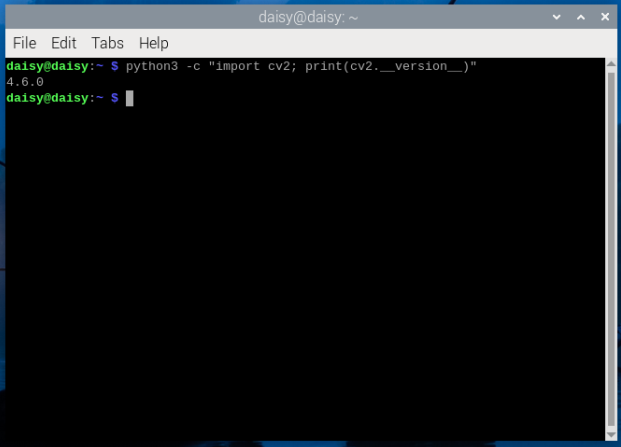
Run the command below to verify that OpenCV has been installed successfully:
python3 -c "import cv2; print(cv2.__version__)"
If the OpenCV version number is displayed, the installation was successful.