Note
Hello, welcome to the SunFounder Raspberry Pi & Arduino & ESP32 Enthusiasts Community on Facebook! Dive deeper into Raspberry Pi, Arduino, and ESP32 with fellow enthusiasts.
Why Join?
Expert Support: Solve post-sale issues and technical challenges with help from our community and team.
Learn & Share: Exchange tips and tutorials to enhance your skills.
Exclusive Previews: Get early access to new product announcements and sneak peeks.
Special Discounts: Enjoy exclusive discounts on our newest products.
Festive Promotions and Giveaways: Take part in giveaways and holiday promotions.
👉 Ready to explore and create with us? Click [here] and join today!
6. Hand Gesture Recognizer
1. Overview
In the previous chapter, we used MediaPipe Hands to obtain 21 hand landmarks and visualize the hand skeleton.
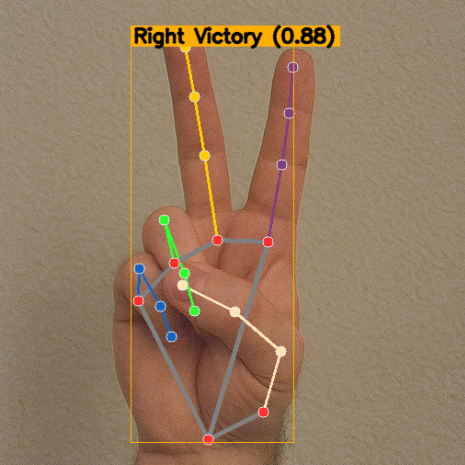
This chapter introduces MediaPipe Tasks – Gesture Recognizer, which can directly output semantic gesture labels such as:
Thumb_UpOpen_PalmVictoryClosed_Fist
By combining:
Picamera2for video captureMediaPipe Handsfor landmark visualizationGesture Recognizerfor classification
we can achieve real-time gesture recognition with both skeleton rendering and label display.
2. How It Works
The program performs the following steps:
Capture video frames using
Picamera2.(Optional) Use
MediaPipe Handsto draw landmarks.Use MediaPipe Tasks – Gesture Recognizer in
VIDEOmode.For each detected hand, obtain:
Gesture category list (label + confidence)
Handedness (Left / Right)
Normalized landmarks
Select the top-1 gesture and draw “label + confidence score” above the corresponding hand.
Note
This chapter uses the MediaPipe Tasks API (0.10+).
3. Model
Gesture Recognizer requires a model file:
gesture_recognizer.task
The model file is already included in the example directory. Please use the provided version.
The built-in model supports the following gesture labels:
0 →
Unknown1 →
Closed_Fist2 →
Open_Palm3 →
Pointing_Up4 →
Thumb_Down5 →
Thumb_Up6 →
Victory7 →
ILoveYou
4. Run the Code
Important
Before you start, make sure:
The pan-tilt is assembled
You can access the Raspberry Pi desktop
The code package is installed
Fusion HAT+ is installed and configured
OpenCV is installed
For detailed instructions, see 0. Setup OpenCV.
Open the terminal and enter the following command:
sudo python3 ~/ai-lab-kit/mediapipe/mp_hand_gesture.py
After running the program, a window titled “Show Video” opens and displays the live camera feed.
When one or two hands appear in front of the camera, the program:
Detects and draws the 21 hand landmarks and connection lines (hand skeleton) in real time.
Runs the Gesture Recognizer model on each frame to classify the gesture.
If a gesture is recognized with a score above
SCORE_THRESHOLD(default 0.5), the program shows a label near the corresponding hand, including:Handedness (Left/Right)
Gesture name (for example,
Thumb_Up,Open_Palm,Victory)Confidence score (for example,
0.87)
A thin bounding box is also drawn around the hand area to make the label placement clearer.
As you change hand poses, the gesture label and score update continuously in real time.
If no hand is detected, or the gesture confidence is below the threshold, only the hand skeleton (or the raw camera feed) is shown without gesture labels.
Press
qto exit the program. The camera stops and the OpenCV window closes automatically.
5. Complete Code
from picamera2 import Picamera2, Preview
import cv2
import numpy as np
import mediapipe.python.solutions.hands as mp_hands
import mediapipe.python.solutions.drawing_utils as drawing
import mediapipe.python.solutions.drawing_styles as drawing_styles

# Import MediaPipe Tasks (Gesture Recognizer)
import mediapipe as mp
from mediapipe.tasks import python
from mediapipe.tasks.python import vision

from pathlib import Path

# --------------------- Settings ---------------------
BASE_DIR = Path(__file__).resolve().parent
GESTURE_MODEL_PATH = str(BASE_DIR / "gesture_recognizer.task")  # Path to the gesture model
SCORE_THRESHOLD = 0.5                           # Show gestures above this score
# ---------------------------------------------------

# Initialize the Hands model (kept for landmark drawing)
hands = mp_hands.Hands(
    static_image_mode=False,
    max_num_hands=2,
    min_detection_confidence=0.5
)

# Initialize Gesture Recognizer (VIDEO mode for streaming)
BaseOptions = python.BaseOptions
GestureRecognizerOptions = vision.GestureRecognizerOptions
RunningMode = vision.RunningMode

base_options = BaseOptions(model_asset_path=GESTURE_MODEL_PATH)
gr_options = GestureRecognizerOptions(
    base_options=base_options,
    running_mode=RunningMode.VIDEO
)
recognizer = vision.GestureRecognizer.create_from_options(gr_options)

# Open the camera
picam2 = Picamera2()
config = picam2.create_preview_configuration(
   main={"size": (640, 480), "format": "XRGB8888"} ,
)

picam2.configure(config)
picam2.start()

print("Streaming... press 'q' to quit")

# (Optional) helper to draw a label near a hand bounding box computed from landmarks
def draw_gesture_label(frame_bgr, norm_landmarks, text, color=(0, 175, 255)):
    """
    norm_landmarks: list of 21 normalized landmarks (x,y in [0,1]).
    We compute a tight bbox to place the gesture text.
    """
    if not norm_landmarks:
        return
    h, w = frame_bgr.shape[:2]
    xs = [int(lm.x * w) for lm in norm_landmarks]
    ys = [int(lm.y * h) for lm in norm_landmarks]
    x1, y1 = max(0, min(xs)), max(0, min(ys))
    x2, y2 = min(w-1, max(xs)), min(h-1, max(ys))
    cv2.rectangle(frame_bgr, (x1, y1), (x2, y2), color, 1)
    (tw, th), _ = cv2.getTextSize(text, cv2.FONT_HERSHEY_SIMPLEX, 0.7, 2)
    y_text = max(0, y1 - th - 6)
    cv2.rectangle(frame_bgr, (x1, y_text), (x1 + tw + 6, y_text + th + 6), color, -1)
    cv2.putText(frame_bgr, text, (x1 + 3, y_text + th + 2),
                cv2.FONT_HERSHEY_SIMPLEX, 0.7, (0,0,0), 2, cv2.LINE_AA)

while True:
    frame_bgra = picam2.capture_array()               # XRGB8888 to BGRA
    frame_bgr  = cv2.cvtColor(frame_bgra, cv2.COLOR_BGRA2BGR)

    # Convert the frame from BGR to RGB (required by MediaPipe)
    frame_rgb = cv2.cvtColor(frame_bgr, cv2.COLOR_BGR2RGB)

    # ---- A) Run legacy Hands (for landmark drawing you already have) ----
    hands_detected = hands.process(frame_rgb)

    # ---- B) Run Gesture Recognizer (direct gesture labels) ----
    mp_image = mp.Image(image_format=mp.ImageFormat.SRGB, data=frame_rgb)
    ts_ms = int((cv2.getTickCount() / cv2.getTickFrequency()) * 1000)
    gesture_result = recognizer.recognize_for_video(mp_image, ts_ms)

    # Convert the frame back from RGB to BGR (required by OpenCV)
    frame = cv2.cvtColor(frame_rgb, cv2.COLOR_RGB2BGR)

    # If hands are detected, draw landmarks and connections on the frame
    if hands_detected.multi_hand_landmarks:
        for hand_landmarks in hands_detected.multi_hand_landmarks:
            drawing.draw_landmarks(
                frame,
                hand_landmarks,
                mp_hands.HAND_CONNECTIONS,
                drawing_styles.get_default_hand_landmarks_style(),
                drawing_styles.get_default_hand_connections_style(),
            )

    # ---- C) Overlay gesture names on top of each detected hand ----
    if gesture_result and getattr(gesture_result, "gestures", None):
        for i, gesture_list in enumerate(gesture_result.gestures):
            if not gesture_list:
                continue
            top = gesture_list[0]
            label = top.category_name  # e.g., "Thumb_Up"
            score = top.score or 0.0
            if score < SCORE_THRESHOLD:
                continue

            hand_label = ""
            if gesture_result.handedness and i < len(gesture_result.handedness):
                if gesture_result.handedness[i]:
                    hand_label = gesture_result.handedness[i][0].category_name or ""

            text = f"{hand_label} {label} ({score:.2f})".strip()

            hand_lms = None
            if gesture_result.hand_landmarks and i < len(gesture_result.hand_landmarks):
                hand_lms = gesture_result.hand_landmarks[i]

            if hand_lms:
                draw_gesture_label(frame, hand_lms, text)
            else:
                cv2.putText(frame, text, (20, 40 + 30*i),
                            cv2.FONT_HERSHEY_SIMPLEX, 0.8, (0, 175, 255), 2, cv2.LINE_AA)

    # Display the frame with annotations
    cv2.imshow("Show Video", frame)
    if cv2.waitKey(1) & 0xff == ord('q'):
        break

# Release the camera
try:
    picam2.stop_preview()
except Exception:
    pass
picam2.stop()
cv2.destroyAllWindows()
After running the script, the window will display the hand skeleton (optional) and gesture text boxes. When a gesture matching the model’s categories is recognized, it will display above the corresponding hand’s bounding box:
Left/Right hand (handedness)
Gesture name (e.g.,
Thumb_Up)Confidence score (0~1)
6. Code Explanation
This example combines two parts:
Hands (Solutions API): used for drawing the hand skeleton (21 landmarks + connections).
Gesture Recognizer (Tasks API): used for predicting a gesture label such as
Thumb_UporOpen_Palm.
High-level flow
Initialize Hands for landmark drawing (optional but helpful for visualization).
Load the Gesture Recognizer model (
gesture_recognizer.task) and enableVIDEOmode.Start the camera and process frames in a loop:
Convert the frame to RGB (MediaPipe requires RGB).
Run Hands to draw the skeleton.
Run Gesture Recognizer to get
label + scorefor each hand.Draw the label near the corresponding hand.
Press
qto exit and release resources.
Key points to understand
Model file
Gesture Recognizer requires
gesture_recognizer.task. Make sure the model file is placed in the same folder as the script (or update the path).VIDEO mode requires timestamps
recognize_for_video()needs a continuously increasing timestamp in milliseconds. In this example, we generate it using OpenCV tick time.Show labels with a confidence threshold
Only gestures with score >=
SCORE_THRESHOLDare displayed. This avoids showing unstable predictions.
7. Parameters and Tuning
Parameter |
Description |
Suggestion |
|---|---|---|
|
Gestures below this score are ignored |
Increase to reduce false positives; decrease to improve recall |
|
Number of hands to detect simultaneously |
2 is sufficient for most scenarios |
|
Video stream mode, requires timestamp |
Keep using (streaming recognition is more stable) |
Resolution |
Affects speed and accuracy |
Recommended 640×480 or lower on Raspberry Pi for better FPS |
8. Troubleshooting
FileNotFoundError: gesture_recognizer.taskThis usually means the model file path is incorrect. Make sure the model file is placed in the same directory as the script, or update
GESTURE_MODEL_PATHaccordingly.ImportError: cannot import name 'vision'This error indicates that the MediaPipe version is outdated. Upgrade MediaPipe to version 0.10 or later using:
pip install --upgrade mediapipeRecognized category differs from expectation
The model category set may differ, or lighting conditions may affect recognition. Try improving lighting, simplifying the background, or switching to a different model version.
Low frame rate
Raspberry Pi performance may be limited. Reduce resolution, disable skeleton drawing, or close unnecessary background processes.
9. Summary
Gesture Recognizer enables real-time semantic gesture recognition on Raspberry Pi;
Combined with Hands skeleton rendering, it’s both intuitive and easy to debug;
By adjusting thresholds and resolution, a balance between “stability / speed” can be achieved;
Future possibilities:
Map different gestures to specific commands (shortcuts, GPIO control, etc.);
Train custom gesture models for specific scenarios.