Note
Hello, welcome to the SunFounder Raspberry Pi & Arduino & ESP32 Enthusiasts Community on Facebook! Dive deeper into Raspberry Pi, Arduino, and ESP32 with fellow enthusiasts.
Why Join?
Expert Support: Solve post-sale issues and technical challenges with help from our community and team.
Learn & Share: Exchange tips and tutorials to enhance your skills.
Exclusive Previews: Get early access to new product announcements and sneak peeks.
Special Discounts: Enjoy exclusive discounts on our newest products.
Festive Promotions and Giveaways: Take part in giveaways and holiday promotions.
👉 Ready to explore and create with us? Click [here] and join today!
(Example) Voice-Controlled Smart Fan
Introduction
This project creates an intelligent Voice-Controlled Smart Fan that combines speech recognition, AI processing, and motor control. The system allows users to control fan speed using natural voice commands and provides multiple control methods:
Voice Commands using speech-to-text for hands-free operation
Physical Button for manual speed adjustment
AI Interpretation using OpenAI’s GPT to understand natural language
Auditory Feedback with a buzzer for button presses
Dual Control Interface supporting both voice and physical interaction
The smart fan understands commands like “make it faster,” “slow down please,” or “turn off the fan” and responds with appropriate actions and verbal confirmation.
You can combine various input and output modules to create voice-controlled smart devices. See:
What You’ll need
The following components are required for this project:
COMPONENT |
PURCHASE LINK |
|---|---|
- |
|
- |
|
Raspberry Pi |
- |
Wiring Diagram
Connect the components to the Fusion HAT+ as follows:

Get and Save your API Key
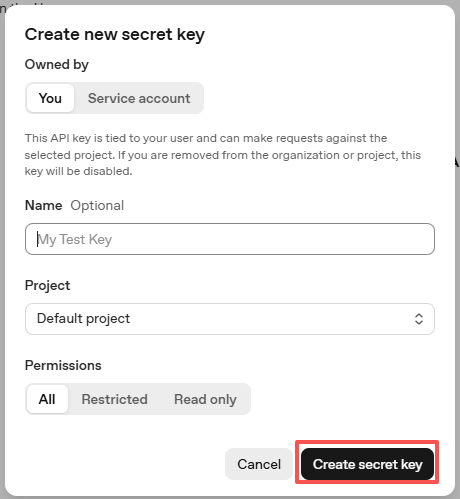
Go to OpenAI Platform and log in. On the API keys page, click Create new secret key.

Fill in the details (Owner, Name, Project, and permissions if needed), then click Create secret key.
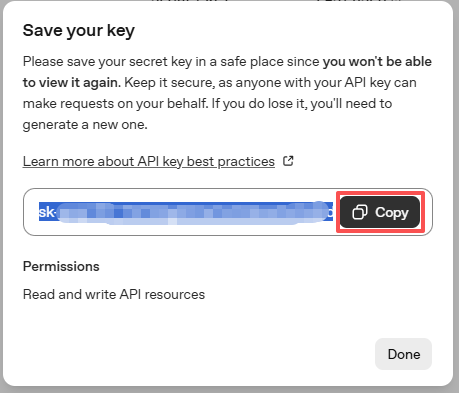
Once the key is created, copy it right away — you won’t be able to see it again. If you lose it, you’ll need to generate a new one.
In your project folder (for example:
/), create a file calledsecret.py:cd ~/ai-lab-kit/llm sudo nano secret.py
Paste your key into the file like this:
# secret.py
# Store secrets here. Never commit this file to Git.
OPENAI_API_KEY = "sk-xxx"
Enable billing and check models
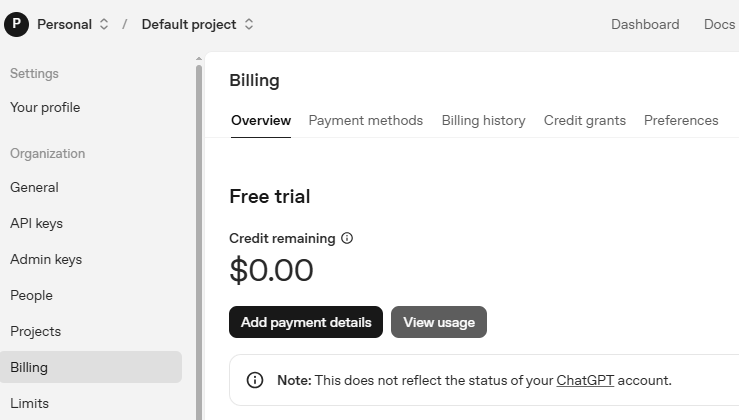
Before using the key, go to the Billing page in your OpenAI account, add your payment details, and top up a small amount of credits.
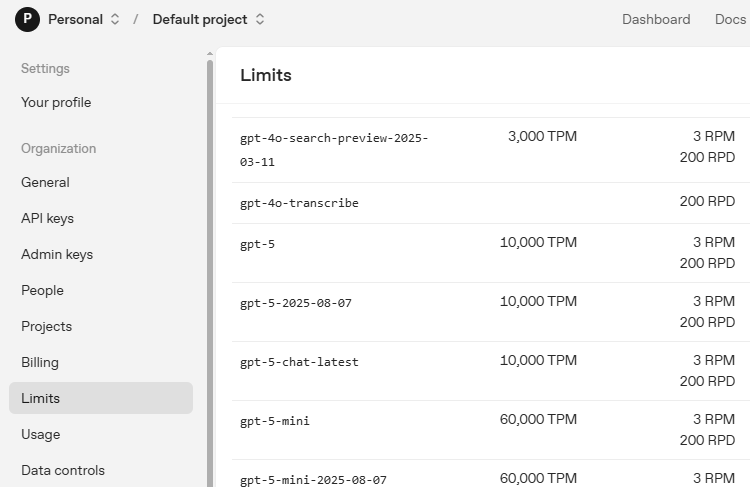
Then go to the Limits page to check which models are available for your account and copy the exact model ID to use in your code.
Run the Example
Run the code
cd ~/ai-lab-kit/llm
sudo python3 llm_openai_fan.py
Control the fan
You can control the fan using voice commands, the button, or natural language.
Voice Commands:
“Make it faster” / “Increase speed” → Sets to maximum (100%)
“Slow down” / “Reduce speed” → Sets to low (25%)
“Medium speed please” → Sets to medium (50%)
“Turn off” / “Stop” → Stops motor (0%)
“What’s the current speed?” → Reports current speed
“Make it cooler” → Interprets as a request for higher speed
Button Control:
Each press increases speed by 10%
At 100%, the next press cycles back to 0%
An audible beep confirms each press
The current speed percentage is displayed on screen
Natural Language Understanding:
The AI can also understand variations such as:
“I’m feeling hot, can you make it faster?”
“Could you please turn the fan down a bit?”
“It’s too windy in here!”
“Set it to half speed”
Code
Here is the full Python script for the Voice-Controlled Smart Fan:
from fusion_hat.llm import OpenAI
from secret import OPENAI_API_KEY
from fusion_hat.motor import Motor
from fusion_hat.modules import Buzzer
from fusion_hat.pin import Pin
import random, time
from fusion_hat.stt import STT

# Initialize Speech-to-Text with English language
stt = STT(language="en-us")

# Initialize motor on port M0
motor = Motor('M0')

# Initialize button on GPIO 17 with pull-up and debounce
button = Pin(17, mode=Pin.IN, pull=Pin.PULL_UP, bounce_time=0.05)

# Initialize buzzer on GPIO 4
buzzer = Buzzer(Pin(4))

# Global speed variable (0-100%)
speed = 0

# Function for auditory feedback
def beep():
    buzzer.on()
    time.sleep(0.1)
    buzzer.off()

# Debounce variables for button
last_triggered = 0

# Button callback function
def speed_up():
    global speed, last_triggered

    # Debounce: ignore if pressed within 500ms
    if time.time() - last_triggered < 0.5:
        return

    last_triggered = time.time()

    # Increase speed by 10%
    speed += 10

    # Wrap around at 100% (go back to 0)
    if speed > 100:
        motor.stop()
        speed = 0
    else:
        motor.power(speed)

    # Auditory feedback
    beep()

    # Print current speed
    print(f"Speed set to: {speed}%")

# Attach callback to button
button.when_activated = speed_up

# Function to parse natural language response and set appropriate speed
def parse_response_for_speed(text_response):
    """
    Parse the LLM's natural language response to determine speed setting.
    Looks for keywords related to different speed levels.
    Returns the speed level to set (100, 50, 25, or 0)
    """
    text_lower = text_response.lower()

    # Check for "stop" or "off" keywords - highest priority
    if any(word in text_lower for word in ['stop', 'off', 'zero', '0%', 'turn off', 'shut off', 'halt']):
        return 0

    # Check for "slow" or "low" keywords
    if any(word in text_lower for word in ['slow', 'low', '25%', 'quarter', 'minimum', 'gentle']):
        return 25

    # Check for "medium" or "half" keywords
    if any(word in text_lower for word in ['medium', 'half', '50%', 'moderate', 'normal']):
        return 50

    # Check for "fast" or "high" or "full" keywords
    if any(word in text_lower for word in ['fast', 'high', 'full', '100%', 'maximum', 'top']):
        return 100

    # If no specific keywords found, return -1 to indicate no speed change
    return -1

# Setup LLM with specific instructions for fan control
INSTRUCTIONS = '''
You are a fan control assistant. Your task is to interpret the user's speech input and respond with natural language.

### Input Format:
The user will speak their command for fan control.

### CRITICAL RULES:
1. **BE DECISIVE**: Always take clear action based on user requests. Do NOT ask follow-up questions.
2. **NO CLARIFICATION QUESTIONS**: Never ask "Would you like me to..." or "Should I..." questions.
3. **ASSUME INTENT**: If the user's request is ambiguous, make a reasonable assumption and take action.
4. **CONFIRM ACTION**: Always state what action you are taking in your response.

### Response Guidelines:
1. Respond naturally and conversationally to the user's request.
2. Acknowledge what the user asked for.
3. Use clear language about what action you're taking.
4. Use keywords in your response that indicate speed levels:
   - For maximum speed: use words like "fast", "high", "full speed", "maximum"
   - For medium speed: use words like "medium", "half speed", "50%"
   - For low speed: use words like "slow", "low", "quarter speed", "25%"
   - For stopping: use words like "stop", "off", "zero", "turning off"
5. If the user asks about current status, respond with helpful information.

### Example Responses:

**When asked to go fast:**
"I'll set the fan to maximum speed for you. Full speed activated!"

**When asked to slow down:**
"Reducing the fan speed to low. Enjoy the gentle breeze."

**When asked for medium speed:**
"Setting the fan to medium speed. This should be comfortable."

**When asked to stop:**
"Stopping the fan now. The motor is turned off."

**When asked about status:**
"Your fan is currently at 50% speed. Would you like me to adjust it?"

'''

WELCOME = "Hello, I am a fan control assistant. You can ask me to set the fan to fast, medium, slow, or stop it completely. You can also press the button to increase the speed by 10% or decrease it by 10%. If you ask about the current status, I will tell you the current speed. If you don't know what to do, you can ask me for instructions. Good luck!"

# Initialize OpenAI LLM
llm = OpenAI(
    api_key=OPENAI_API_KEY,
    model="gpt-4o",
)

# Set how many messages to keep
llm.set_max_messages(20)

# Set instructions
llm.set_instructions(INSTRUCTIONS)

# Set welcome message
llm.set_welcome(WELCOME)

print(WELCOME)

# Main loop for voice control
while True:
    print("Say something")

    # Listen for speech input
    for result in stt.listen(stream=True):
        if result["done"]:
            # Print final recognized text
            print(f"\r\x1b[Kfinal: {result['final']}")

            # Get the recognized speech
            input_text = result['final']

            # Add current speed context to the input
            contextual_input = f"Current speed is {speed}%. User says: {input_text}"

            # Get response from LLM
            response = llm.prompt(contextual_input, stream=True)

            # Collect the full response
            full_response = ""
            for next_word in response:
                if next_word:
                    print(next_word, end="", flush=True)
                    full_response += next_word

            print("\n")  # Add newline after response

            # Parse the response to determine speed setting
            new_speed = parse_response_for_speed(full_response)

            # Apply speed change if detected
            if new_speed >= 0:
                speed = new_speed
                motor.power(speed)
                print(f"Speed set to: {speed}%")
            else:
                print("No speed change detected in response")

        else:
            # Print partial recognition results
            print(f"\r\x1b[Kpartial: {result['partial']}", end="", flush=True)
Understanding the Code
Speech-to-Text Initialization
The system uses STT (Speech-to-Text) for voice recognition:
stt = STT(language="en-us")

for result in stt.listen(stream=True):
    if result["done"]:
        input_text = result['final']
    else:
        print(f"partial: {result['partial']}")
This provides real-time speech recognition with partial results as you speak.
Motor Control Setup
The fan motor is controlled via PWM on port M0:
motor = Motor('M0')

# Set speed as percentage (0-100)
motor.power(speed)

# Stop the motor completely
motor.stop()
Button with Debounce
The button includes debounce to prevent multiple triggers:
button = Pin(17, mode=Pin.IN, pull=Pin.PULL_UP, bounce_time=0.05)
last_triggered = 0

def speed_up():
    global speed, last_triggered
    if time.time() - last_triggered < 0.5:  # 500ms debounce
        return
    last_triggered = time.time()
Auditory Feedback
A buzzer provides audible confirmation:
buzzer = Buzzer(Pin(4))

def beep():
    buzzer.on()
    time.sleep(0.1)
    buzzer.off()
Keyword Parsing Function
The system parses AI responses for speed commands:
def parse_response_for_speed(text_response):
    text_lower = text_response.lower()

    # Check for "stop" or "off" keywords
    if any(word in text_lower for word in ['stop', 'off', 'zero']):
        return 0

    # Check for "slow" or "low" keywords
    if any(word in text_lower for word in ['slow', 'low', '25%']):
        return 25

    # Similar checks for medium and fast

    return -1  # No speed change
Contextual Input to AI
The current speed is included in the prompt for context-aware responses:
contextual_input = f"Current speed is {speed}%. User says: {input_text}"
response = llm.prompt(contextual_input, stream=True)
Streaming Response Processing
AI responses are processed word-by-word:
full_response = ""
for next_word in response:
    if next_word:
        print(next_word, end="", flush=True)
        full_response += next_word
Dual Control Logic
The system supports both voice and button control:
# Voice control in main loop
new_speed = parse_response_for_speed(full_response)
if new_speed >= 0:
    speed = new_speed
    motor.power(speed)

# Button control via callback
def speed_up():
    speed += 10
    if speed > 100:
        speed = 0
    motor.power(speed)
Clear Terminal Output
Uses ANSI escape codes for clean console display:
print(f"\r\x1b[Kpartial: {result['partial']}", end="", flush=True)
\r: Carriage return (go to start of line)\x1b[K: Clear from cursor to end of lineend="": No newlineflush=True: Immediate display
Intelligent AI Instructions
The AI is specifically instructed to be decisive and avoid clarification questions:
INSTRUCTIONS = '''
CRITICAL RULES:
1. BE DECISIVE: Always take clear action based on user requests.
2. NO CLARIFICATION QUESTIONS: Never ask "Would you like me to..." questions.
3. ASSUME INTENT: If ambiguous, make reasonable assumption and take action.
4. CONFIRM ACTION: Always state what action you are taking.
'''
Troubleshooting
Motor not spinning
Verify motor connections: M0 port, correct polarity
Test motor directly:
motor.power(50)should spin at 50%Ensure speed variable is being set (0-100 range)
Button not responding
Check wiring: GPIO 17 to button, other side to 3.3V
Verify pull-up configuration
Test with simple script: print when button state changes
Check debounce time (0.5 seconds may be too long)
No buzzer sound
Test buzzer directly:
buzzer.on()should produce continuous toneCheck if buzzer is piezo (needs PWM) or active (works with DC)
AI not understanding commands
Check API key in
secret.pyVerify internet connection
Examine AI instructions: ensure they’re properly formatted
Test with simpler commands first
Speed changes unexpectedly
Check button debounce: may be triggering multiple times
Verify keyword parsing: some phrases may trigger unintended speeds
Add print statements to trace speed changes
Poor speech recognition accuracy
Reduce background noise
Speak clearly and at moderate pace
Consider using external USB microphone for better quality
Adjust STT parameters if available
Motor makes noise but doesn’t spin
Check if motor is stuck or blocked
Verify power supply voltage matches motor requirements
Some motors need capacitor across terminals for smooth operation
This voice-controlled fan demonstrates how natural language processing, physical controls, and intelligent systems can create intuitive and accessible smart home devices that respond to human needs and preferences!