Note
Hello, welcome to the SunFounder Raspberry Pi & Arduino & ESP32 Enthusiasts Community on Facebook! Dive deeper into Raspberry Pi, Arduino, and ESP32 with fellow enthusiasts.
Why Join?
Expert Support: Solve post-sale issues and technical challenges with help from our community and team.
Learn & Share: Exchange tips and tutorials to enhance your skills.
Exclusive Previews: Get early access to new product announcements and sneak peeks.
Special Discounts: Enjoy exclusive discounts on our newest products.
Festive Promotions and Giveaways: Take part in giveaways and holiday promotions.
👉 Ready to explore and create with us? Click [here] and join today!
(Example) AI-powered LED Controller
Introduction
In this project, you’ll build an AI-powered LED controller that combines an LLM Model (here we use OpenAI’s GPT-4o language model) with an RGB LED. The system interprets natural language commands to control LED colors, allowing you to verbally request specific colors using color names, HEX values, or RGB tuples. This demonstrates the integration of artificial intelligence with physical hardware through natural language processing.
When you say commands like “turn on red light” or “show warm yellow light,” the AI parses your request and generates appropriate control signals to adjust the LED accordingly.
To use the other llm model, please refer to 5. Connecting to Online LLMs .
What You’ll Need
The following components are required for this project:
COMPONENT |
PURCHASE LINK |
|---|---|
- |
|
Raspberry Pi |
- |
Wiring Diagram
Connect the RGB LED to the Fusion HAT+ as follows:

Get and Save your API Key
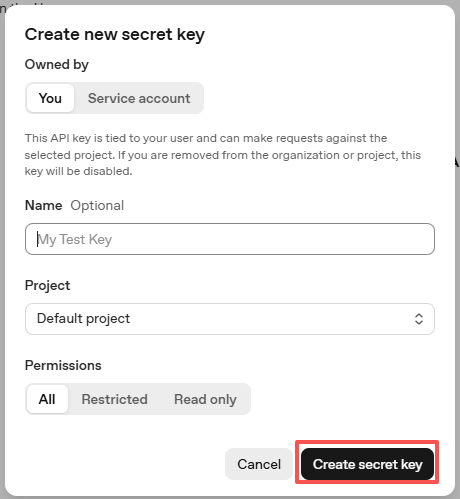
Go to OpenAI Platform and log in. On the API keys page, click Create new secret key.

Fill in the details (Owner, Name, Project, and permissions if needed), then click Create secret key.
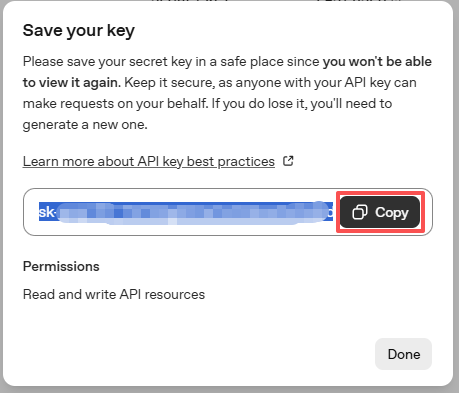
Once the key is created, copy it right away — you won’t be able to see it again. If you lose it, you’ll need to generate a new one.
In your project folder (for example:
/), create a file calledsecret.py:cd ~/ai-lab-kit/llm sudo nano secret.py
Paste your key into the file like this:
# secret.py
# Store secrets here. Never commit this file to Git.
OPENAI_API_KEY = "sk-xxx"
Enable billing and check models
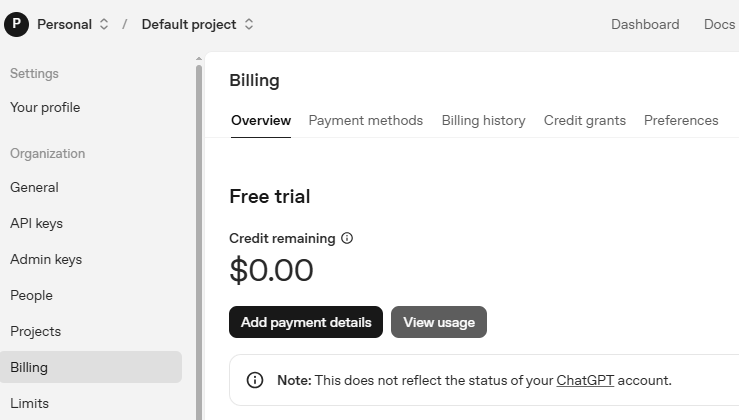
Before using the key, go to the Billing page in your OpenAI account, add your payment details, and top up a small amount of credits.
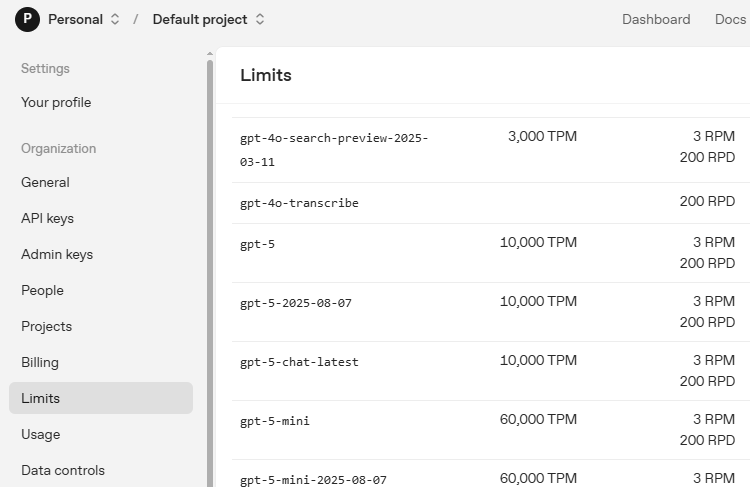
Then go to the Limits page to check which models are available for your account and copy the exact model ID to use in your code.
Run the Code
Run the AI LED controller:
cd ~/ai-lab-kit/llm
sudo python3 llm_openai_lamp.py
When the script runs:
You’ll see a welcome message: “Smart Lighting Assistant started!”
Type natural language commands like:
“turn on red light”
“show blue color”
“set to warm white”
“turn off the light”
The AI will respond and control the LED accordingly
Type ‘quit’ or ‘exit’ to end the program
Code
Here is the full Python script for the AI LED Controller:
#!/usr/bin/env python3
import re
from fusion_hat.llm import OpenAI
from fusion_hat.modules import RGB_LED
from fusion_hat.pwm import PWM
from secret import OPENAI_API_KEY

class AILEDController:
    def __init__(self):
        # Initialize LED
        self.rgb_led = RGB_LED(PWM(0), PWM(1), PWM(2), common=RGB_LED.CATHODE)

        # Initialize AI assistant
        self.llm = OpenAI(
            api_key=OPENAI_API_KEY,
            model="gpt-4o",
        )

        # Enhanced instructions for LED control
        self.instructions = """You are an AI assistant that can control an RGB LED.
        When the user mentions colors, you need to respond with a specific format to control the LED.

        Response format:
        1. Normal conversation part
        2. End with [LED:color] where color can be:
           - Color names: red, green, blue, yellow, purple, etc.
           - HEX values: #FF0000, #00FF00, etc.
           - RGB tuples: (255,0,0), (0,255,0), etc.
           - Numbers: 0xFF0000, etc.

        Examples:
        User: Turn the light red
        You: OK, set to red. [LED:red]

        User: Show warm yellow light
        You: Set to warm yellow light. [LED:#FFD700]

        User: Turn off the light
        You: Light turned off. [LED:black] or [LED:(0,0,0)]

        If the user doesn't mention anything color-related, don't include the [LED:...] tag."""

        # Color name to RGB mapping
        self.color_map = {
            'red': (255, 0, 0),
            'green': (0, 255, 0),
            'blue': (0, 0, 255),
            'yellow': (255, 255, 0),
            'purple': (255, 0, 255),
            'cyan': (0, 255, 255),
            'white': (255, 255, 255),
            'black': (0, 0, 0),
            'orange': (255, 165, 0),
            'pink': (255, 192, 203),
            'brown': (165, 42, 42),
            'grey': (128, 128, 128),
            'warmwhite': (255, 197, 143),
        }

        self.llm.set_max_messages(20)
        self.llm.set_instructions(self.instructions)
        self.llm.set_welcome("Hello! I'm your smart lighting assistant. I can control RGB LED colors.")

        # Initial state: light off
        self.rgb_led.color((0, 0, 0))

    def parse_led_command(self, text):
        """Parse LED control command from AI response"""
        pattern = r'\[LED:(.*?)\]'
        match = re.search(pattern, text)

        if not match:
            return None, text

        led_command = match.group(1).strip()
        display_text = re.sub(pattern, '', text).strip()

        return led_command, display_text

    def apply_color(self, color_spec):
        """Convert color specification to RGB and apply to LED"""
        color_spec = color_spec.lower().strip()

        try:
            # 1. Process color names
            if color_spec in self.color_map:
                rgb = self.color_map[color_spec]
                self.rgb_led.color(rgb)
                return True

            # 2. Process hex strings (e.g., #FF0000)
            elif color_spec.startswith('#'):
                hex_color = color_spec.lstrip('#')
                if len(hex_color) == 6:
                    rgb = tuple(int(hex_color[i:i+2], 16) for i in (0, 2, 4))
                    self.rgb_led.color(rgb)
                    return True

            # 3. Process RGB tuple strings (e.g., (255,0,0))
            elif color_spec.startswith('(') and color_spec.endswith(')'):
                numbers = color_spec[1:-1].split(',')
                if len(numbers) == 3:
                    rgb = tuple(int(num.strip()) for num in numbers)
                    if all(0 <= val <= 255 for val in rgb):
                        self.rgb_led.color(rgb)
                        return True

            # 4. Process hex number strings (e.g., 0xFF0000)
            elif color_spec.startswith('0x'):
                hex_num = int(color_spec, 16)
                self.rgb_led.color(hex_num)
                return True

            # 5. Try direct integer conversion
            else:
                try:
                    num = int(color_spec)
                    if 0 <= num <= 0xFFFFFF:
                        self.rgb_led.color(num)
                        return True
                except ValueError:
                    pass

            return False

        except Exception as e:
            print(f"Color setting error: {e}")
            return False

    def run(self):
        """Main run loop"""
        print("Smart Lighting Assistant started!")
        print("You can say: 'turn on red light', 'show blue', 'set to purple', 'turn off light', etc.")
        print("Type 'quit' or 'exit' to end the program\n")

        while True:
            try:
                user_input = input(">>> ").strip()

                if user_input.lower() in ['quit', 'exit', 'bye']:
                    print("Goodbye!")
                    self.rgb_led.color((0, 0, 0))
                    break

                response = self.llm.prompt(user_input, stream=True)

                full_response = ""
                for word in response:
                    if word:
                        print(word, end="", flush=True)
                        full_response += word
                print()

                led_command, display_only = self.parse_led_command(full_response)

                if led_command:
                    print(f"Detected LED command: {led_command}")
                    if self.apply_color(led_command):
                        print(f"✓ Applied color: {led_command}")
                    else:
                        print(f"✗ Unrecognized color format: {led_command}")

            except KeyboardInterrupt:
                print("\nProgram interrupted")
                self.rgb_led.color((0, 0, 0))
                break
            except Exception as e:
                print(f"Error: {e}")
                continue

# Enhanced version with direct command support
class AILEDControllerPro(AILEDController):
    def __init__(self):
        super().__init__()

        self.instructions = """You control an RGB LED light. When user mentions colors, add [LED:color_value] at the end.

        Color values can be:
        1. English color names: red, green, blue, yellow, purple, cyan, white, black, orange, pink
        2. HEX values: #FF0000
        3. RGB tuples: (255,0,0)

        Examples:
        User: Turn on red light
        Response: Red light activated. [LED:red]

        User: Turn off the light
        Response: Light turned off. [LED:black]

        User: How is the weather today?
        Response: I can't check real-time weather, but I can adjust your lighting! [LED:#FFFFFF]"""

        self.llm.set_instructions(self.instructions)

    def process_user_input(self, text):
        """Preprocess user input for direct commands"""
        text_lower = text.lower()

        direct_commands = {
            'turn on light': 'white',
            'turn off light': 'black',
            'red light': 'red',
            'green light': 'green',
            'blue light': 'blue',
            'yellow light': 'yellow',
            'purple light': 'purple',
            'white light': 'white',
        }

        for cmd, color in direct_commands.items():
            if cmd in text_lower:
                self.apply_color(color)
                return f"Set to {color}. [LED:{color}]"

        return None


if __name__ == "__main__":
    # Create an instance of the controller
    controller = AILEDControllerPro()
    controller.run()
Understanding the Code
AI Assistant Initialization
The system uses OpenAI’s GPT-4o model with custom instructions to ensure it generates LED control commands in a specific format.
self.llm = OpenAI(
    api_key=OPENAI_API_KEY,
    model="gpt-4o",
)

self.instructions = """You are an AI assistant that can control an RGB LED...
   ...End with [LED:color] where color can be:...
"""

self.llm.set_instructions(self.instructions)
RGB LED Control
The RGB_LED class from fusion_hat.modules provides an interface to control the three color channels via PWM.
self.rgb_led = RGB_LED(PWM(0), PWM(1), PWM(2), common=RGB_LED.CATHODE)

# Set color using RGB tuple
self.rgb_led.color((255, 0, 0))  # Red

# Set color using hex value
self.rgb_led.color(0xFF0000)  # Also red
Command Parsing with Regular Expressions
The system uses regex to extract LED control commands from the AI’s response.
def parse_led_command(self, text):
    """Parse LED control command from AI response"""
    pattern = r'\[LED:(.*?)\]'
    match = re.search(pattern, text)

    if not match:
        return None, text

    led_command = match.group(1).strip()
    display_text = re.sub(pattern, '', text).strip()

    return led_command, display_text
Multiple Color Format Support
The controller accepts various color specification formats for maximum flexibility.
def apply_color(self, color_spec):
    """Convert color specification to RGB and apply to LED"""
    color_spec = color_spec.lower().strip()

    # 1. Color names (red, green, blue, etc.)
    # 2. HEX strings (#FF0000)
    # 3. RGB tuples ((255,0,0))
    # 4. Hex numbers (0xFF0000)
    # 5. Direct integers (16711680)
Streaming Response
The AI’s response is streamed word by word for a more natural conversation experience.
response = self.llm.prompt(user_input, stream=True)

full_response = ""
for word in response:
    if word:
        print(word, end="", flush=True)
        full_response += word
Enhanced Pro Version
The AILEDControllerPro class adds direct command preprocessing for faster response to common requests.
direct_commands = {
    'turn on light': 'white',
    'turn off light': 'black',
    'red light': 'red',
    'green light': 'green',
    # ... etc
}
Troubleshooting
No module named ‘openai’” error**
Ensure the fusion-hat package is installed:
curl -sSL https://raw.githubusercontent.com/sunfounder/sunfounder-installer-scripts/main/install-fusion-hat.sh | sudo bash
“Invalid API key” error
Verify your API key in
secret.pyis correct and hasn’t expired. Check your OpenAI account for active API keys.LED doesn’t light up
Verify wiring connections (RGB pins to correct PWM ports)
Check if common cathode is connected to ground
Ensure current-limiting resistors are properly installed
Test each color channel individually using simple test code
AI doesn’t respond with [LED:…] tags
Check the system instructions are being set correctly
Try more explicit color commands
Ensure the AI model (gpt-4o) is available on your account
Streaming response appears choppy
Check internet connection stability
Reduce stream delay by adjusting network timeouts
Consider using non-streaming mode for testing
This project demonstrates how AI can bridge natural language understanding with physical hardware control, opening possibilities for intuitive human-machine interfaces!