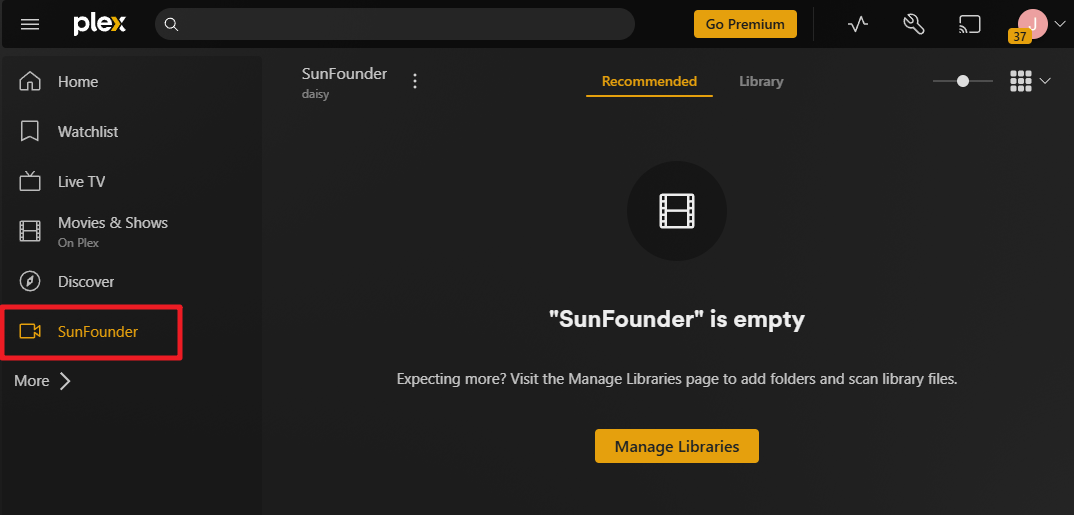
设置 Plex
Plex 是一个功能强大的媒体服务器平台,可以帮助你整理、管理并在多设备之间流式播放电影、电视剧、音乐和照片。通过在由 Raspberry Pi 驱动的 Pironman5 系列上部署 Plex,你可以搭建一个价格低廉、节能高效、可 24/7 运行的家庭媒体中心。
Raspberry Pi 体积小、功耗低、灵活性强,非常适合作为 Plex 服务器使用,使你的 Pi 成为一个可以在家庭网络甚至远程访问的个人娱乐中心。
准备工作
MicroSD 卡(建议 16GB 以上,Class 10)
Raspberry Pi 官方系统 Raspberry Pi OS(或 Raspberry Pi OS Lite)
稳定的网络连接(建议使用有线 Ethernet)
外接硬盘或 USB 存储设备(用于扩展存储)
安装 Portainer
打开终端并输入以下命令:
安装 Docker
curl -sSL https://raw.githubusercontent.com/sunfounder/sunfounder-installer-scripts/main/install_docker.sh | sudo bash
安装 Portainer
curl -sSL https://raw.githubusercontent.com/sunfounder/sunfounder-installer-scripts/main/install_portainer.sh | sudo bash
重启 Raspberry Pi。(重启后 立即 完成下面步骤。)
Raspberry Pi 启动后,打开浏览器并访问 Portainer 地址:
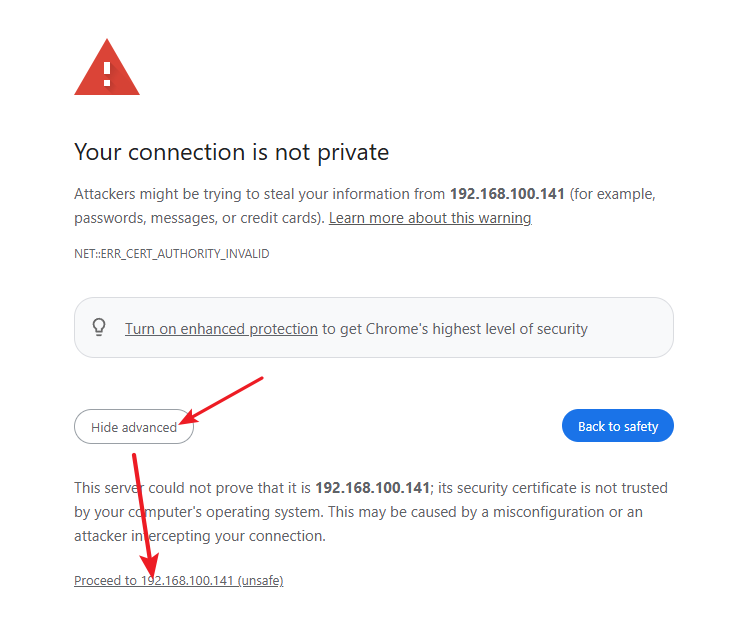
http://<your-rpi-ip-address>:9443默认情况下,你可能会看到浏览器提示该网站使用的是未被受信任证书机构(CA)签发的自签名 SSL/TLS 证书。大多数浏览器都会显示此类警告。在这种情况下,你可以安全地忽略该提示,选择继续访问。
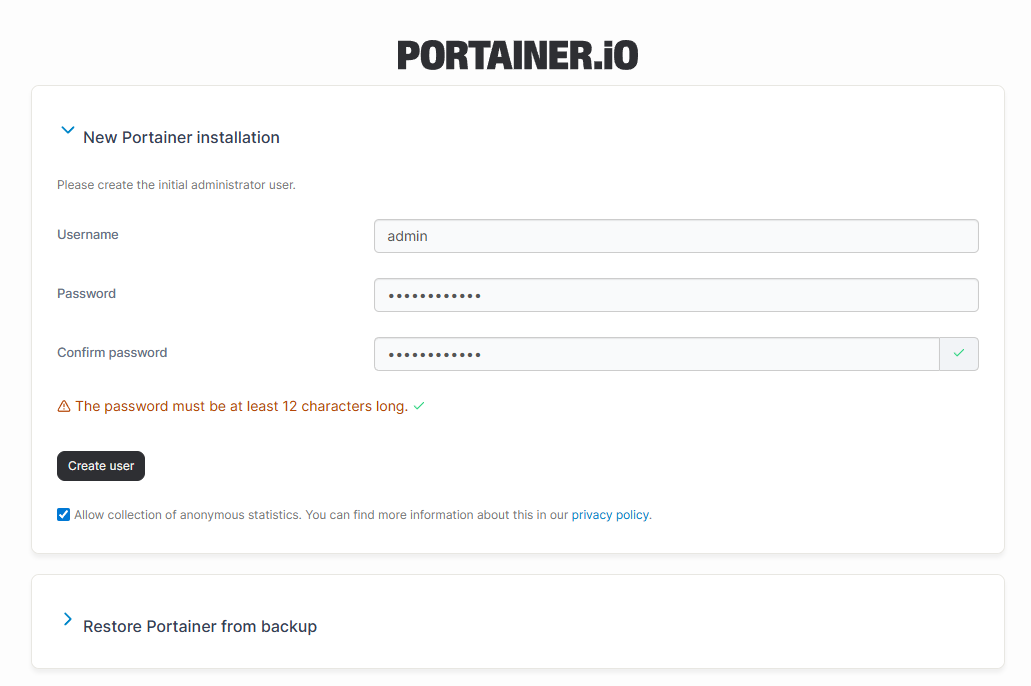
第一次登录时,需要设置管理员密码。
创建管理员账户后,会进入 Portainer 界面。从左侧导航栏进入 Setting -> General,找到 App Templates,并在输入框中填写以下 URL:
https://raw.githubusercontent.com/novaspirit/pi-hosted/refs/heads/master/template/portainer-v3-arm64.json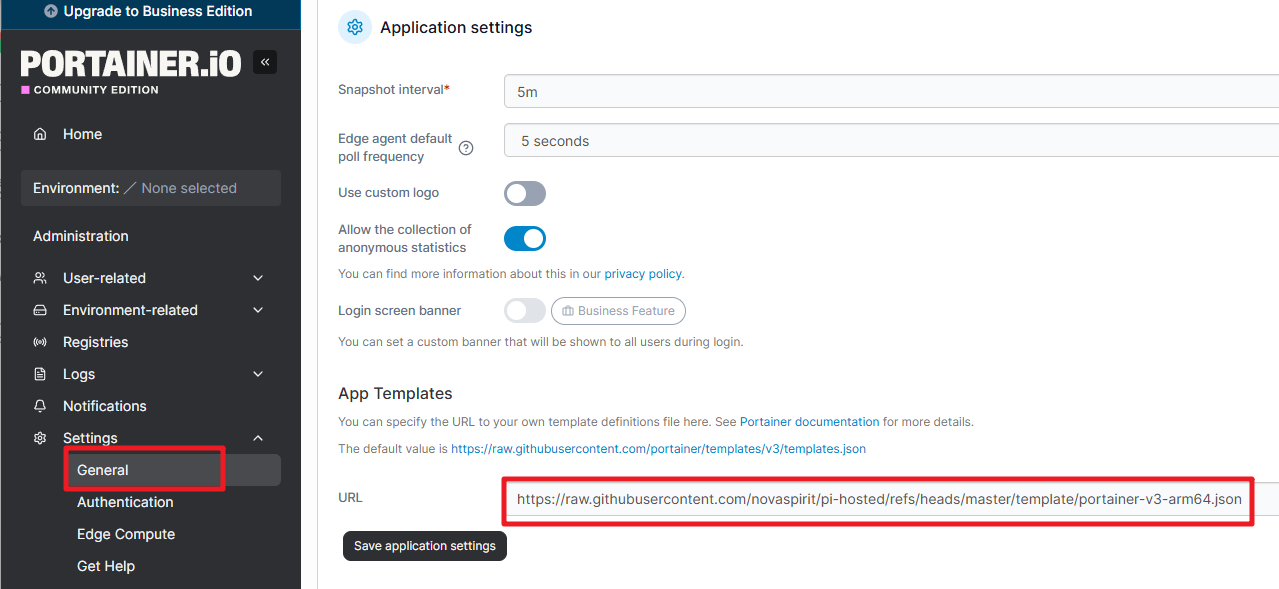
点击 Save Application Settings。该设置过程大约需要 10 秒完成。
安装 Plex
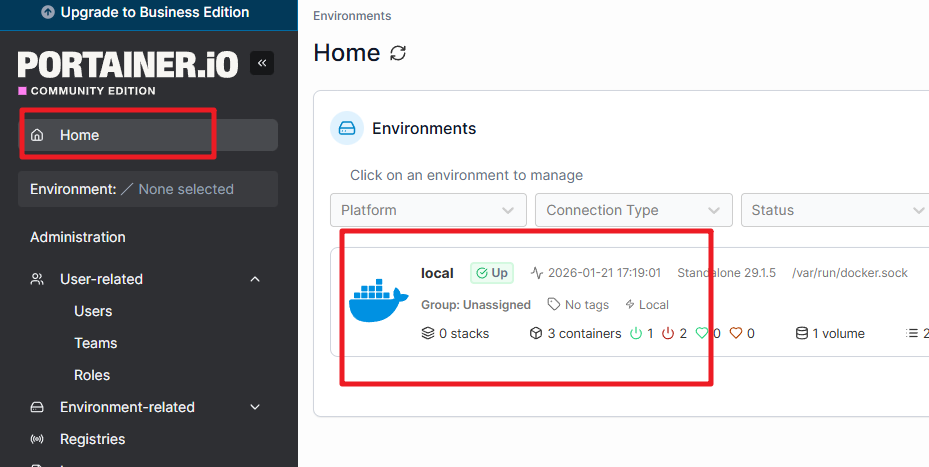
在左侧导航栏中点击 Home -> local。
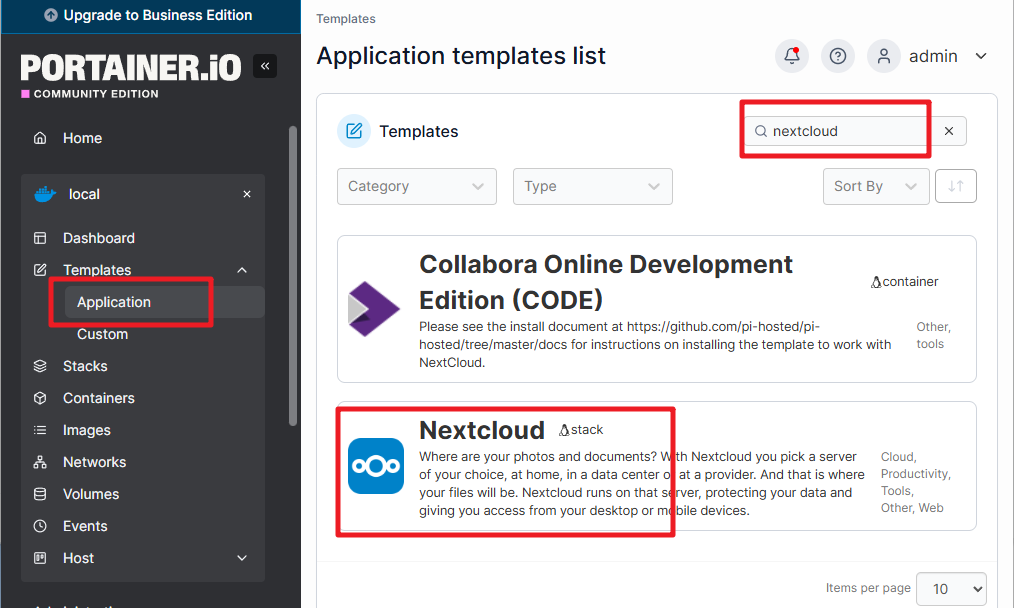
进入 Templates -> Application。在右上角搜索框中输入 plex 并点击。
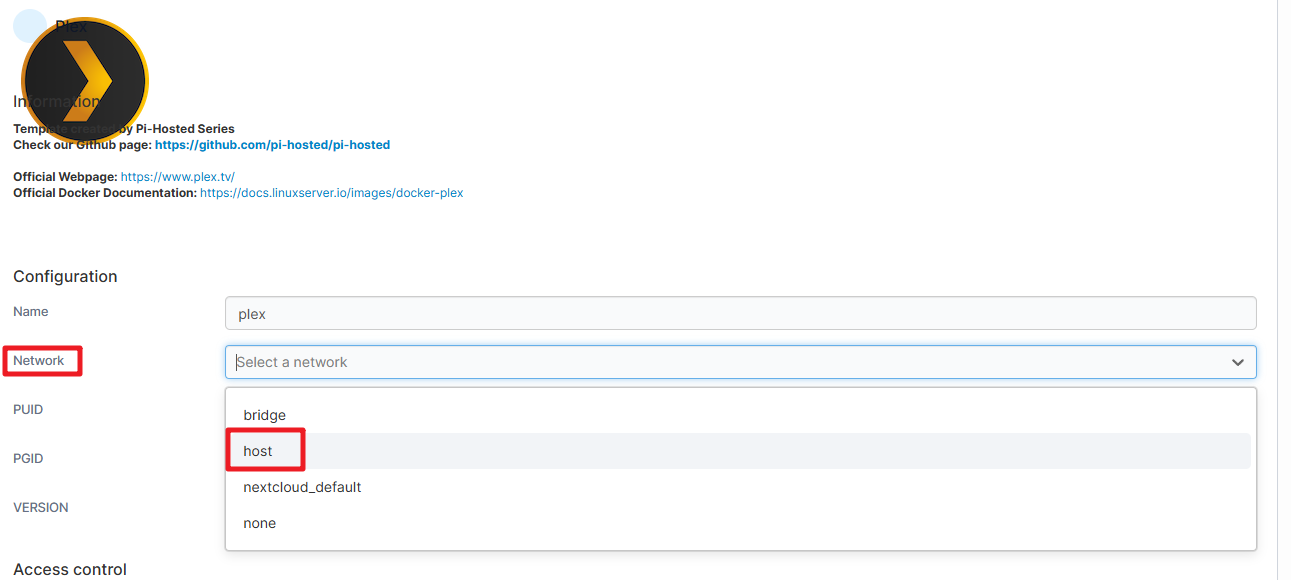
将网络模式设置为 host。
展开 Show advanced options。
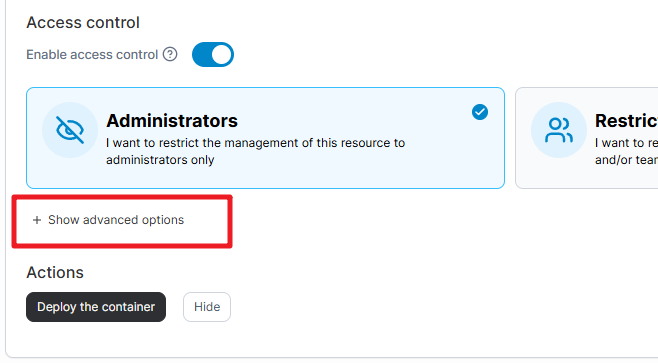
在 volume mapping (卷映射)部分,配置媒体文件的存储路径,并为 Plex 授予读写权限。默认路径为
/portainer/TV和/portainer/Movies,两者都启用了读写权限。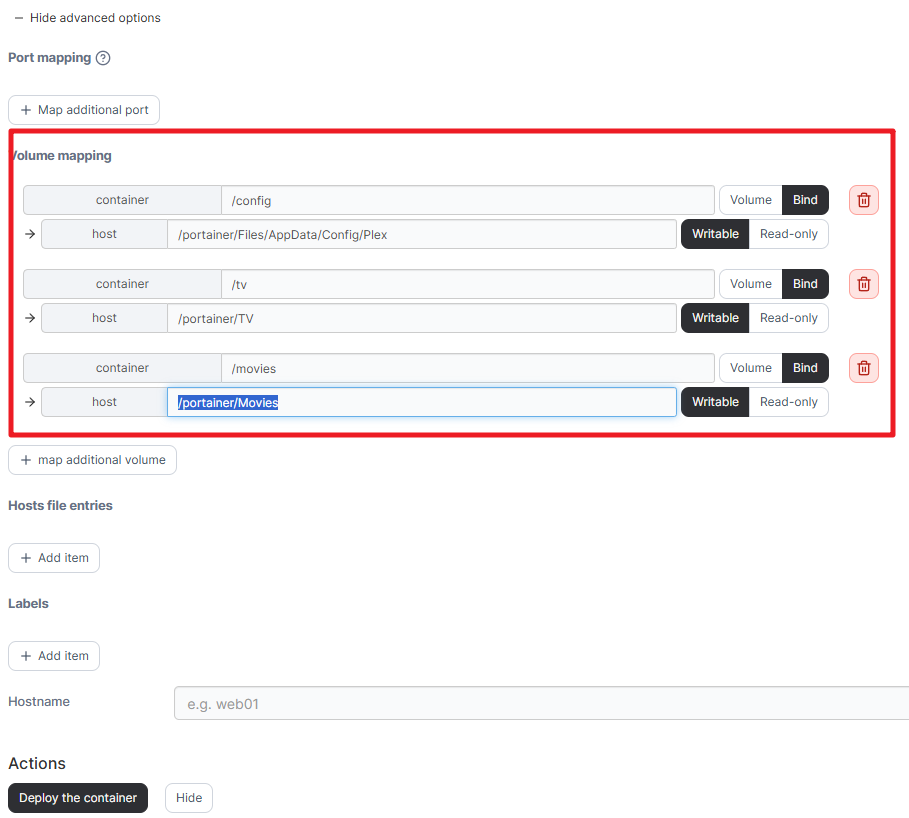
点击 Deploy,等待 Plex 安装完成。
配置 Plex 服务器
打开浏览器并输入:
http://<your_ip>:32400/web。此时你应该可以看到 Plex 的界面。
跳过高级订阅(Premium subscription)提示。
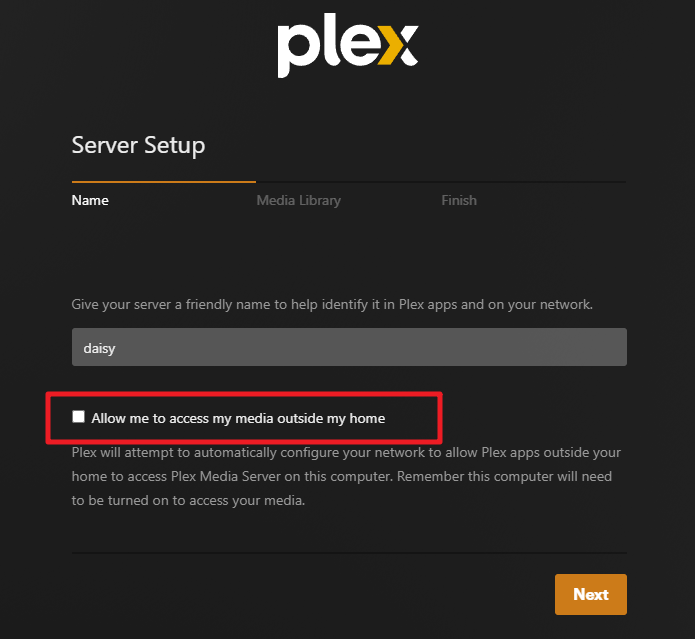
接下来会出现 Server Setup 页面。可以勾选 允许在家庭网络之外访问媒体。目前建议先不要勾选,稍后需要时再进行配置。
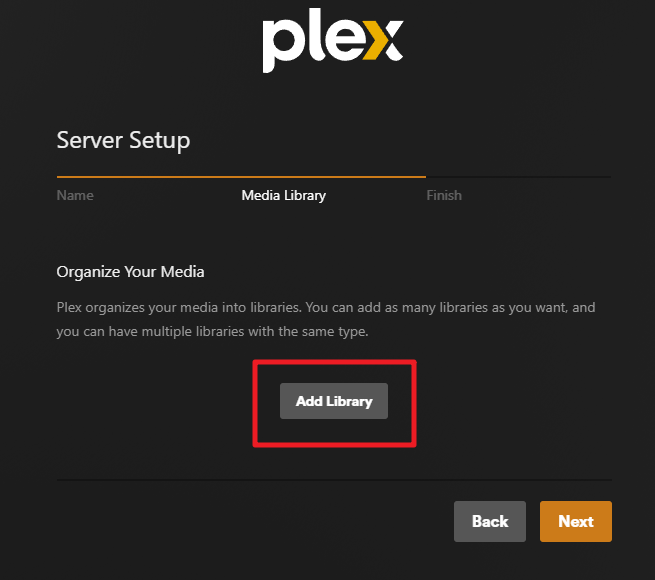
然后系统会提示你整理媒体库。你可以选择跳过稍后再添加媒体。但建议直接添加在 Portainer 中设置的存储路径,这样 Plex 可以自动扫描并导入媒体文件。
选择媒体库类型,为媒体库命名,并选择语言。
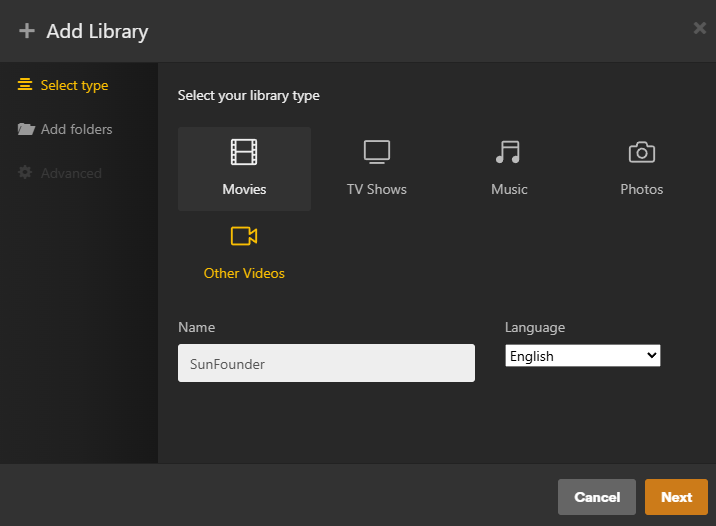
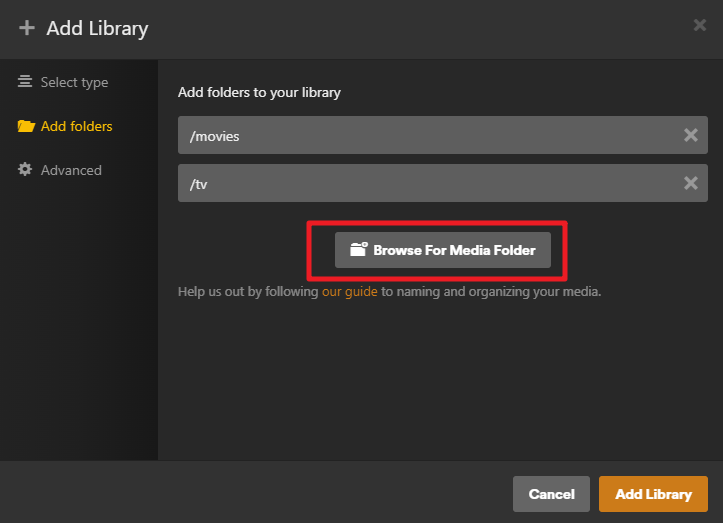
添加文件夹。找到之前设置的媒体存储路径,然后点击 Add Library。
点击 Finish。此时你的 Raspberry Pi Plex 服务器已经完成配置。

现在你应该可以在 Plex 服务器主页看到媒体文件列表。