Note
Hello, welcome to the SunFounder Raspberry Pi & Arduino & ESP32 Enthusiasts Community on Facebook! Dive deeper into Raspberry Pi, Arduino, and ESP32 with fellow enthusiasts.
Why Join?
Expert Support: Solve post-sale issues and technical challenges with help from our community and team.
Learn & Share: Exchange tips and tutorials to enhance your skills.
Exclusive Previews: Get early access to new product announcements and sneak peeks.
Special Discounts: Enjoy exclusive discounts on our newest products.
Festive Promotions and Giveaways: Take part in giveaways and holiday promotions.
👉 Ready to explore and create with us? Click [here] and join today!
Enable I2C and Camera Interface
Here we are using the Raspberry Pi’s I2C and Camera interfaces, but by default they are disabled, so we need to enable them first.
Input the following command:
sudo raspi-config
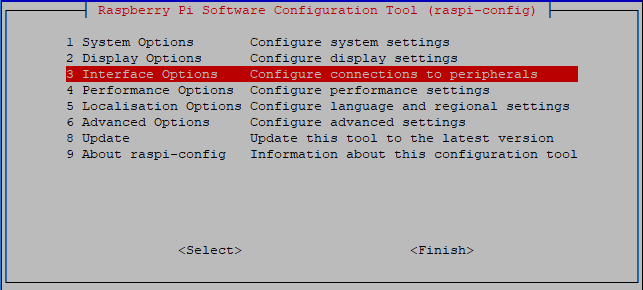
Choose 3 Interfacing Options by press the down arrow key on your keyboard, then press the Enter key.
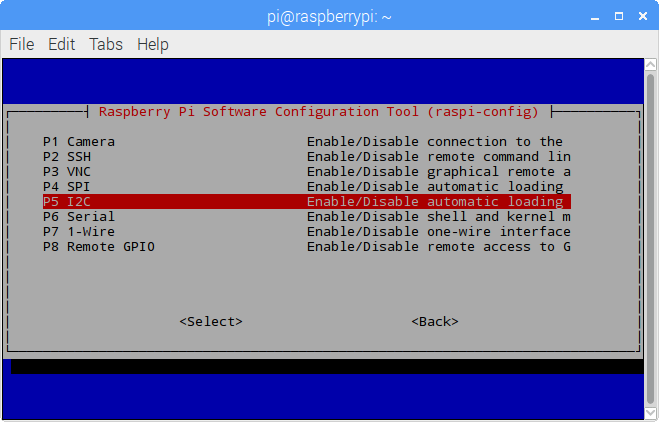
Then P5 I2C.
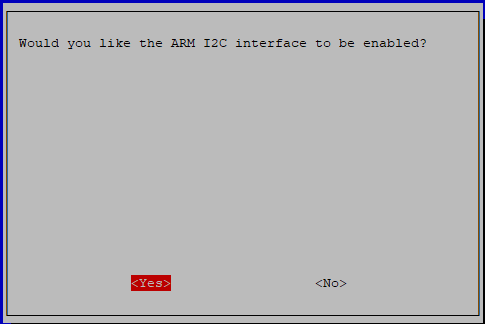
Use the arrow keys on the keyboard to select <Yes> -> <OK> to complete the setup of the I2C.
Go to 3 Interfacing Options again and select P1 Camera.

Again select <Yes> -> <OK> to complete the setup.

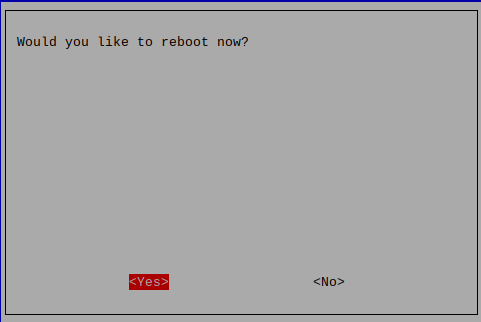
After you select <Finish>, a pop-up will remind you that you need to reboot for the settings to take effect, select <Yes>.