Note
Hello, welcome to the SunFounder Raspberry Pi & Arduino & ESP32 Enthusiasts Community on Facebook! Dive deeper into Raspberry Pi, Arduino, and ESP32 with fellow enthusiasts.
Why Join?
Expert Support: Solve post-sale issues and technical challenges with help from our community and team.
Learn & Share: Exchange tips and tutorials to enhance your skills.
Exclusive Previews: Get early access to new product announcements and sneak peeks.
Special Discounts: Enjoy exclusive discounts on our newest products.
Festive Promotions and Giveaways: Take part in giveaways and holiday promotions.
👉 Ready to explore and create with us? Click [here] and join today!
Calibrate the PiCrawler
Due to possible deviations during PiCrawler installation or limitations of the servos themselves, some servo angles may be slightly tilted, so you can calibrate them.
Of course you can skip this chapter if you think the assembly is perfect and doesn’t require calibration.
The specific steps are as follows:
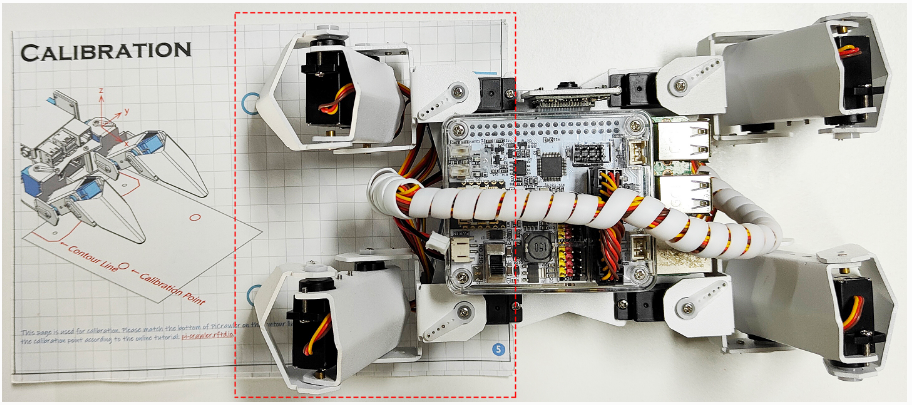
Take out the assembly leaflet, turn it to the last page, and lay it flat on the table. Then place the PiCrawler as shown below, aligning its bottom with the outline on the calibration chart.
Run the
calibration.py.cd /home/pi/picrawler/examples/calibration sudo python3 calibration.py
After running the above code, you will see the following interface displayed in the terminal.
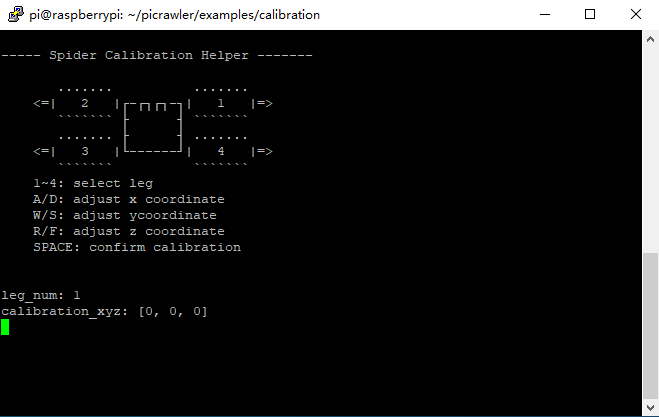
Press
2and3keys respectively to choose left 2 legs,then pressw,a,s,d,r, andfkeys to move them to the calibration point.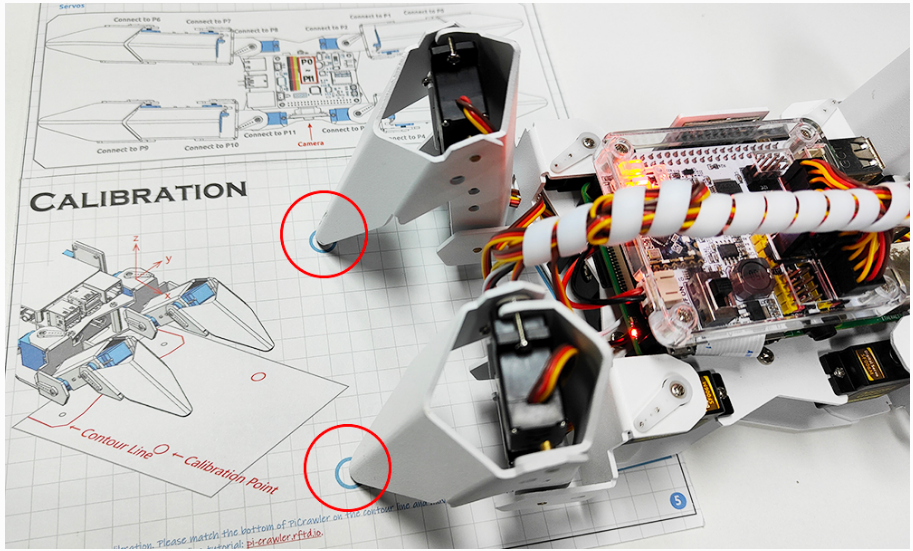
Now, change the calibration paper to the right and press the
1and4keys to choose right 2 legs, then pressw,a,s,d,r, andfkeys to move them to the calibration point.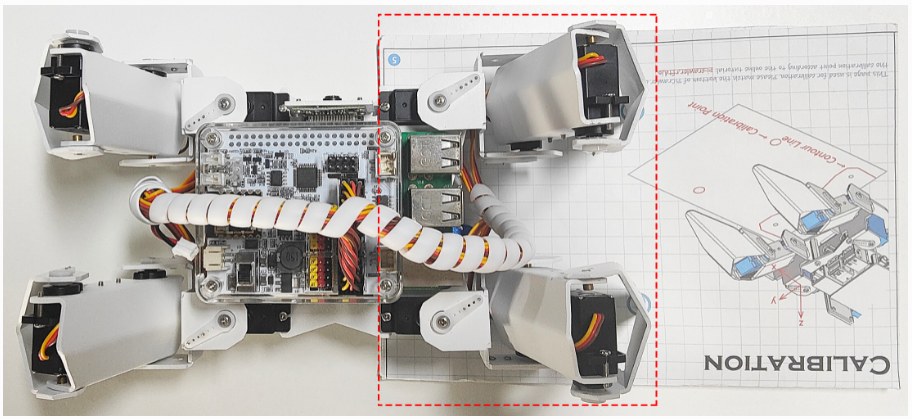
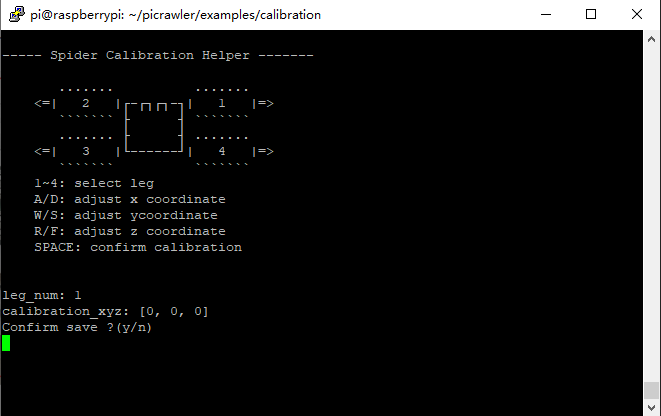
After the calibration is completed, press the
spacekey to save, you will be prompted to enterYto confirm, and thenctrl+cto exit the program to complete the calibration.