Note
Hello, welcome to the SunFounder Raspberry Pi & Arduino & ESP32 Enthusiasts Community on Facebook! Dive deeper into Raspberry Pi, Arduino, and ESP32 with fellow enthusiasts.
Why Join?
Expert Support: Solve post-sale issues and technical challenges with help from our community and team.
Learn & Share: Exchange tips and tutorials to enhance your skills.
Exclusive Previews: Get early access to new product announcements and sneak peeks.
Special Discounts: Enjoy exclusive discounts on our newest products.
Festive Promotions and Giveaways: Take part in giveaways and holiday promotions.
👉 Ready to explore and create with us? Click [here] and join today!
Install 3.5’’ IPS Screen Driver on Kali
This section guides you through installing the 3.5’’ IPS screen driver on Kali Linux. You will log in to the system, open a terminal, and install the driver to enable display output on the 3.5’’ IPS screen.
Install 3.5’’ IPS Screen Driver (Important)
Connect your Raspberry Pi to a monitor and power it on. Make sure an Ethernet cable is connected for network access.
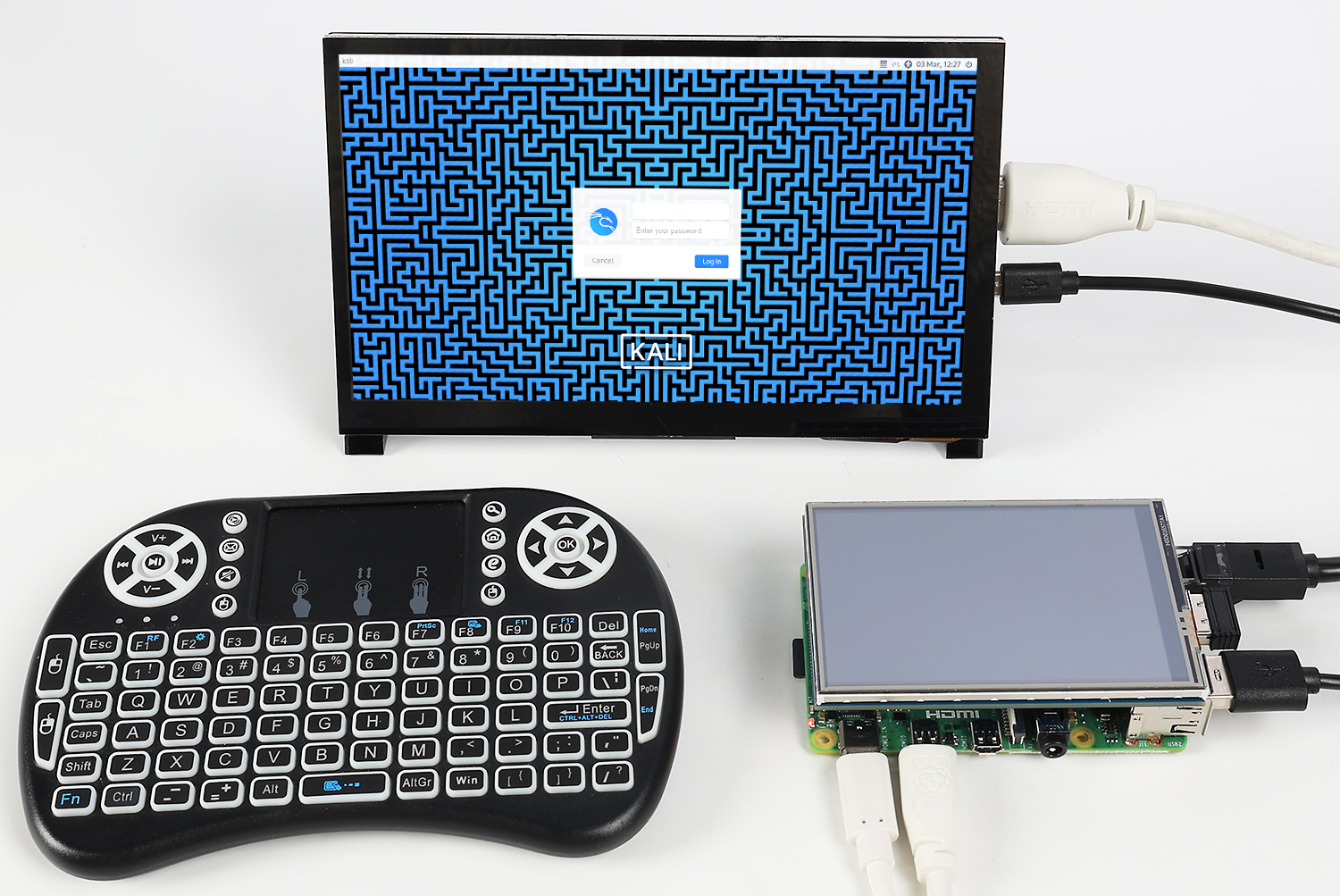
Log in using the default Kali credentials:
Username:
kaliPassword:
kali
After logging in, search for and open the Terminal.
Open the built-in Firefox browser and visit:
35-ips-screen.rtfd.ioCopy and run the following commands in the Terminal one by one to install the driver:
sudo rm -rf LCD-show-kali
git clone https://github.com/sunfounder/LCD-show-kali.git
chmod -R 755 LCD-show-kali
cd LCD-show-kali/
sudo ./MHS35IPS-show
After the installation is complete:
Disconnect the HDMI monitor.
The Raspberry Pi will reboot automatically.
After rebooting, the system will be displayed on the 3.5’’ IPS screen.
Rotate the Display
You can change the screen and touch orientation by running:
cd LCD-show-kali/
sudo ./rotate.sh 90
The system will reboot automatically. After restart, the display and touch direction will be rotated to 90°.
You can replace 90 with 0, 180, or 270 to set your desired orientation.