Note
Welcome to the SunFounder Raspberry Pi, Arduino & ESP32 Community on Facebook!
Get technical support and troubleshooting help.
Learn and share projects, tips, and tutorials.
Access early product previews and updates.
Enjoy exclusive discounts and giveaways.
👉 Join us here: [here]
Setting Up on Umbrel OS
If you have installed Umbrel OS on your Raspberry Pi 5, you will need to configure the Pironman 5 Mini using the command line. Detailed instructions are provided below:
Connect your Raspberry Pi 5 to your network using an Ethernet cable. This step is essential to ensure that your Raspberry Pi has internet access.
In your browser, visit:
http://umbrel.local. If the page does not open, check your router for the Umbrel device’s IP address, for example:http://192.168.1.50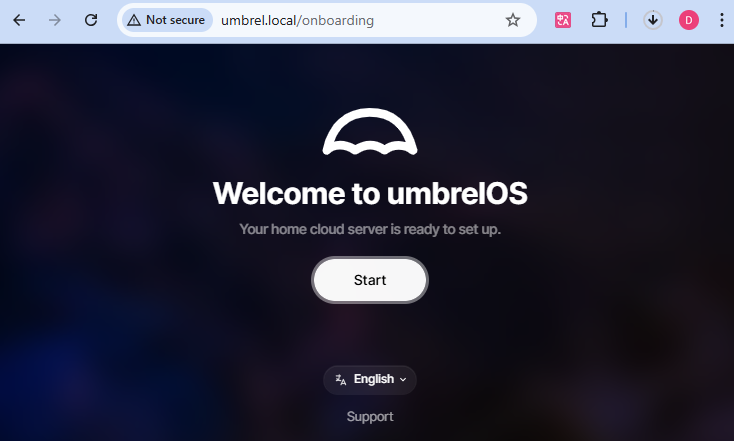
Create your Umbrel account by setting a username and password. This password will be used for future remote access to Umbrel, so make sure to remember it.

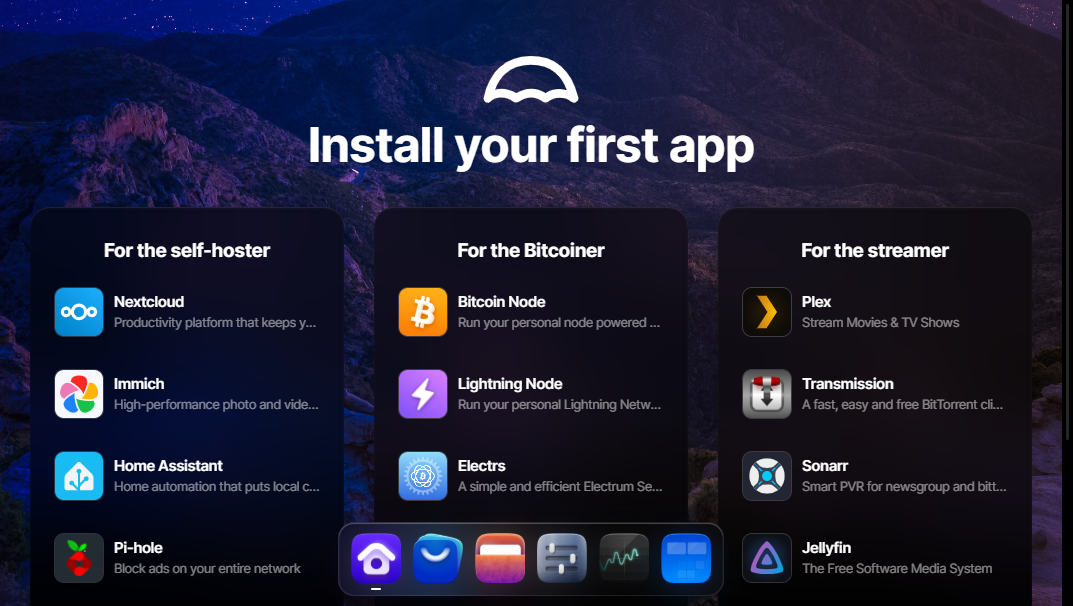
Click Next to complete the Umbrel setup and enter the desktop environment.
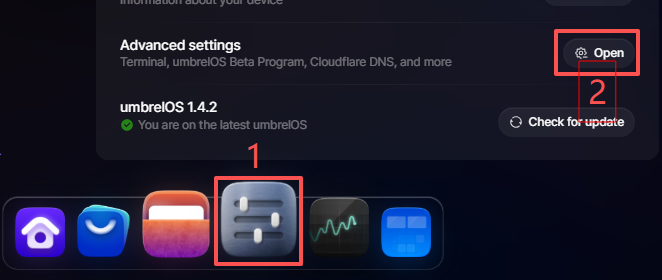
Open the Terminal. From the desktop, click the Settings icon, then select Advanced Settings and click Open.
Click Open Terminal.
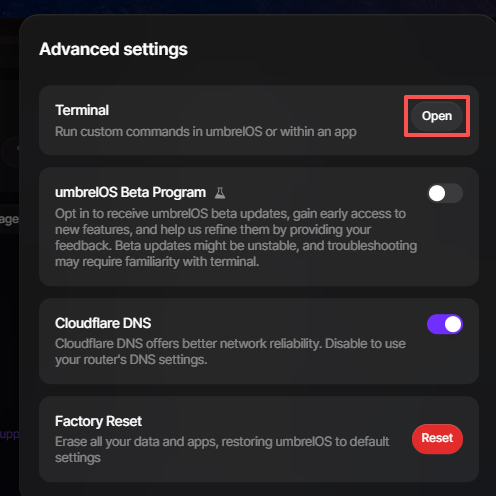
You can choose to open the Terminal in Umbrel OS or within a specific app. Either option will take you to the Terminal interface.
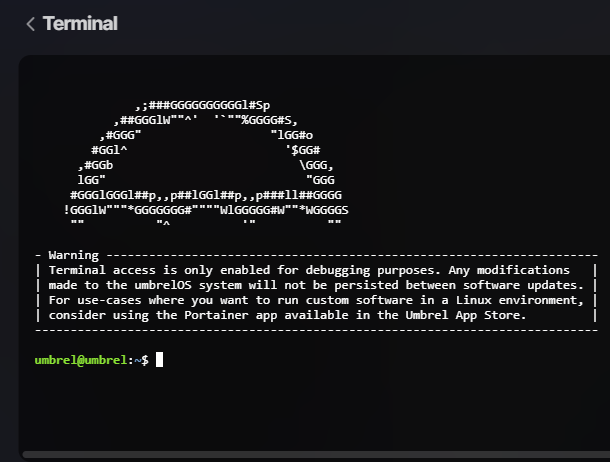
Proceed to download the code from GitHub and install the
pironman5module.cd ~ git clone -b mini https://github.com/sunfounder/pironman5.git --depth 1 cd ~/pironman5 sudo python3 install.py
After the installation is complete, enter the following command to reboot your Raspberry Pi.
sudo rebootUpon reboot, the
pironman5.servicewill start automatically. Here are the primary configurations for Pironman 5 Mini:Four WS2812 RGB LEDs will light up in blue with a breathing mode.
The RGB fans are set to Always On mode by default. For information on adjusting activation temperatures, see Control RGB Fan.
You can use the
systemctltool tostart,stop,restart, or check thestatusofpironman5.service.sudo systemctl restart pironman5.service
restart: Use this command to apply any changes made to the settings of pironman 5 Mini.start/stop: Enable or disable thepironman5.service.status: Check the operational status of thepironman5program using thesystemctltool.
Note
At this point, you have successfully set up the Pironman 5 Mini, and it is ready to use.
For advanced control of its components, please refer to 5. Controlling with Commands or the Dashboard.