Note
Welcome to the SunFounder Raspberry Pi, Arduino & ESP32 Community on Facebook!
Get technical support and troubleshooting help.
Learn and share projects, tips, and tutorials.
Access early product previews and updates.
Enjoy exclusive discounts and giveaways.
👉 Join us here: [here]
Seting up on Batocera.linux
If you have installed the Batocera.linux OS, you can remotely log in to this system via SSH and then follow the steps below to complete the configuration.
Once the system boots up, use ssh to remotely connect to Pironman5. For Windows, you can open Powershell, and for Mac OS X and Linux, you can directly open Terminal.
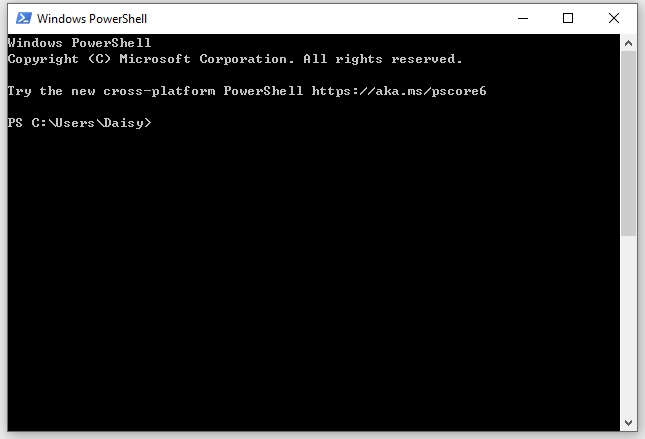
The default hostname for the batocera system is
batocera, with the default username asrootand the password aslinux. Therefore, you can log in by typingssh root@batocera.localand entering the passwordlinux.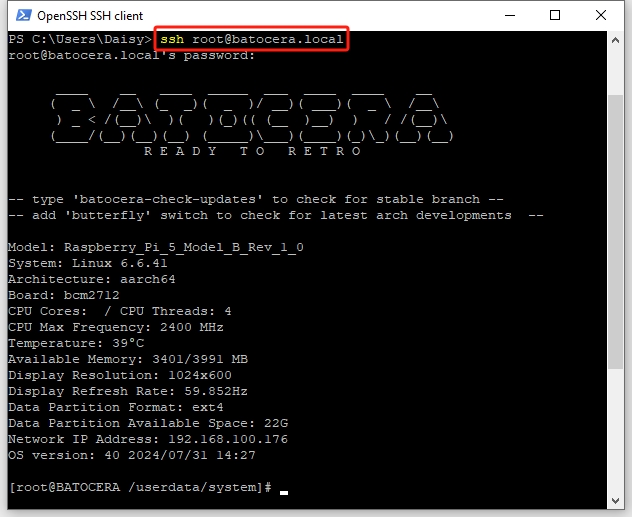
Execute the command:
/etc/init.d/S92switch setupto enter the menu settings page.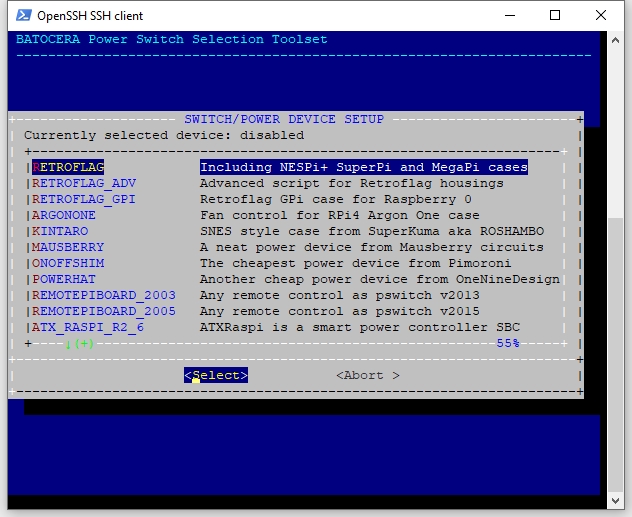
Use the down arrow key to navigate to the end, select and activate the Pironman5 services.
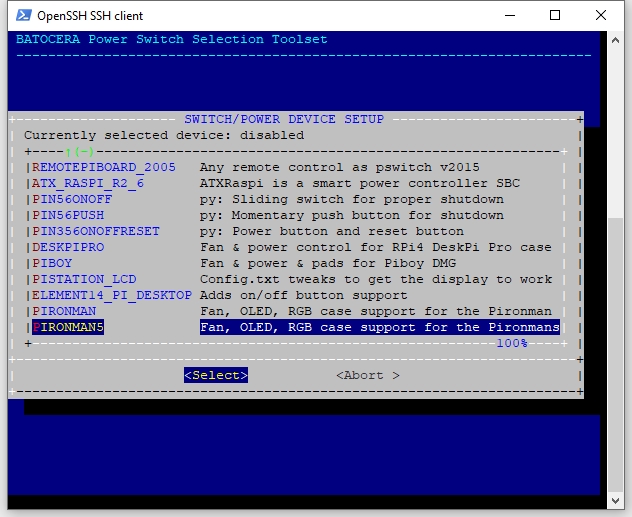
After activating the pironman5 service, select OK.
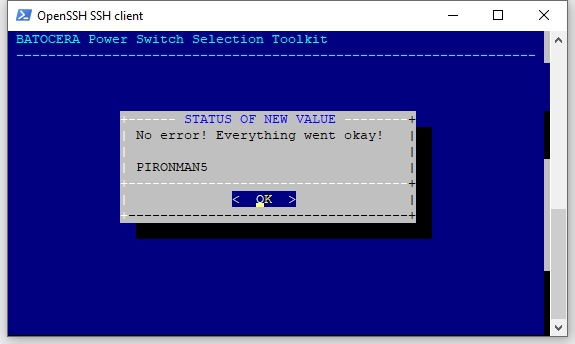
Execute the command
rebootto restart Pironman5.reboot
Upon reboot, the
pironman5.servicewill start automatically. Here are the primary configurations for Pironman 5:Four WS2812 RGB LEDs will light up in blue with a breathing mode.
Note
The RGB fans are set to Balanced mode by default. For different activation temperatures, see Control RGB Fan.
Now, you can connect the Pironman 5 to a screen, game controllers, headphones, and more to immerse yourself in your gaming world.
Note
At this point, you have successfully set up the Pironman 5 Mini, and it is ready to use.
For advanced control of its components, please refer to Control with Commands.