Note
Hello, welcome to the SunFounder Raspberry Pi & Arduino & ESP32 Enthusiasts Community on Facebook! Dive deeper into Raspberry Pi, Arduino, and ESP32 with fellow enthusiasts.
Why Join?
Expert Support: Solve post-sale issues and technical challenges with help from our community and team.
Learn & Share: Exchange tips and tutorials to enhance your skills.
Exclusive Previews: Get early access to new product announcements and sneak peeks.
Special Discounts: Enjoy exclusive discounts on our newest products.
Festive Promotions and Giveaways: Take part in giveaways and holiday promotions.
👉 Ready to explore and create with us? Click [here] and join today!
Install OpenSSH via PowerShell
If you see the following error when running ssh <username>@<hostname>.local or ssh <username>@<IP>:
ssh: The term 'ssh' is not recognized as the name of a cmdlet, function, script file, or operable program.
It means your Windows system does not have OpenSSH installed. Follow the steps below to install it manually.
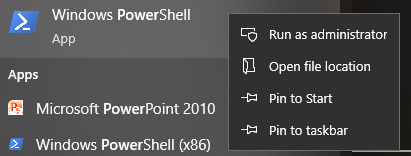
Open the Windows Start Menu, type powershell, right-click Windows PowerShell, and select Run as administrator.
Install the OpenSSH Client:
Add-WindowsCapability -Online -Name OpenSSH.Client~~~~0.0.1.0
After installation, you should see output similar to:
Path          :
Online        : True
RestartNeeded : False
Verify the installation:
Get-WindowsCapability -Online | Where-Object Name -like 'OpenSSH*'
If OpenSSH is installed, the output will include:
Name  : OpenSSH.Client~~~~0.0.1.0
State : Installed
Name  : OpenSSH.Server~~~~0.0.1.0
State : NotPresent
Warning
If
Installeddoes not appear, your Windows system may be too old. In this case, we recommend using a third-party SSH tool. See: PuTTYClose PowerShell, reopen it (no need to run as administrator this time), and use the
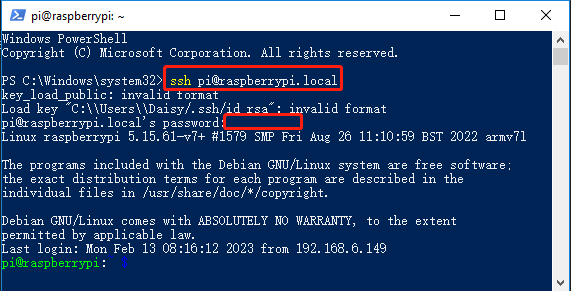
sshcommand to log in:ssh <username>@<hostname>.local