Note
Welcome to the SunFounder Raspberry Pi, Arduino & ESP32 Community on Facebook!
Get technical support and troubleshooting help.
Learn and share projects, tips, and tutorials.
Access early product previews and updates.
Enjoy exclusive discounts and giveaways.
👉 Join us here: [here]
Configuring Display
This chapter guides you through configuring the display settings for the Pironman 5 Pro MAX, including enabling power-saving screen blanking and setting up screen flipping to accommodate special installation orientations.
Setting Up Screen Idle Sleep
To save power when you are not actively using the Pironman 5 Pro MAX, you can enable the screen’s automatic sleep function. When the device has been idle for a set period, the main display will automatically turn off, entering a low-power state.
Follow these steps to configure it:
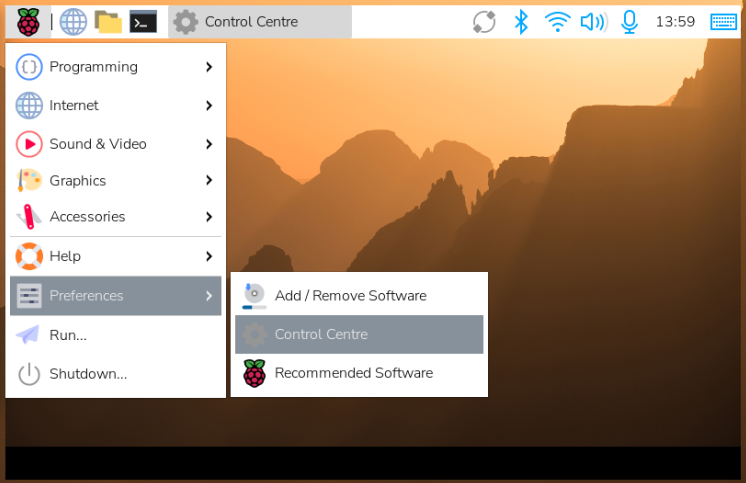
Click Menu -> Preferences in the bottom-left corner of the screen, then find and open the Control Centre.
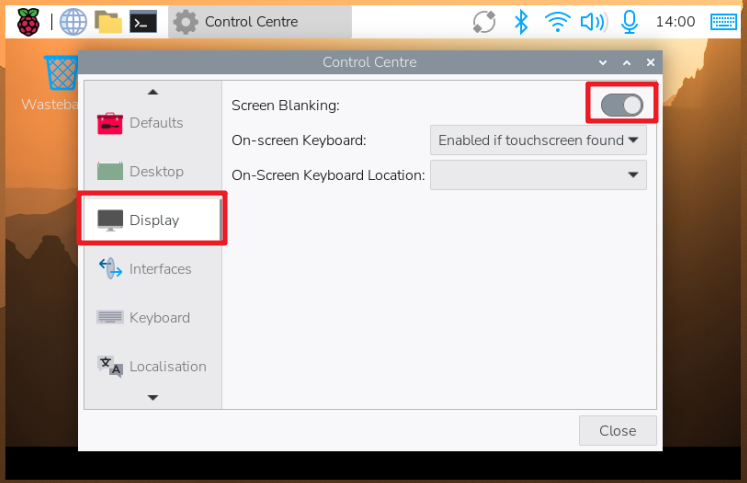
In the Control Centre interface, click to enter the Display settings.
Locate the Screen Blanking option and toggle it on.
Flip the Pironman 5 Pro MAX
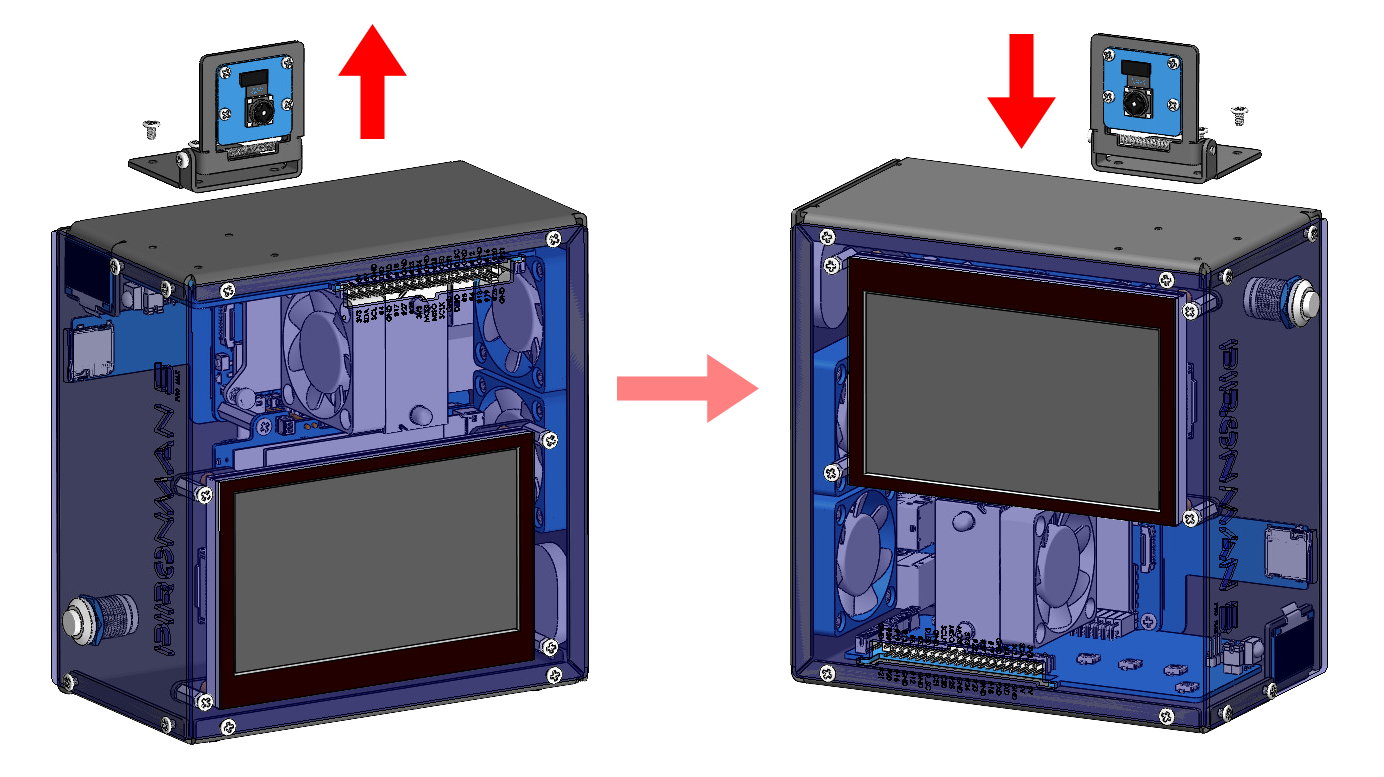
The Pironman 5 Pro MAX can be flipped over for use. In this configuration, the touchscreen will be positioned on top and the GPIO ports will be on the bottom, offering greater flexibility for various projects. This setup is ideal for applications such as more convenient screen viewing or easier access to GPIO pins when connecting sensors.
When flipping the device, both displays need separate adjustment:
Main touchscreen – Requires OS-level rotation settings
OLED status screen – Requires command-line configuration
To flip the Pironman 5 Pro MAX, follow these steps:
Physical Preparation
Remove the camera from the Pironman 5 Pro MAX, flip the entire unit over, and reinstall the camera. The installation should be symmetrical to its original orientation.
Touchscreen Orientation Setup
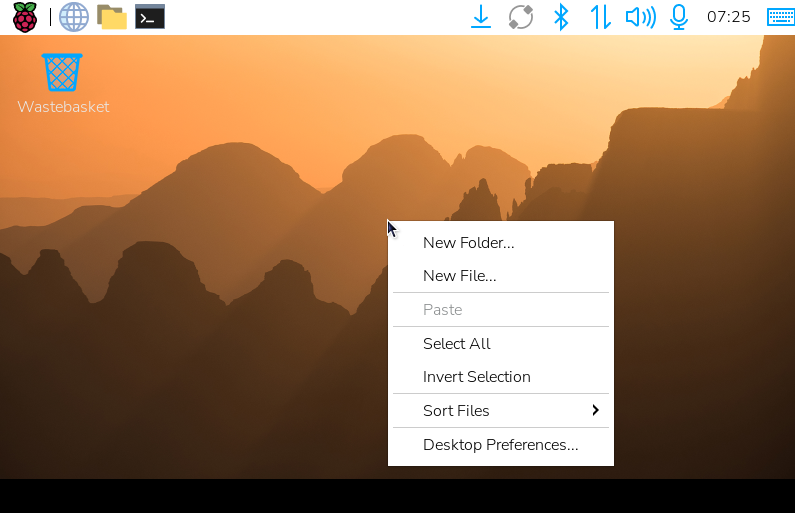
Power on the device. On the touchscreen, long-press the desktop to bring up the menu and select Desktop Preferences.
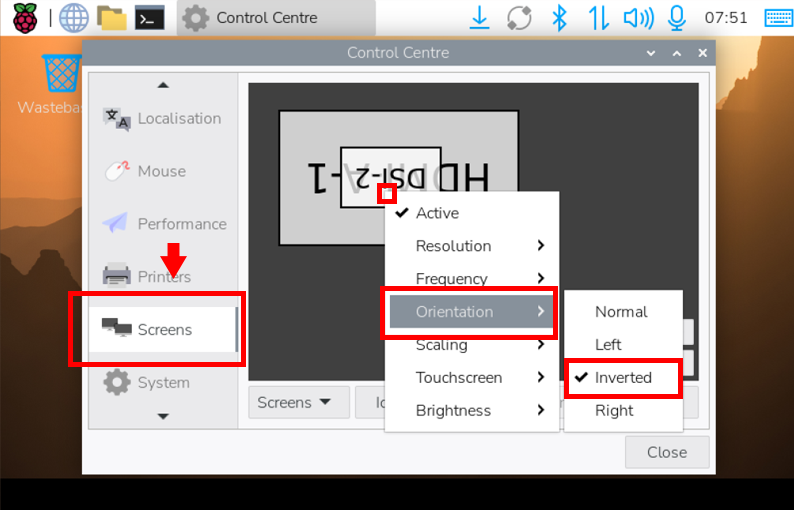
Scroll down to find the Screens option, then long-press the screen indicator in the display. Select Orientation → Inverted.
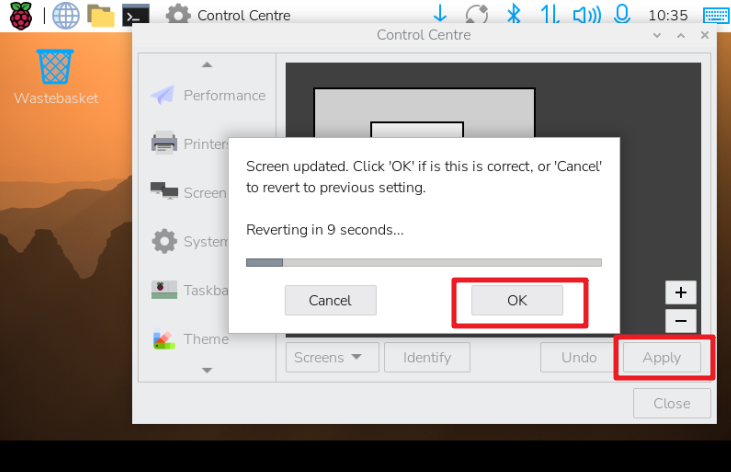
Apply, the update window will show the screen, you need to click OK to confirm.
OLED Screen Configuration
In the Terminal, run the following command to rotate the OLED 180 degrees:
sudo pironman5 -or 180
Note
After flipping, ensure the unit is placed on a stable surface to prevent tipping.
If you encounter touch input misalignment, recalibrate the touchscreen through system settings.
For advanced display adjustments, refer to the Control with Commands section for additional commands related to OLED and screen rotation.