Note
Welcome to the SunFounder Raspberry Pi, Arduino & ESP32 Community on Facebook!
Get technical support and troubleshooting help.
Learn and share projects, tips, and tutorials.
Access early product previews and updates.
Enjoy exclusive discounts and giveaways.
👉 Join us here: [here]
Setting up NextCloudPi
NextCloud is an open-source private cloud storage solution, similar to Google Drive or Dropbox. It can be used to store files, share documents, sync photos, and manage calendars and contacts. Unlike public cloud services, NextCloud gives users complete control over their data, making it ideal for individuals and small teams who value privacy and data security.
The Pironman5 series powered by Raspberry Pi offers low power consumption, compact size, and reliable performance, which makes it an excellent choice for a home private cloud server. Combined with NextCloud, it can serve as a cost-effective NAS system.
Preparation
MicroSD card (16GB+, Class 10 recommended)
Raspberry Pi official system Raspberry Pi OS (or Raspberry Pi OS Lite)
Stable network connection (wired Ethernet recommended)
External hard drive or USB stick (for expanded storage)
Install portainer
Open the terminal and enter the following commands:
Install docker
curl -sSL https://raw.githubusercontent.com/sunfounder/sunfounder-installer-scripts/main/install_docker.sh | sudo bash
Install portainer
curl -sSL https://raw.githubusercontent.com/sunfounder/sunfounder-installer-scripts/main/install_portainer.sh | sudo bash
Restart your Raspberry Pi. (Then complete the following steps IMMEDIATELY.)
After your Raspberry Pi boots up, open a web browser and visit your Portainer address:
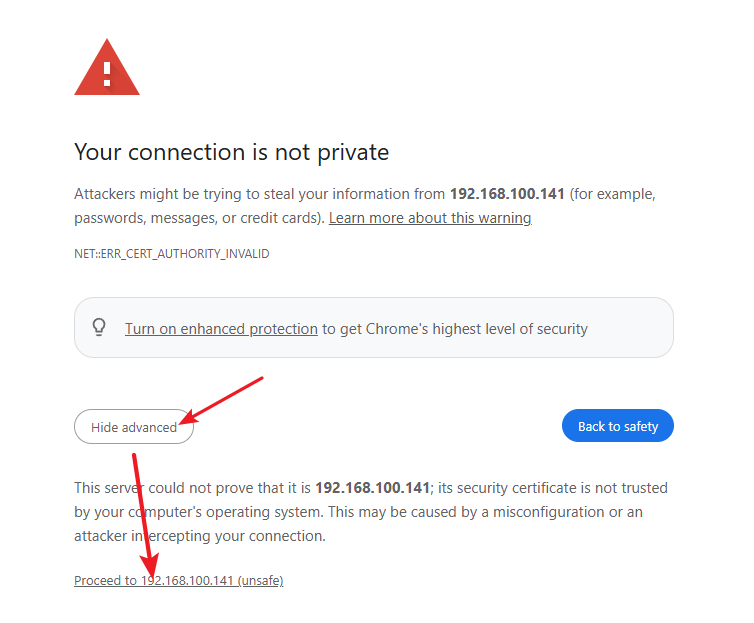
https://<your-rpi-ip-address>:9443.By default, you will see a warning that the site is using a self-signed SSL/TLS certificate not issued by a known Certificate Authority (CA). Most web browsers will display a warning about such certificates. In this case, you can safely ignore the warning, accept the risk, and continue.
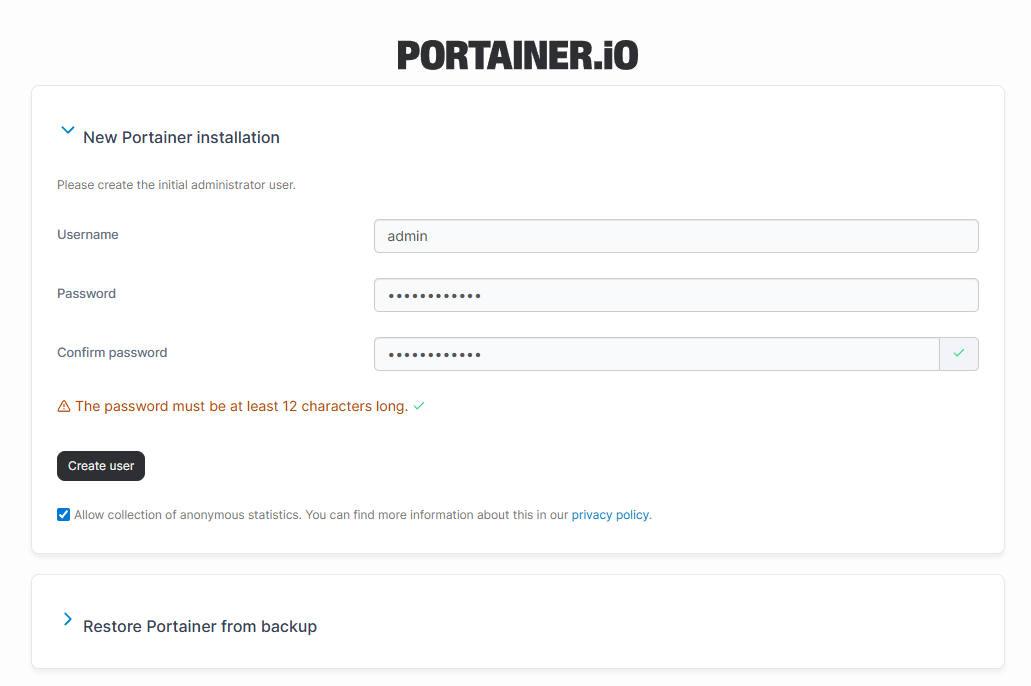
On the first login, you will need to set an admin password.
After registering the admin account, you will enter the Portainer interface. From the left navigation bar, click Setting -> General, find App Templates, and enter the following URL in the field:
https://raw.githubusercontent.com/novaspirit/pi-hosted/refs/heads/master/template/portainer-v3-arm64.json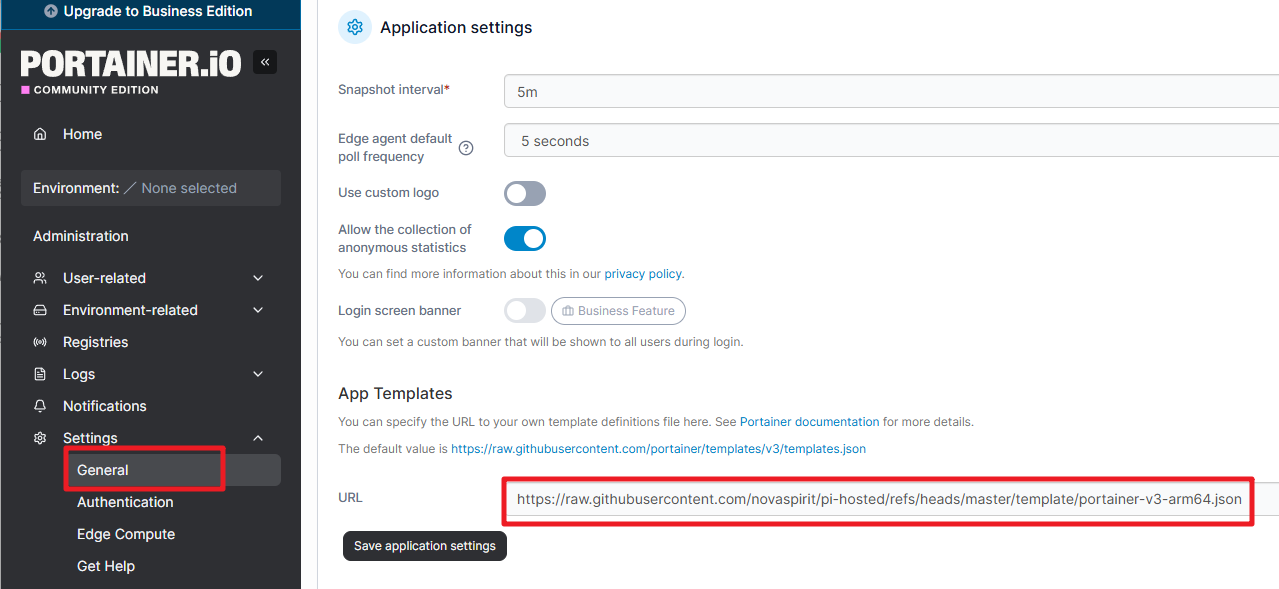
Click Save Application Settings. The setup will take around 10 seconds to complete.
Install NextCloud
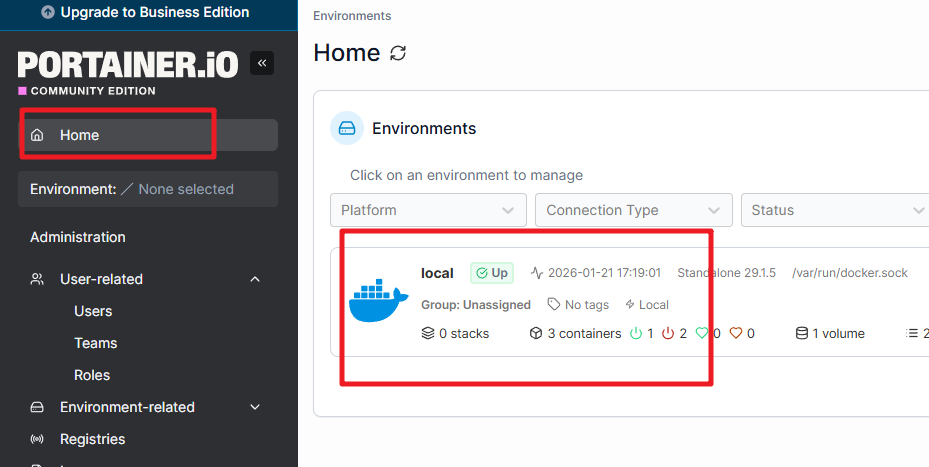
From the left navigation bar, click Home -> local
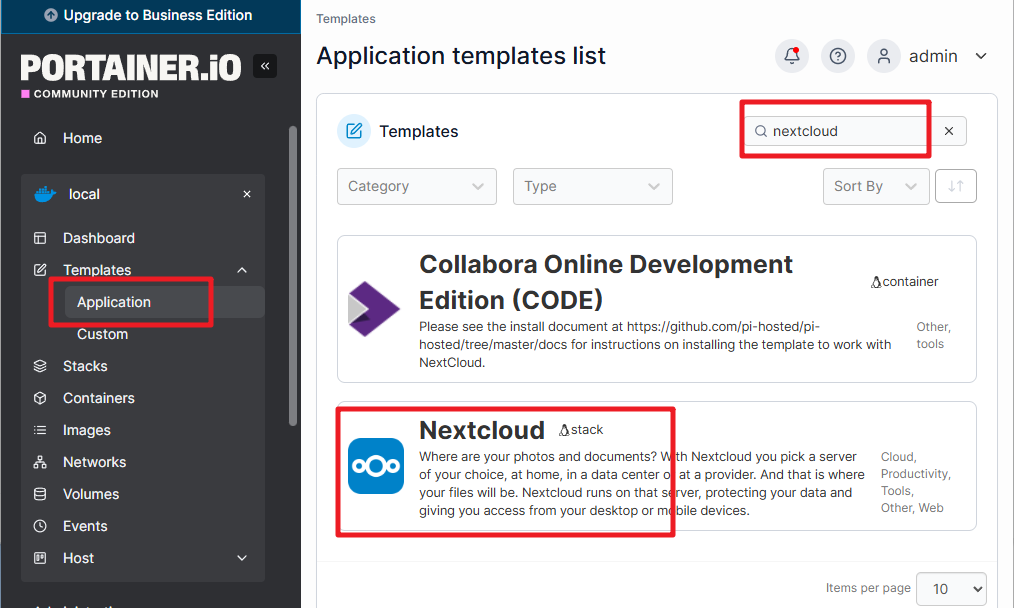
Go Templates -> Application. In the upper-right search bar, type nextcloud and click it.
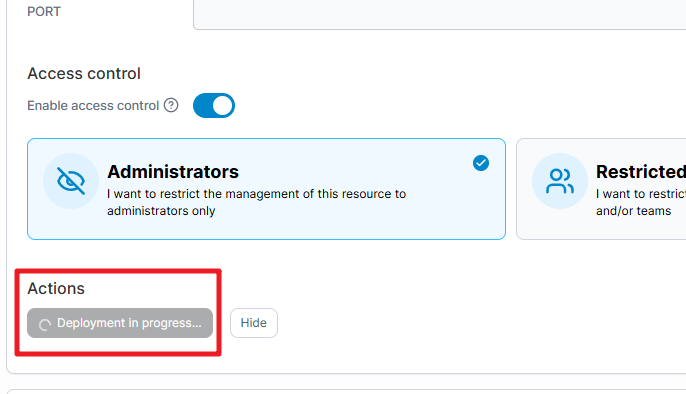
Click Deploy the stack, and wait for the deployment to complete. This usually takes about two minutes.
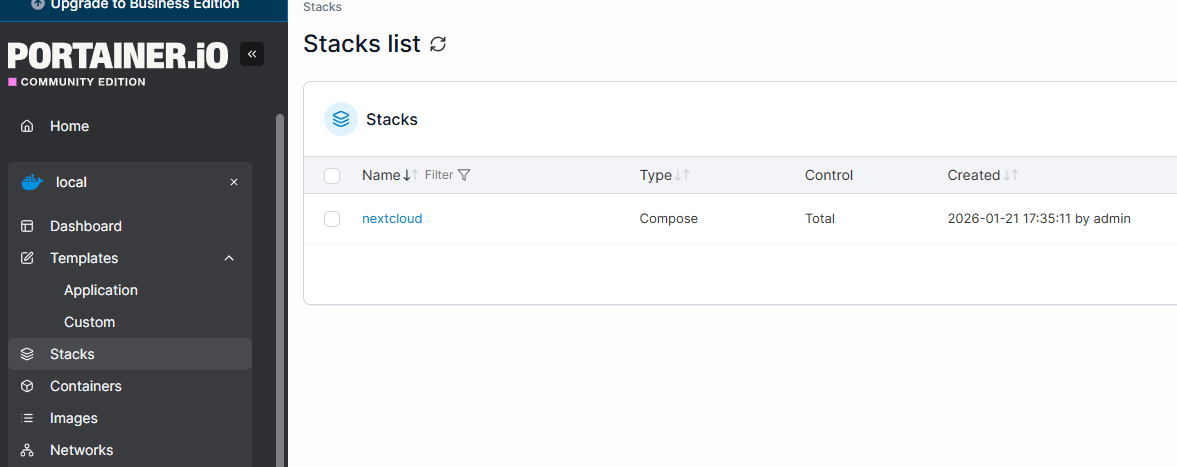
Once completed, NextCloud will be installed.
Using NextCloud
Open your browser and visit your NextCloud address:
https://<your-rpi-ip-address>:32768.
Note
Similarly, you will see a warning that the site is using a self-signed SSL/TLS certificate not issued by a known Certificate Authority (CA). Most web browsers will display a warning about such certificates. In this case, you can safely ignore the warning, accept the risk, and continue.
On the first login, you will need to set an admin password.
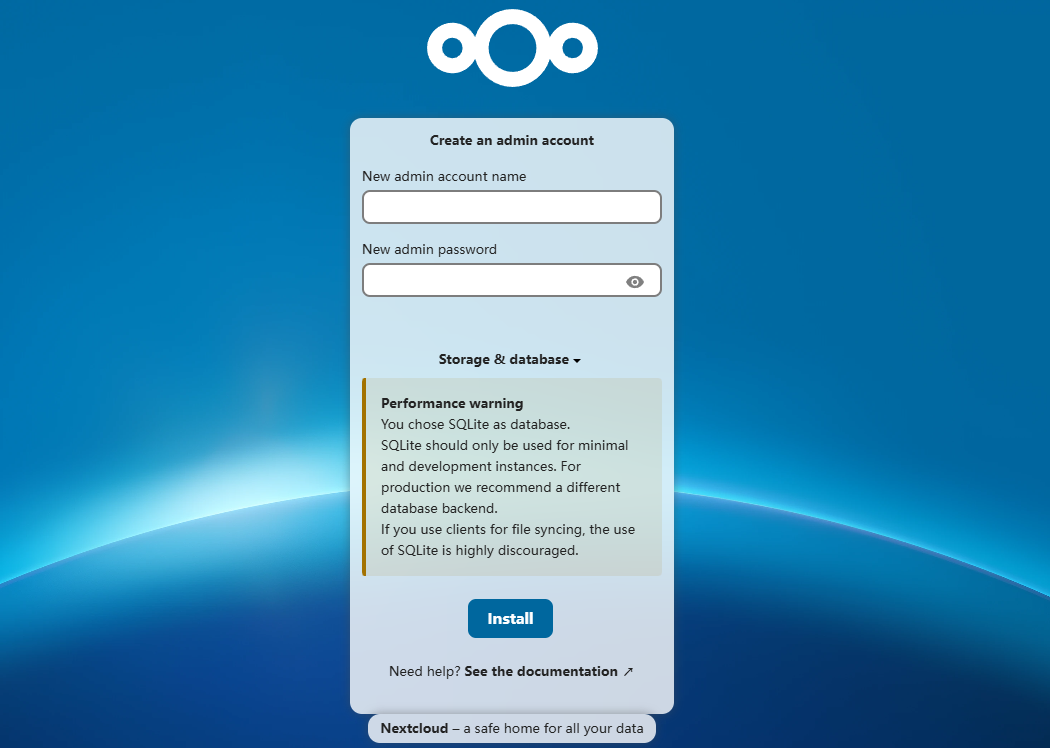
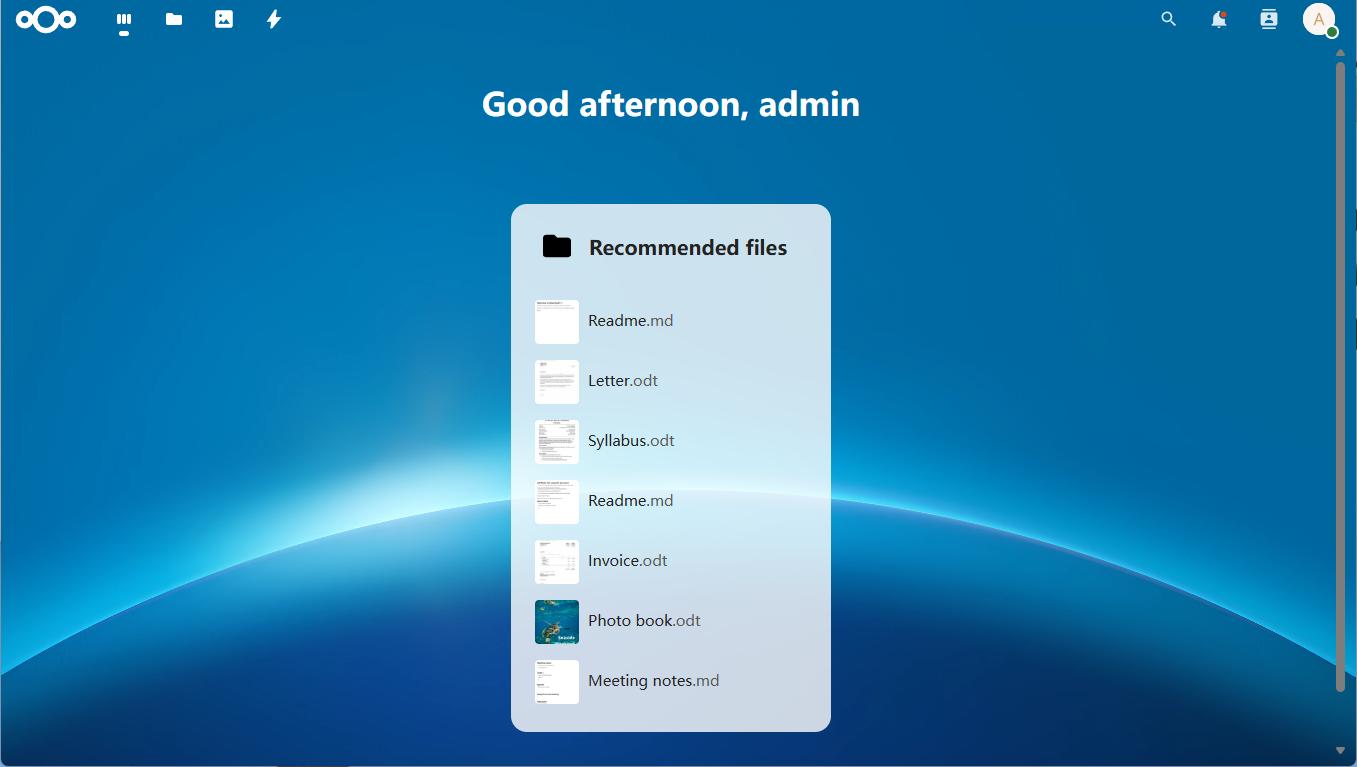
After registration, you can start using NextCloud.