Note
Welcome to the SunFounder Raspberry Pi, Arduino & ESP32 Community on Facebook!
Get technical support and troubleshooting help.
Learn and share projects, tips, and tutorials.
Access early product previews and updates.
Enjoy exclusive discounts and giveaways.
👉 Join us here: [here]
Setting Up on Umbrel OS
If you have installed Umbrel OS on your Raspberry Pi 5, you can configure the Pironman 5 MAX through the command line. Follow the steps below to complete the setup:
Connect your Raspberry Pi 5 to your network using an Ethernet cable. This is required to ensure your Raspberry Pi has internet access.
Open your browser and visit:
http://umbrel.local. If the page does not open, check your router for the Umbrel device’s IP address, for example:http://192.168.1.50
Create your Umbrel account by setting a username and password. This password will be required for future remote access, so please keep it safe.
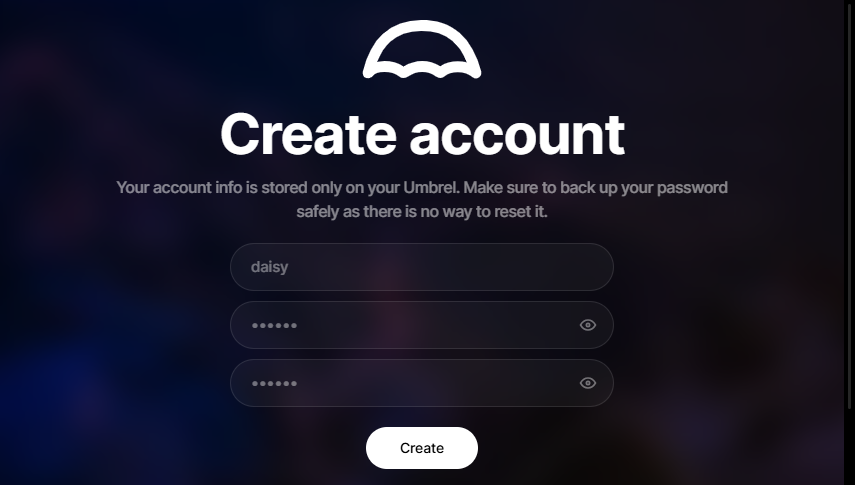
Click Next to complete the Umbrel setup and enter the desktop environment.
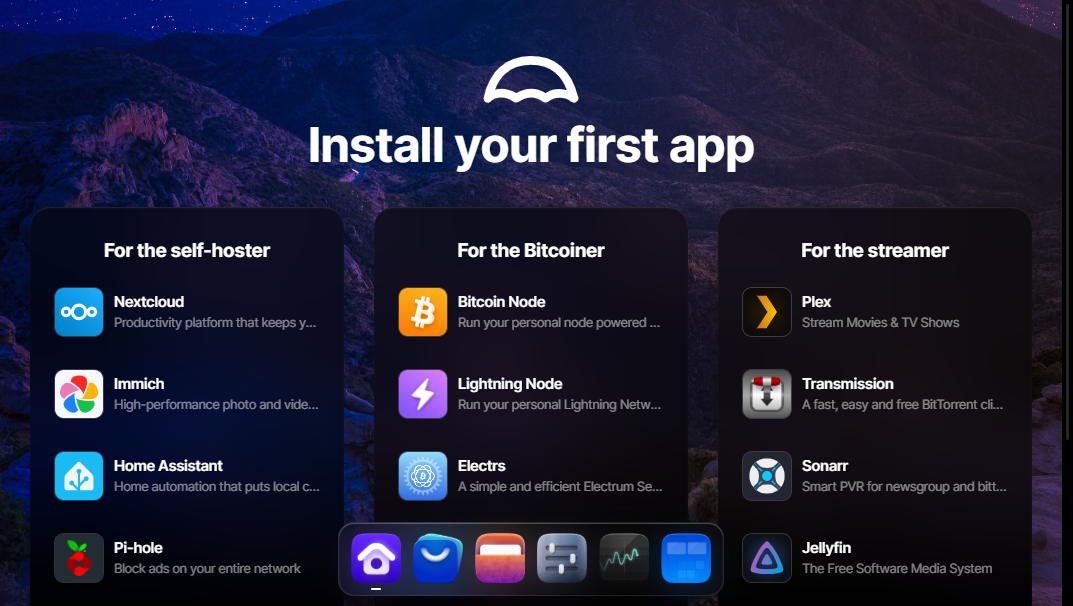
Click the App Store icon to open it.
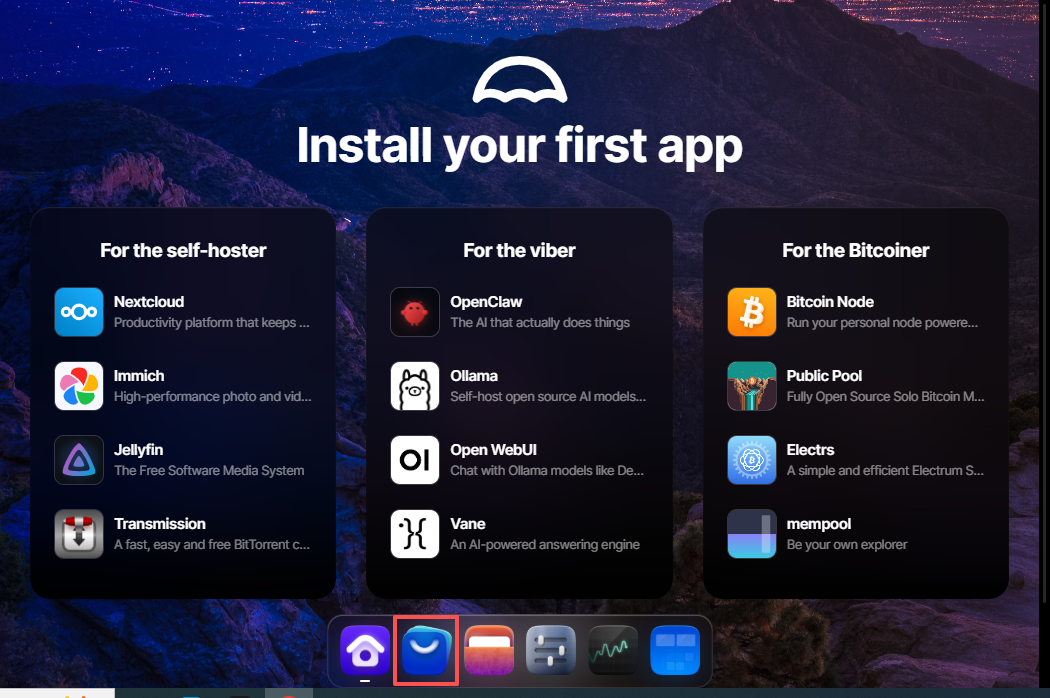
In the Umbrel App Store, click the Community App Store button in the top-right corner.
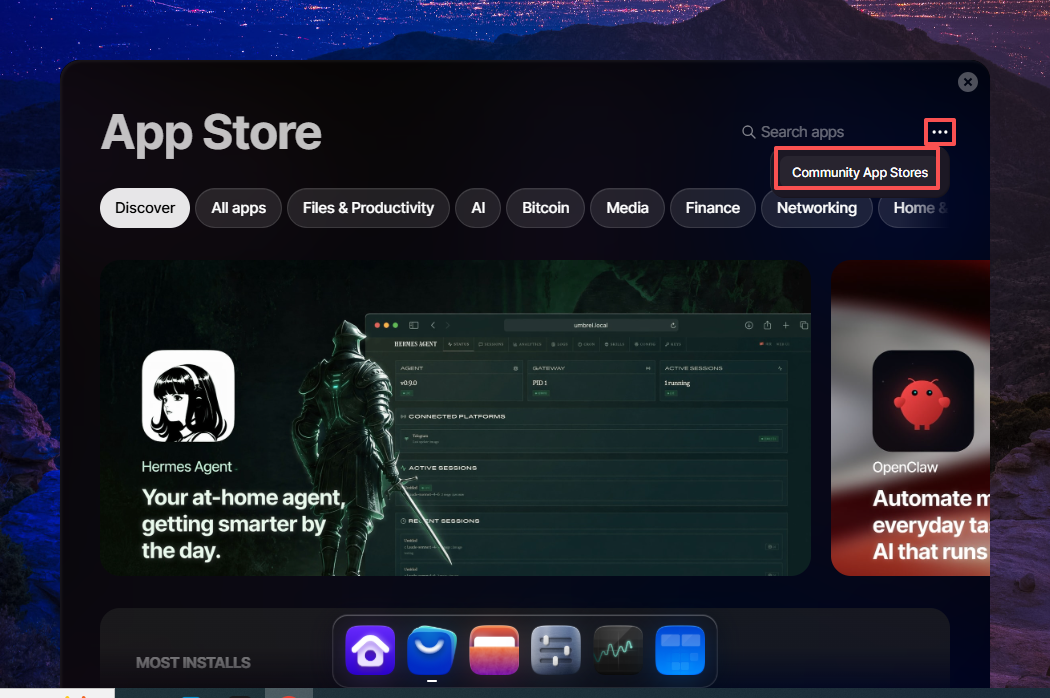
Enter our custom repository URL:
https://github.com/sunfounder/umbrel-community-app-store/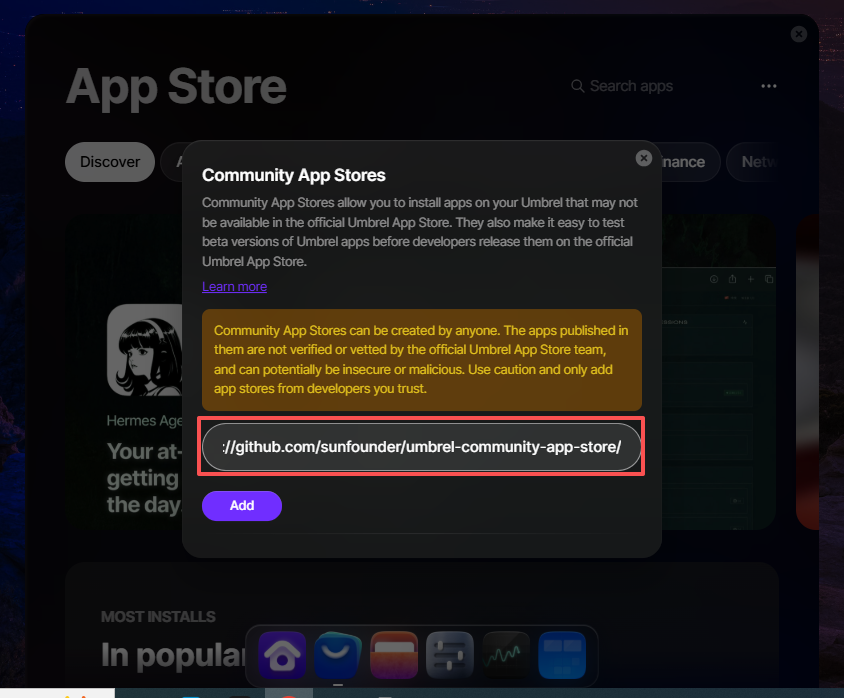
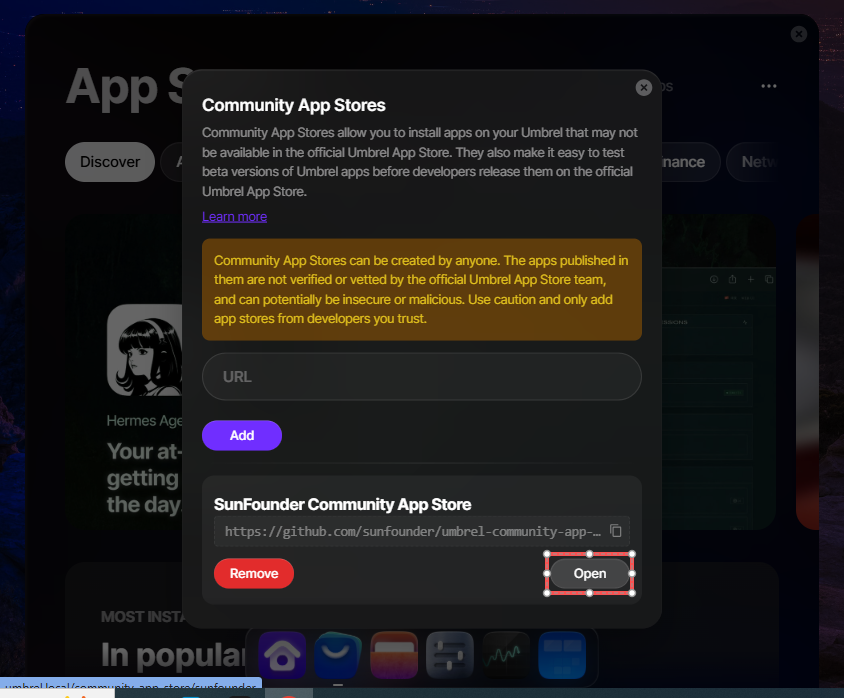
After adding the repository, click Open to access the SunFounder Store.
In the SunFounder App Store, you will see two available apps. Select either Pironman 5 or Pironman 5 Max.
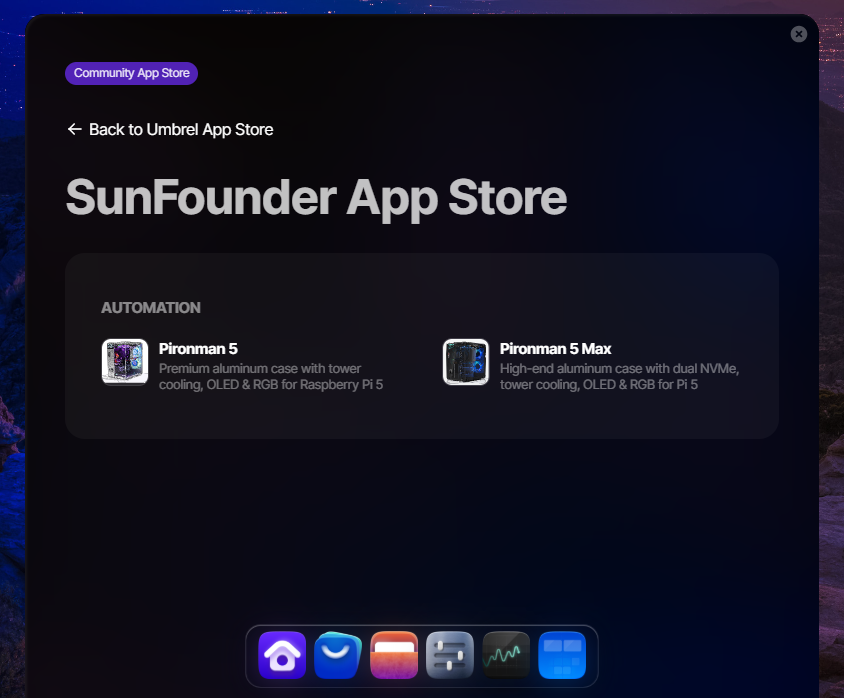
Click Install to begin the installation.
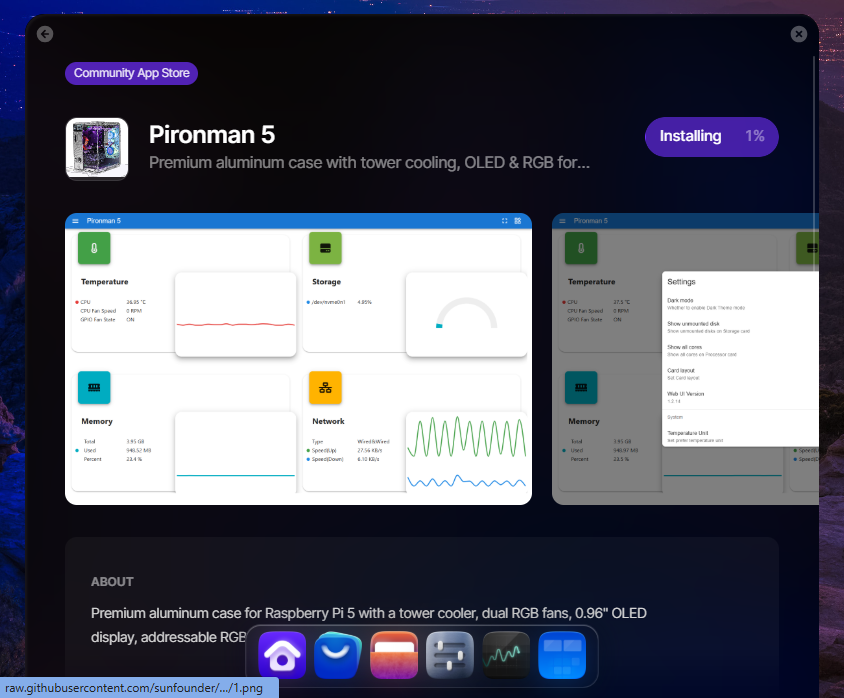
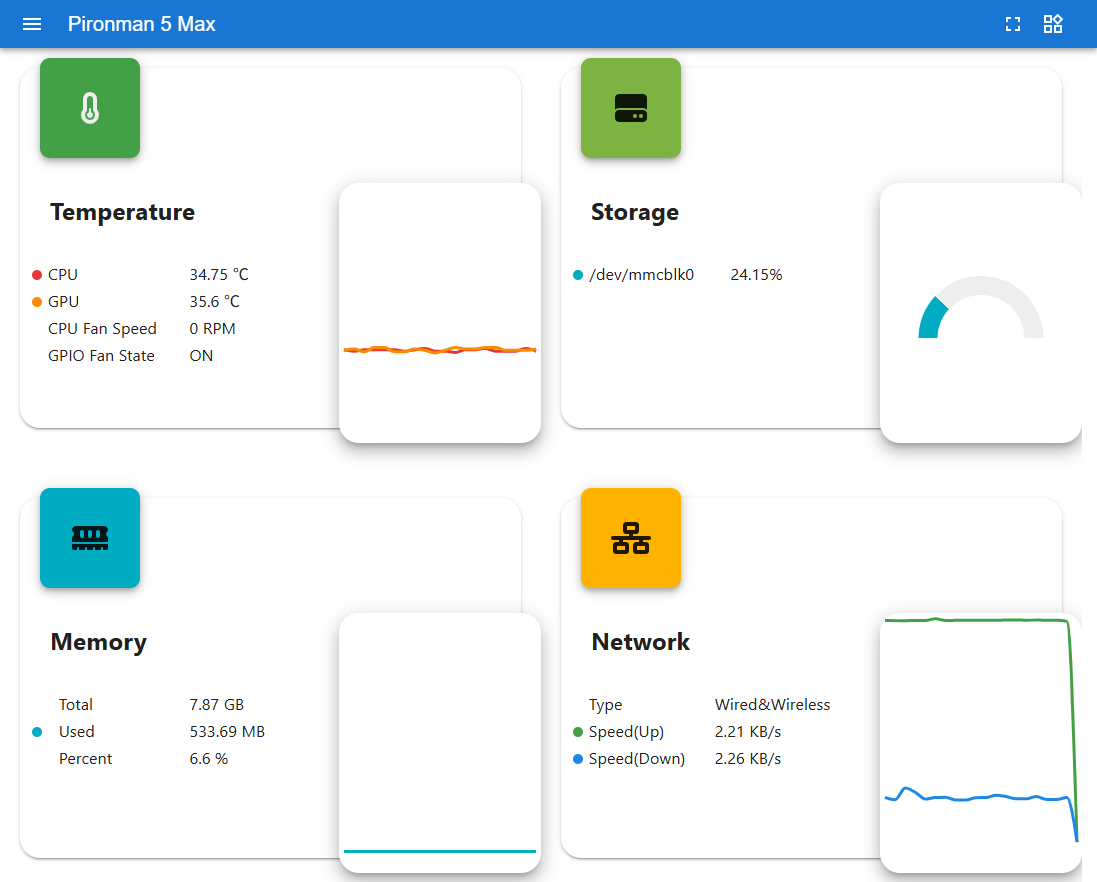
Once the installation is complete, click Open to launch the Dashboard.