Note
Hello, welcome to the SunFounder Raspberry Pi & Arduino & ESP32 Enthusiasts Community on Facebook! Dive deeper into Raspberry Pi, Arduino, and ESP32 with fellow enthusiasts.
Why Join?
Expert Support: Solve post-sale issues and technical challenges with help from our community and team.
Learn & Share: Exchange tips and tutorials to enhance your skills.
Exclusive Previews: Get early access to new product announcements and sneak peeks.
Special Discounts: Enjoy exclusive discounts on our newest products.
Festive Promotions and Giveaways: Take part in giveaways and holiday promotions.
👉 Ready to explore and create with us? Click [here] and join today!
FileZilla Software

File Transfer Protocol (FTP) is commonly used to transfer files between computers over a network. FileZilla is an open-source client that supports FTP, FTPS, and SFTP (recommended for Raspberry Pi). With FileZilla, you can easily upload files (such as images, audio, and scripts) from your computer to the Raspberry Pi, or download files from the Pi back to your computer.
Download FileZilla
Visit the FileZilla official website and download FileZilla Client for your operating system.
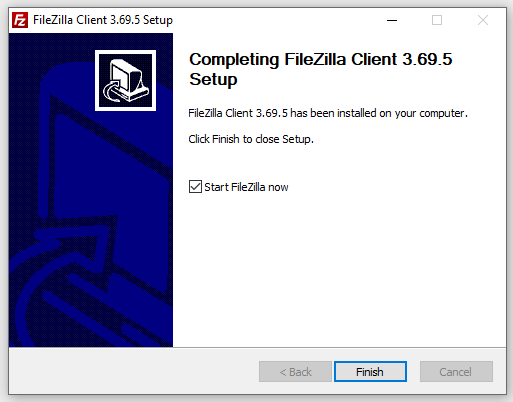
Install and launch the program.
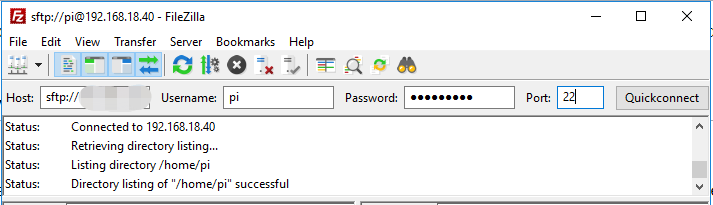
Open FileZilla and enter the following information:
Host:
<hostname>.localor the Raspberry Pi’s IP addressUsername: your Pi username
Password: the password set in Raspberry Pi Imager
Port:
22(for SFTP)Click Quickconnect (or press Enter) to establish a connection.
Once connected, the left panel shows your local files, and the right panel shows the Raspberry Pi files.
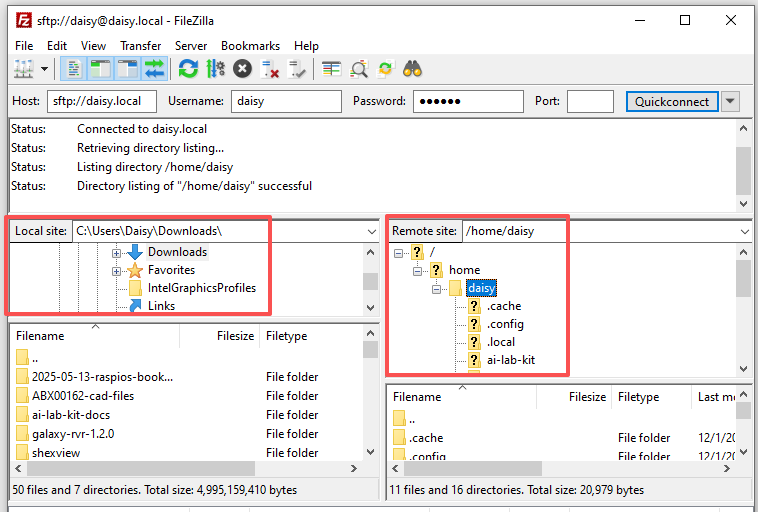
You can:
Upload a file: drag from the left panel → right panel
Download a file: drag from the right panel → left panel
FileZilla will immediately start the transfer, and the status will appear in the panel at the bottom.