Note
Hello, welcome to the SunFounder Raspberry Pi & Arduino & ESP32 Enthusiasts Community on Facebook! Dive deeper into Raspberry Pi, Arduino, and ESP32 with fellow enthusiasts.
Why Join?
Expert Support: Solve post-sale issues and technical challenges with help from our community and team.
Learn & Share: Exchange tips and tutorials to enhance your skills.
Exclusive Previews: Get early access to new product announcements and sneak peeks.
Special Discounts: Enjoy exclusive discounts on our newest products.
Festive Promotions and Giveaways: Take part in giveaways and holiday promotions.
👉 Ready to explore and create with us? Click [here] and join today!
1.1 Hello, LED!
Just as printing “Hello, world!” is the first step in learning to program, using a program to drive an LED is the traditional introduction to learning physical programming.
Required Components
In this project, we need the following components.
It’s definitely convenient to buy a whole kit, here’s the link:
Name |
ITEMS IN THIS KIT |
LINK |
|---|---|---|
3 in 1 Starter Kit |
380+ |
You can also buy them separately from the links below.
COMPONENT INTRODUCTION |
PURCHASE LINK |
|---|---|
Schematic

The principle of this circuit is simple and the current direction is shown in the figure. When pin 9 outputs high level(5V), the LED will light up after the 220ohm current limiting resistor. When pin 9 outputs low level (0v), the LED will turn off.
Wiring
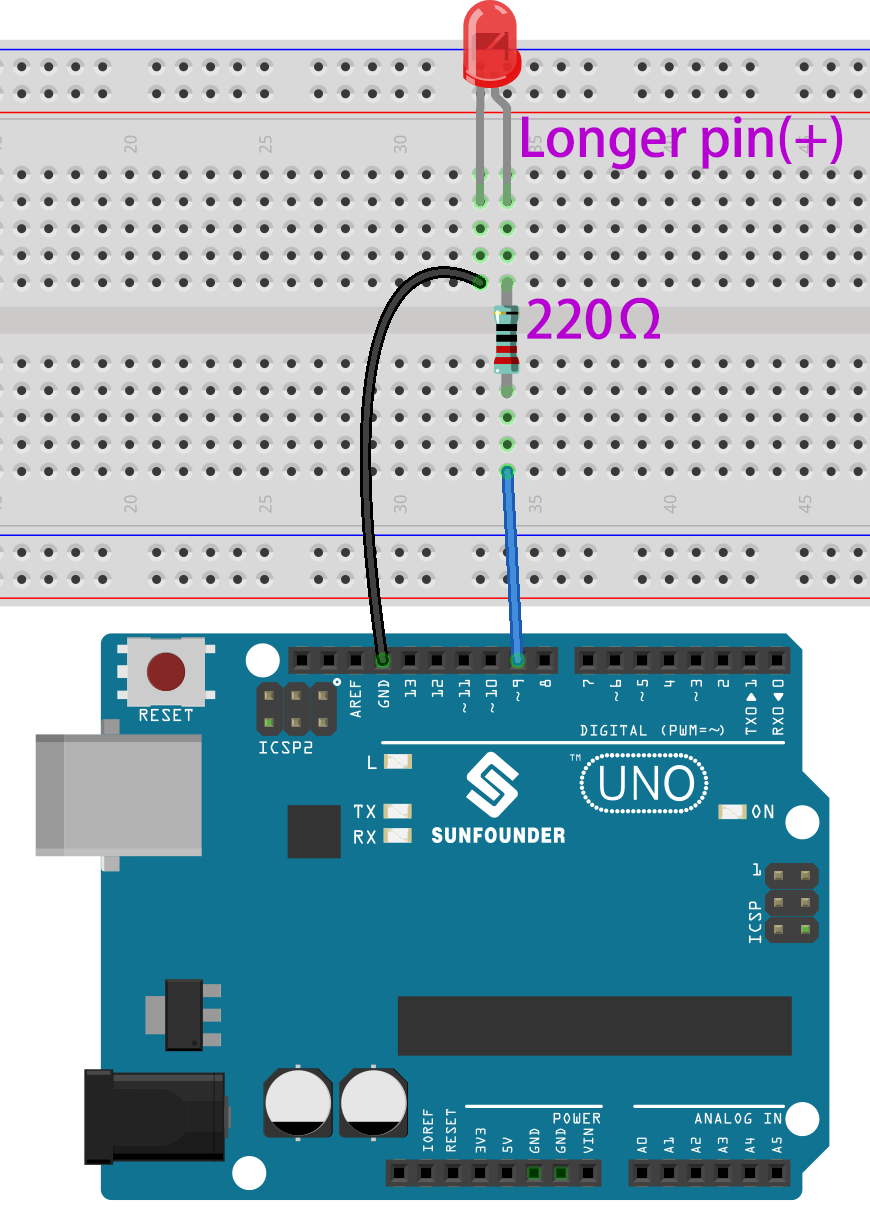
Code
Note
You can open the file
1.1.hello_led.inounder the path of3in1-kit\basic_project\1.1.hello_led.Or copy this code into Arduino IDE.
Or upload the code through the Arduino Web Editor.
After the code is uploaded successfully, you will see the LED blinking.
How it works?
Here, we connect the LED to the digital pin 9, so we need to declare an int variable called ledpin at the beginning of the program and assign a value of 9.
const int ledPin = 9;
Now, initialize the pin in the setup() function, where you need to initialize the pin to OUTPUT mode.
void setup() {
    pinMode(ledPin, OUTPUT);
}
In loop(), digitalWrite() is used to provide 5V high level signal for ledpin, which will cause voltage difference between LED pins and light LED up.
digitalWrite(ledPin, HIGH);
If the level signal is changed to LOW, the ledPin’s signal will be returned to 0 V to turn LED off.
digitalWrite(ledPin, LOW);
An interval between on and off is required to allow people to see the change,
so we use a delay(1000) code to let the controller do nothing for 1000 ms.
delay(1000);