Bemerkung
Hallo und willkommen in der SunFounder Raspberry Pi & Arduino & ESP32 Enthusiasten-Gemeinschaft auf Facebook! Tauchen Sie tiefer ein in die Welt von Raspberry Pi, Arduino und ESP32 mit anderen Enthusiasten.
Warum beitreten?
Expertenunterstützung: Lösen Sie Nachverkaufsprobleme und technische Herausforderungen mit Hilfe unserer Gemeinschaft und unseres Teams.
Lernen & Teilen: Tauschen Sie Tipps und Anleitungen aus, um Ihre Fähigkeiten zu verbessern.
Exklusive Vorschauen: Erhalten Sie frühzeitigen Zugang zu neuen Produktankündigungen und exklusiven Einblicken.
Spezialrabatte: Genießen Sie exklusive Rabatte auf unsere neuesten Produkte.
Festliche Aktionen und Gewinnspiele: Nehmen Sie an Gewinnspielen und Feiertagsaktionen teil.
👉 Sind Sie bereit, mit uns zu erkunden und zu erschaffen? Klicken Sie auf [hier] und treten Sie heute bei!
2.1.8 Tastenfeld
Einleitung
Ein Tastenfeld ist ein rechteckiges Feld von Tasten. In diesem Projekt werden wir es verwenden, um Zeichen einzugeben.
Benötigte Komponenten
Für dieses Projekt benötigen wir die folgenden Komponenten.
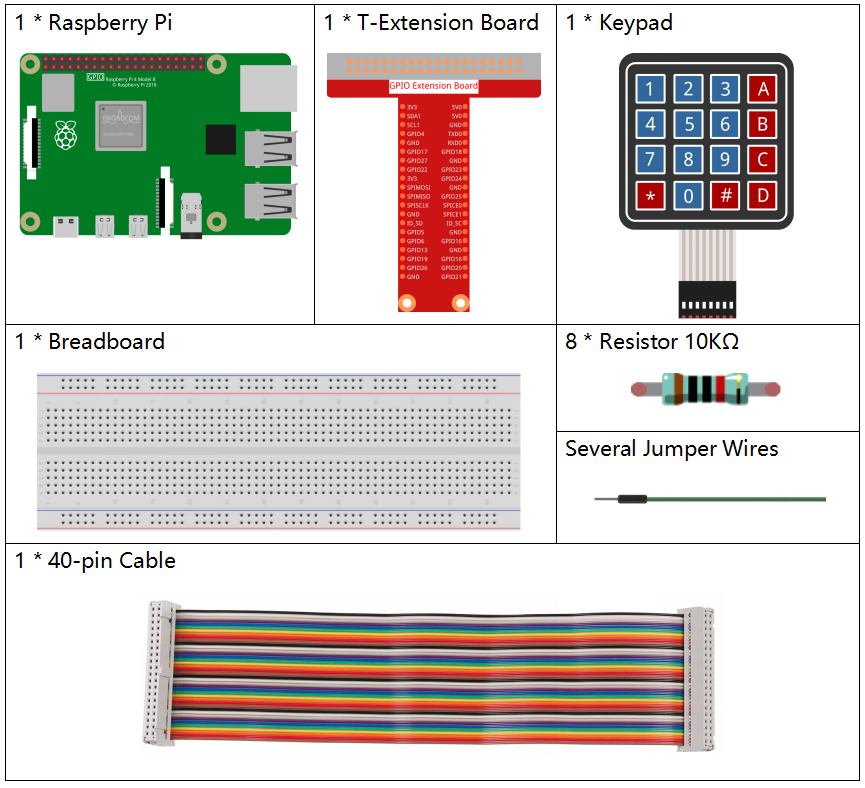
Es ist definitiv praktisch, ein ganzes Kit zu kaufen, hier ist der Link:
Name |
IN DIESEM KIT ENTHALTENE TEILE |
LINK |
|---|---|---|
Raphael Kit |
337 |
Sie können sie auch separat über die unten stehenden Links kaufen.
KOMPONENTENVORSTELLUNG |
KAUF-LINK |
|---|---|
- |
Schaltplan
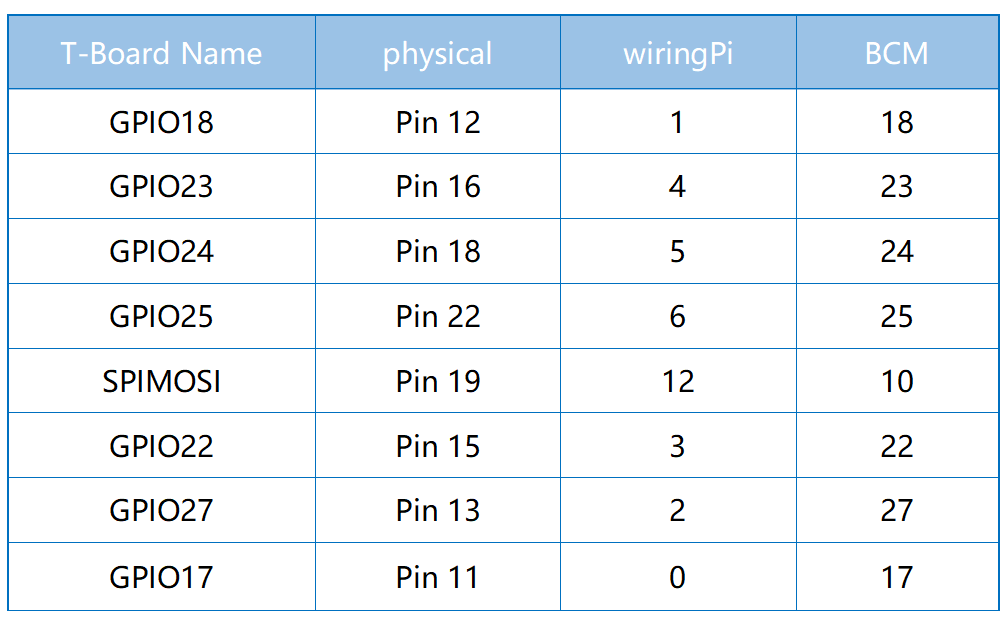
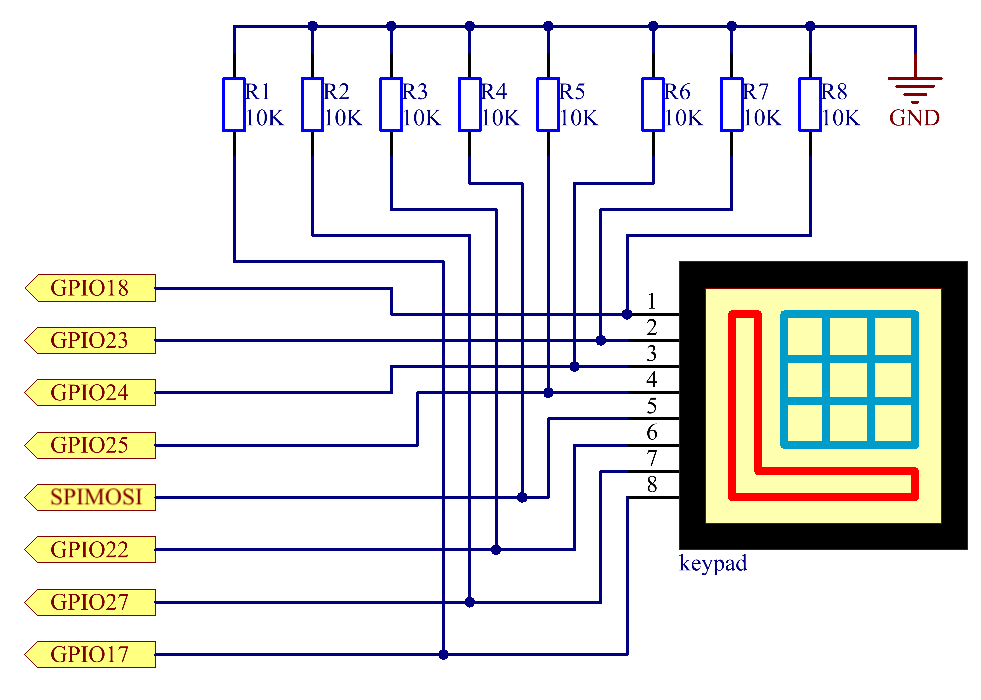
Experimentelle Verfahren
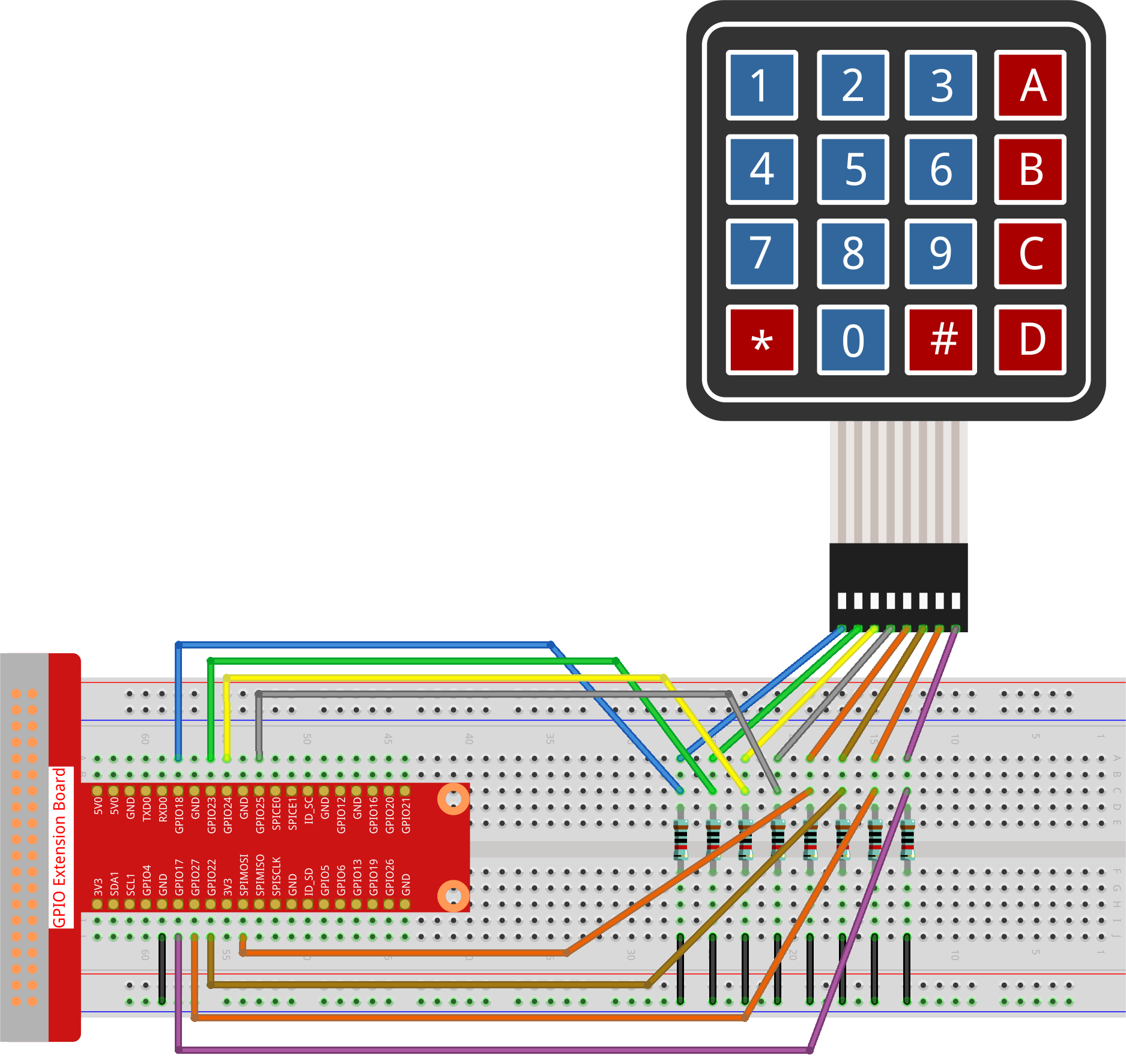
Schritt 1: Bauen Sie den Schaltkreis auf.
Schritt 2: Öffnen Sie die Code-Datei.
cd ~/raphael-kit/python-pi5
Schritt 3: Führen Sie den Code aus.
sudo python3 2.1.8_Keypad_zero.py
Nachdem der Code ausgeführt wurde, werden die Werte der gedrückten Tasten auf dem Tastenfeld (Tastenwert) auf dem Bildschirm angezeigt.
Warnung
Wenn die Fehlermeldung RuntimeError: Cannot determine SOC peripheral base address angezeigt wird, lesen Sie bitte If gpiozero doesn’t work.
Code
Bemerkung
Sie können den unten stehenden Code modifizieren/zurücksetzen/kopieren/ausführen/stoppen. Aber zuvor müssen Sie zum Quellcodepfad wie raphael-kit/python-pi5 gehen. Nachdem Sie den Code modifiziert haben, können Sie ihn direkt ausführen, um den Effekt zu sehen.
#!/usr/bin/env python3
from gpiozero import DigitalOutputDevice, Button
from time import sleep

class Keypad:
    def __init__(self, rows_pins, cols_pins, keys):
        """
        Initialize the Keypad with specified row and column pins and keypad layout.
        :param rows_pins: List of GPIO pins for the rows.
        :param cols_pins: List of GPIO pins for the columns.
        :param keys: List of keys in the keypad layout.
        """
        # Initialize row pins as DigitalOutputDevice
        self.rows = [DigitalOutputDevice(pin) for pin in rows_pins]
        # Initialize column pins as Buttons
        self.cols = [Button(pin, pull_up=False) for pin in cols_pins]
        self.keys = keys  # Set the keypad layout

    def read(self):
        """
        Read the currently pressed keys on the keypad.
        :return: A list of pressed keys.
        """
        pressed_keys = []
        # Scan each row and column to identify pressed keys
        for i, row in enumerate(self.rows):
            row.on()  # Enable the current row
            for j, col in enumerate(self.cols):
                if col.is_pressed:  # Check if the column button is pressed
                    # Calculate the key index based on row and column
                    index = i * len(self.cols) + j
                    pressed_keys.append(self.keys[index])
            row.off()  # Disable the current row
        return pressed_keys

try:
    # Configure rows, columns, and keypad layout
    rows_pins = [18, 23, 24, 25]
    cols_pins = [10, 22, 27, 17]
    keys = ["1", "2", "3", "A",
            "4", "5", "6", "B",
            "7", "8", "9", "C",
            "*", "0", "#", "D"]

    # Create an instance of the Keypad class
    keypad = Keypad(rows_pins, cols_pins, keys)
    last_key_pressed = []

    # Continuously read the keypad and print newly pressed keys
    while True:
        pressed_keys = keypad.read()
        if pressed_keys and pressed_keys != last_key_pressed:
            print(pressed_keys)  # Print the list of pressed keys
            last_key_pressed = pressed_keys
        sleep(0.1)  # Short delay to reduce CPU load

except KeyboardInterrupt:
    # Handle a keyboard interrupt (Ctrl+C) for a clean exit
    pass
Code-Erklärung
Importiert die Klassen
DigitalOutputDeviceundButtonaus der Bibliothekgpiozerosowie die Funktionsleepfür Verzögerungen.#!/usr/bin/env python3 from gpiozero import DigitalOutputDevice, Button from time import sleep
Definiert die Klasse
Keypad. Die Methode__init__initialisiert das Tastenfeld mit den angegebenen Reihen- und Spaltenpins sowie Tasten. Die Methodereadscannt das Tastenfeld und gibt eine Liste der gedrückten Tasten zurück.class Keypad: def __init__(self, rows_pins, cols_pins, keys): """ Initialize the Keypad with specified row and column pins and keypad layout. :param rows_pins: List of GPIO pins for the rows. :param cols_pins: List of GPIO pins for the columns. :param keys: List of keys in the keypad layout. """ # Initialize row pins as DigitalOutputDevice self.rows = [DigitalOutputDevice(pin) for pin in rows_pins] # Initialize column pins as Buttons self.cols = [Button(pin, pull_up=False) for pin in cols_pins] self.keys = keys # Set the keypad layout def read(self): """ Read the currently pressed keys on the keypad. :return: A list of pressed keys. """ pressed_keys = [] # Scan each row and column to identify pressed keys for i, row in enumerate(self.rows): row.on() # Enable the current row for j, col in enumerate(self.cols): if col.is_pressed: # Check if the column button is pressed # Calculate the key index based on row and column index = i * len(self.cols) + j pressed_keys.append(self.keys[index]) row.off() # Disable the current row return pressed_keys
Richtet die GPIO-Pins für Reihen und Spalten ein und definiert das Tastenlayout.
try:
    # Configure rows, columns, and keypad layout
    rows_pins = [18, 23, 24, 25]
    cols_pins = [10, 22, 27, 17]
    keys = ["1", "2", "3", "A",
            "4", "5", "6", "B",
            "7", "8", "9", "C",
            "*", "0", "#", "D"]
Erstellt eine Instanz der Klasse
Keypadmit der spezifizierten Konfiguration.try: ... # Create an instance of the Keypad class keypad = Keypad(rows_pins, cols_pins, keys) last_key_pressed = []
Liest kontinuierlich das Tastenfeld nach gedrückten Tasten, druckt Veränderungen im Tastenzustand und führt eine kurze Verzögerung ein, um die CPU-Belastung zu reduzieren. Fängt ein KeyboardInterrupt (wie Strg+C) ab, um einen anmutigen Ausstieg aus dem Skript zu ermöglichen.
try:
    ...

    # Continuously read the keypad and print newly pressed keys
    while True:
        pressed_keys = keypad.read()
        if pressed_keys and pressed_keys != last_key_pressed:
            print(pressed_keys)  # Print the list of pressed keys
            last_key_pressed = pressed_keys
        sleep(0.1)  # Short delay to reduce CPU load

except KeyboardInterrupt:
    # Handle a keyboard interrupt (Ctrl+C) for a clean exit
    pass