Note
Welcome to the SunFounder Raspberry Pi, Arduino & ESP32 Community on Facebook!
Get technical support and troubleshooting help.
Learn and share projects, tips, and tutorials.
Access early product previews and updates.
Enjoy exclusive discounts and giveaways.
👉 Join us here: [here]
2. TTS with Piper and OpenAI
In the previous lesson, we explored Espeak and Pico2Wave, two simple offline TTS engines on Raspberry Pi. Now, let’s take a big step forward and try two more advanced TTS options that offer higher voice quality and more flexibility:
Piper — a fast, neural network–based TTS engine that runs completely offline on Raspberry Pi.
OpenAI TTS — an online service that provides very natural and human-like voices, perfect for expressive speech.
These engines will make your Pironman 5 Pro MAX sound more realistic and lifelike. 🚀
1. Testing Piper
Piper is an offline neural TTS engine, meaning you don’t need an internet connection once the model is installed. It supports multiple languages and voices, making it a powerful option for embedded speech.
Run the program
cd ~/sunfounder-voice-assistant/examples
sudo python3 tts_piper.py
The first time you run it, the selected voice model will be downloaded automatically.
You should then hear the Pironman 5 Pro MAX say:
Hello! I'm Piper TTS.You can switch voices or languages by calling
set_model()with a different model name.
Code
from sunfounder_voice_assistant.tts import Piper

tts = Piper()

# List supported languages
print(tts.available_countrys())

# List models for English (en_us)
print(tts.available_models('en_us'))

# Set a voice model (auto-download if not already present)
tts.set_model("en_US-amy-low")

# Say something
tts.say("Hello! I'm Piper TTS.")
Code explanation:
available_countrys()— Lists all supported languages.available_models()— Lists available models for a specific language.set_model()— Sets the voice model. If the model isn’t installed, it will download automatically.say()— Converts text to speech and plays it immediately.
💡 Tip: Try different models to compare speed, clarity, and accents. Some models are lighter (faster), while others have higher fidelity.
2. Testing OpenAI TTS
Get and save your API Key
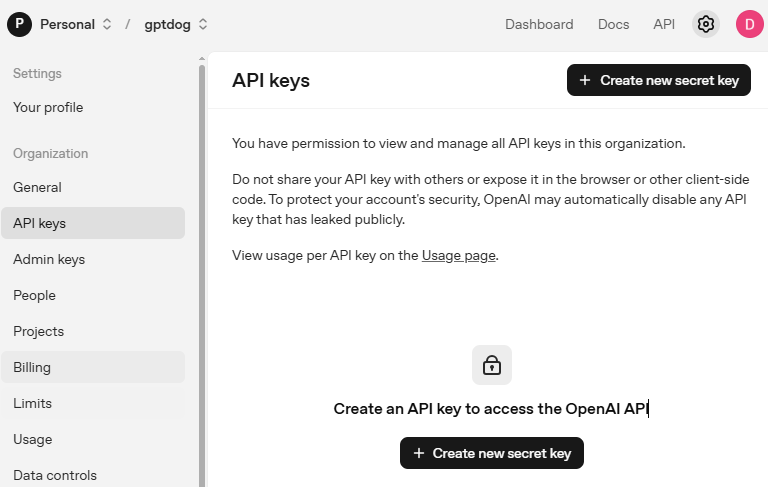
Go to OpenAI Platform and log in. On the API keys page, click Create new secret key.
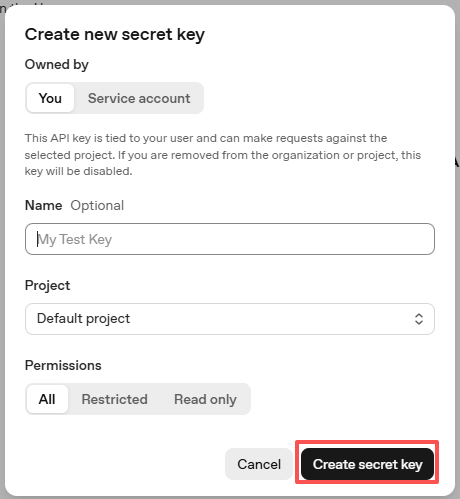
Fill in the details (Owner, Name, Project, and permissions if needed), then click Create secret key.
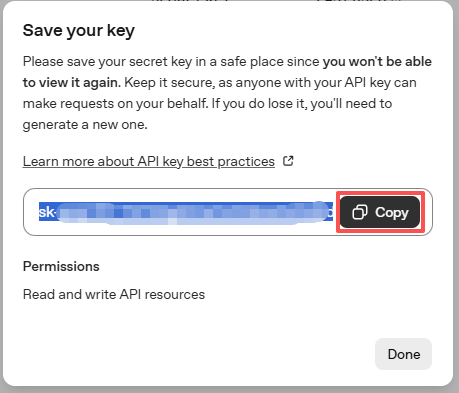
Once the key is created, copy it right away — you won’t be able to see it again. If you lose it, you must generate a new one.
In your project folder (for example:
/), create a file calledsecret.py:cd ~/sunfounder-voice-assistant/examples sudo nano secret.py
Paste your key into the file like this:
# secret.py
# Store secrets here. Never commit this file to Git.
OPENAI_API_KEY = "sk-xxx"
Run the program
cd ~/sunfounder-voice-assistant/examples
sudo python3 tts_openai.py
The program will connect to OpenAI’s TTS service, and the Pironman 5 Pro MAX will speak using natural, expressive voice output.
You can change voice styles and add instructions to control tone and expression (e.g., sad, dramatic, playful).
This makes OpenAI TTS ideal for interactive robots, storytelling, or educational assistants.
Code
from sunfounder_voice_assistant.tts import OpenAI_TTS
from secret import OPENAI_API_KEY

# Export your OpenAI_API_KEY before running the script
# export OPENAI_API_KEY="sk-proj-xxxxxx"

tts = OpenAI_TTS(api_key=OPENAI_API_KEY)
# tts.set_model('tts-1')
tts.set_voice('alloy')
tts.set_model('gpt-4o-mini-tts')

msg = "Hello! I'm OpenAI TTS."
print(f"Say: {msg}")
tts.say(msg)

msg = "with instructions, I can say word sadly"
instructions = "say it sadly"
print(f"Say: {msg}, with instructions: '{instructions}'")
tts.say(msg, instructions=instructions)

msg = "or say something dramaticly."
instructions = "say it dramaticly"
print(f"Say: {msg}, with instructions: '{instructions}'")
tts.say(msg, instructions=instructions)
Code explanation:
OpenAI_TTS()— Initializes the OpenAI TTS engine using your API key.set_model()— Selects the TTS model (e.g.,gpt-4o-mini-tts).set_voice()— Chooses a specific voice (e.g.,alloy).say(text)— Converts the text to speech and plays it.say(text, instructions=...)— Adds expressive tone instructions, allowing you to control the style of speech dynamically.
Example:
“say it sadly” → soft, emotional tone
“say it dramatically” → bold and expressive delivery
“say it excitedly” → enthusiastic tone
Troubleshooting
No module named ‘secret’
This means
secret.pyis not in the same folder as your Python file. Movesecret.pyinto the same directory where you run the script, e.g.:ls ~/ # Make sure you see both: secret.py and your .py file
OpenAI: Invalid API key / 401
Check that you pasted the full key (starts with
sk-) and there are no extra spaces/newlines.Ensure your code imports it correctly:
from secret import OPENAI_API_KEY
Confirm network access on your Pi (try
ping api.openai.com).
OpenAI: Quota exceeded / billing error
You may need to add billing or increase quota in the OpenAI dashboard.
Try again after resolving the account/billing issue.
Piper: tts.say() runs but no sound
Make sure a voice model is actually present:
ls ~/.local/share/piper/voicesConfirm your model name matches exactly in code:
tts.set_model("en_US-amy-low")
Check the audio output device/volume on your Pi (
alsamixer), and that speakers are connected and powered.
ALSA / sound device errors (e.g., “Audio device busy” or “No such file or directory”)
Close other programs using audio.
Reboot the Pi if the device stays busy.
For HDMI vs. headphone jack output, select the correct device in Raspberry Pi OS audio settings.
Permission denied when running Python
Try with
sudoif your environment requires it:sudo python3 tts_piper.py
Comparison of TTS Engines
Item |
Espeak |
Pico2Wave |
Piper |
OpenAI TTS |
|---|---|---|---|---|
Runs on |
Built-in on Raspberry Pi (offline) |
Built-in on Raspberry Pi (offline) |
Raspberry Pi / PC (offline, needs model) |
Cloud (online, needs API key) |
Voice quality |
Robotic |
More natural than Espeak |
Natural (neural TTS) |
Very natural / human-like |
Controls |
Speed, pitch, volume |
Limited controls |
Choose different voices/models |
Choose model and voices |
Languages |
Many (quality varies) |
Limited set |
Many voices/languages available |
Best in English (others vary by availability) |
Latency / speed |
Very fast |
Fast |
Real-time on Pi 4/5 with “low” models |
Network-dependent (usually low latency) |
Setup |
Minimal |
Minimal |
Download |
Create API key, install client |
Best for |
Quick tests, basic prompts |
Slightly better offline voice |
Local projects with better quality |
Highest quality, rich voice options |