PiPower 5 Tool
The PiPower 5 Tool is the companion software for PiPower 5.
It provides:
Safe shutdown support
Battery and charging management
Power monitoring
Web Dashboard access
Event notifications
PiPower 5 can send shutdown requests to the Raspberry Pi in the following situations:
The PiPower button is held for 2 seconds
Battery level falls below the configured shutdown percentage
After the Raspberry Pi completes shutdown, PiPower 5 can automatically disconnect power to help prevent SD card corruption and unexpected power loss issues.
Important
PiPower 5 requires a 64-bit operating system. The pipower5 service
does not support 32-bit Raspberry Pi OS.
To check your system architecture, run:
uname -m
aarch64→ 64-bit (supported)armv7l→ 32-bit (not supported)
If you are running a 32-bit OS, please reinstall with the 64-bit version of Raspberry Pi OS before proceeding.
Install pipower5 Tool
Install the PiPower 5 Tool:
Clone the repository:
git clone https://github.com/sunfounder/pipower5
Enter the directory:
cd pipower5
Run the installer:
sudo python3 install.py
Reboot the Raspberry Pi when prompted.
Command Reference
The pipower5 tool provides access to PiPower 5 status information and configuration options.
For example, the following command displays the current PiPower 5 status:
pipower5 -a
Example output:
Input:
   voltage: 0 mV
   current: 0 mA
   power: 0.000 W
   plugged in: False
Output:
   voltage: 5296 mV
   current: 452 mA
   power: 2.394 W
Battery:
   voltage: 8028 mV
   current: -315 mA
   power: -2.529 W
   percentage: 91 %
   source: 1 - Battery
   charging: False

Internal:
   shutdown request: 0 - NONE
   power button: 0 - RELEASED
   max charging current: 0 mA
   default on: on
   shutdown percentage: 10 %
You can customize these settings to fit your needs.
Use pipower5 or pipower5 -h for instructions.
usage: pipower5 [-h] [-v] [-c] [-drd [DATABASE_RETENTION_DAYS]]
                [-dl [{debug,info,warning,error,critical}]] [-rd]
                [-cp [CONFIG_PATH]] [-sp [SHUTDOWN_PERCENTAGE]] [-iv] [-ic]
                [-ov] [-oc] [-bv] [-bc] [-bp] [-bs] [-ii] [-ichg] [-do] [-sr]
                [-pb] [-cc] [-a] [-fv] [-pfs [POWER_FAILURE_SIMULATION]]
                [-seo [SEND_EMAIL_ON]] [-set [SEND_EMAIL_TO]]
                [-ss [SMTP_SERVER]] [-smp [SMTP_PORT]] [-se [SMTP_EMAIL]]
                [-spw [SMTP_PASSWORD]] [-ssc [SMTP_SECURITY]] [-bzo [BUZZ_ON]]
                [-bzv [BUZZER_VOLUME]] [-bzt [BUZZER_TEST]] [-u [{C,F}]]
                [{start,stop}]

PiPower 5

positional arguments:
  {start,stop}          Command

options:
  -h, --help            show this help message and exit
  -v, --version         Show version
  -c, --config          Show config
  -drd [DATABASE_RETENTION_DAYS], --database-retention-days [DATABASE_RETENTION_DAYS]
                        Database retention days
  -dl [{debug,info,warning,error,critical}], --debug-level [{debug,info,warning,error,critical}]
                        Debug level
  -rd, --remove-dashboard
                        Remove dashboard
  -cp [CONFIG_PATH], --config-path [CONFIG_PATH]
                        Config path
  -sp [SHUTDOWN_PERCENTAGE], --shutdown-percentage [SHUTDOWN_PERCENTAGE]
                        Set shutdown percentage, leave empty to read
  -iv, --input-voltage  Read input voltage
  -ic, --input-current  Read input current
  -ov, --output-voltage
                        Read output voltage
  -oc, --output-current
                        Read output current
  -bv, --battery-voltage
                        Read battery voltage
  -bc, --battery-current
                        Read battery current
  -bp, --battery-percentage
                        Read battery percentage
  -bs, --battery-source
                        Read battery source
  -ii, --is-input-plugged_in
                        Read is input plugged in
  -ichg, --is-charging  Read is charging
  -do, --default-on     Read default on
  -sr, --shutdown-request
                        Read shutdown request
  -pb, --power-btn      Read power button
  -cc, --charging-current
                        Max charging current
  -a, --all             Show all status
  -fv, --firmware       PiPower5 firmware version
  -pfs [POWER_FAILURE_SIMULATION], --power-failure-simulation [POWER_FAILURE_SIMULATION]
                        Power failure simulation
  -seo [SEND_EMAIL_ON], --send-email-on [SEND_EMAIL_ON]
                        Send email on: ['battery_activated', 'low_battery',
                        'power_disconnected', 'power_restored',
                        'power_insufficient', 'battery_critical_shutdown',
                        'battery_voltage_critical_shutdown']
  -set [SEND_EMAIL_TO], --send-email-to [SEND_EMAIL_TO]
                        Email address to send email to
  -ss [SMTP_SERVER], --smtp-server [SMTP_SERVER]
                        SMTP server
  -smp [SMTP_PORT], --smtp-port [SMTP_PORT]
                        SMTP port
  -se [SMTP_EMAIL], --smtp-email [SMTP_EMAIL]
                        SMTP email
  -spw [SMTP_PASSWORD], --smtp-password [SMTP_PASSWORD]
                        SMTP password
  -ssc [SMTP_SECURITY], --smtp-security [SMTP_SECURITY]
                        SMTP security, 'none', 'ssl' or 'tls'
  -bzo [BUZZ_ON], --buzz-on [BUZZ_ON]
                        Buzz on: ['battery_activated', 'low_battery',
                        'power_disconnected', 'power_restored',
                        'power_insufficient', 'battery_critical_shutdown',
                        'battery_voltage_critical_shutdown']
  -bzv [BUZZER_VOLUME], --buzzer-volume [BUZZER_VOLUME]
                        Buzz volume
  -bzt [BUZZER_TEST], --buzzer-test [BUZZER_TEST]
                        Test buzzer on selected event.
  -u [{C,F}], --temperature-unit [{C,F}]
                        Temperature unit
Note
Each time you modify the status of pipower5.service, you need to use the following command to make the configuration changes take effect.
sudo systemctl restart pipower5.service
Verify the pipower5 program status using the systemctl tool.
sudo systemctl status pipower5.service
Alternatively, inspect the program-generated log files.
cat /opt/pipower5/log
Web Dashboard
The PiPower 5 Tool includes a built-in Web Dashboard for monitoring and configuration.
Access the dashboard from your browser:
http://<raspberry-pi-ip>:34001
Dashboard features include:
Battery percentage monitoring
Charging status monitoring
Input and output voltage monitoring
Current monitoring
Shutdown percentage configuration
Notification management
Raspberry Pi device information


You can also configure the shutdown percentage directly from the dashboard:

If you do not need the dashboard, remove it with:
pipower5 --remove-dashboard
Safe Shutdown
PiPower 5 supports automatic safe shutdown protection for Raspberry Pi systems.
Shutdown workflow:
Shutdown triggered
-> Raspberry Pi performs safe shutdown
-> PiPower 5 detects shutdown completion
-> PiPower 5 automatically cuts power
This helps prevent:
SD card corruption
File system damage
Unexpected power loss issues
Power-Off After Raspberry Pi Shutdown
To allow PiPower 5 to automatically cut power after the Raspberry Pi shuts down, some additional configuration is required.
If you are using a Raspberry Pi 4 or 5:
Ensure the
SDSIGjumper on PiPower 5 is connected toPI3V3.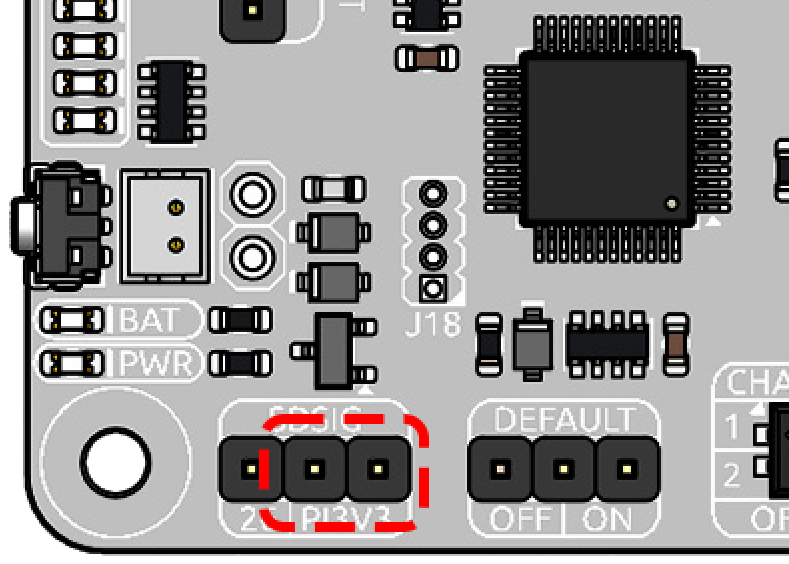
Open Raspberry Pi Configuration:
sudo raspi-configNavigate to:
6 Advanced Options
-> A11 Shutdown Behaviour
-> B1 Full power off Switch off Pi ...
Reboot the Raspberry Pi when prompted.
If you are using a Raspberry Pi 3 or earlier:
Set the
SDSIGjumper on PiPower 5 toGPIO26.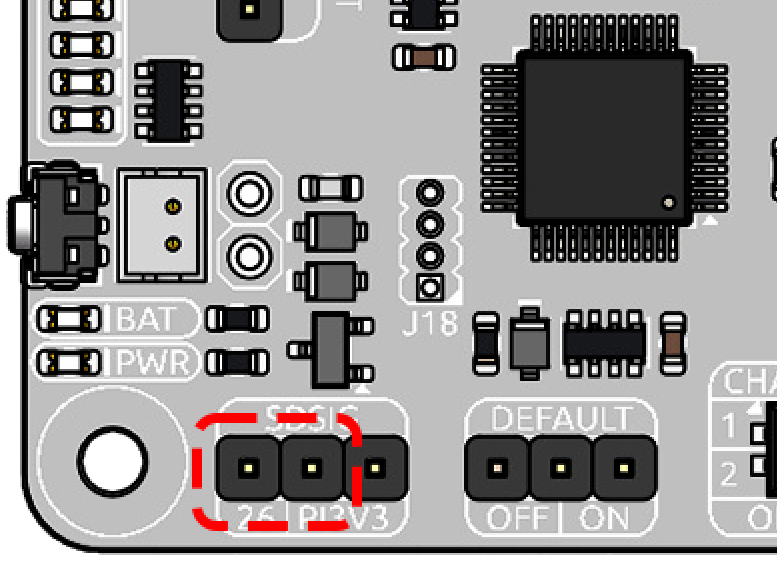
Open
/boot/firmware/config.txt:sudo nano /boot/firmware/config.txt
Add the following lines:
dtoverlay=gpio-poweroff,gpio_pin=26,active_low=1
gpio=26=op,dh
Press
Ctrl+X, thenY, and pressEnterto save the file and exit.Reboot the Raspberry Pi.
sudo reboot
After configuration, PiPower 5 can automatically detect Raspberry Pi shutdown and safely disconnect power.
Supported safe shutdown methods include:
Hold the PiPower button for 2 seconds
Shut down from the Raspberry Pi desktop menu
Run
sudo shutdown nowAutomatic shutdown when battery level falls below the configured shutdown percentage
Configure Shutdown Percentage
You can configure the battery percentage that triggers automatic shutdown.
Example:
pipower5 -sp 30
This sets the shutdown threshold to 30%.
Then use the following command to make the configuration changes take effect.
sudo systemctl restart pipower5.service
When the battery level falls below 30%, PiPower 5 will notify the Raspberry Pi to shut down and disconnect power automatically.
You can also read the current shutdown percentage:
pipower5 -sp
Tip
For Raspberry Pi 5 systems with high power consumption (>3A), it is recommended to set the shutdown percentage to 100%.
This ensures the Raspberry Pi shuts down immediately when external power is disconnected, helping protect the system and storage devices.
Power Monitoring
PiPower 5 provides real-time monitoring for:
Battery percentage
Charging status
Input voltage
Output voltage
Input current
Output current
Battery voltage
Battery current
Useful commands:
Show battery percentage:
pipower5 -bp
Show charging status:
pipower5 -ichg
Show input voltage:
pipower5 -iv
Show all status information:
pipower5 -a
For the full command list:
pipower5 --help
Notifications
PiPower5 supports event-driven notifications through:
Buzzer alerts
Email notifications
Supported events include:
battery_activatedlow_batterypower_disconnectedpower_restoredpower_insufficientbattery_critical_shutdownbattery_voltage_critical_shutdown
Note
Each time you modify the status of pipower5.service, you need to use the following command to make the configuration changes take effect.
sudo systemctl restart pipower5.service
Event Descriptions
battery_activatedTriggered when the battery begins supplying power. This typically occurs if the external power source is disconnected or unable to provide sufficient power.
Reset Condition: Resets automatically after external power is disconnected.
low_batteryActivated when the battery charge level falls below the configured shutdown threshold.
Repetition: If the battery remains below this threshold, the event is triggered every 10 minutes.
Reset Condition: Resets once the battery charge rises above shutdown threshold + 5%.
power_disconnectedTriggered when the external power source is disconnected.
Reset Condition: Resets once the external power supply is restored.
power_restoredTriggered when the external power source is restored.
Reset Condition: Resets if the external power is disconnected again.
power_insufficientOccurs when the external power supply is insufficient, requiring the battery to provide supplemental power.
Recommended Action: Check the rated output of the power source, or verify the configured charging power settings.
Reset Condition: Resets when the external power source is disconnected.
battery_critical_shutdownTriggered just before the system shuts down due to critically low battery capacity.
battery_voltage_critical_shutdownTriggered when the battery voltage drops below the critical threshold, leading to shutdown.
Note: This event is rarely triggered in normal use. Typically, the
low_batteryevent will initiate a shutdown sequence before the voltage drops this far. This serves as a failsafe shutdown mechanism.
With these events, PiPower5 provides both proactive warnings (e.g., low battery, insufficient power) and critical safeguards (e.g., shutdown triggers), ensuring stable operation and data protection.
Buzzer Alerts
PiPower5 supports buzzer notifications for different system events.
You can configure buzzer alerts through the Web Dashboard or the command-line tool. When a configured event occurs, PiPower5 will play the corresponding buzzer sound.
Features include:
Event-based buzzer notifications
Adjustable buzzer volume (1–10)
Event sound preview
Custom sound effect support
Advanced users can also create custom buzzer sound effects.
Open the configuration file:
/opt/pipower5/venv/lib/python3.11/site-packages/pipower5/config.json
Locate the
pipower5_buzz_sequencesection.Each sound effect is defined using the following format:
[action, duration]
Where:
actioncan be:A musical note, such as
"A4","D3", or"C#4"A frequency value (integer)
"pause"for silence
durationis the playback time in milliseconds (ms)
Email Alerts
PiPower5 supports email notifications for important system events, such as:
Low battery
Power disconnected
Power restored
Critical shutdown events
Email notifications can be configured through the Web Dashboard or the command-line tool.
To use email alerts, an SMTP server is required. Most email providers support SMTP services.
For Gmail, simply create an App Password
For other providers, enable SMTP access and generate a dedicated SMTP password if required
Before configuration, prepare the following information:
SMTP server address (Example:
smtp.gmail.com)SMTP port (Example:
465or25)Encryption type (
None/SSL/TLS)SMTP account (Usually your email address)
SMTP password (App Password or SMTP password)
After entering the SMTP information, configure the recipient email address.
Note
PiPower5 uses the SMTP server to log into your email account and send notifications.
You may use the same email address as both the sender and recipient.
After setup, use the test command to verify the SMTP connection and email delivery.