Note
Hello, welcome to the SunFounder Raspberry Pi & Arduino & ESP32 Enthusiasts Community on Facebook! Dive deeper into Raspberry Pi, Arduino, and ESP32 with fellow enthusiasts.
Why Join?
Expert Support: Solve post-sale issues and technical challenges with help from our community and team.
Learn & Share: Exchange tips and tutorials to enhance your skills.
Exclusive Previews: Get early access to new product announcements and sneak peeks.
Special Discounts: Enjoy exclusive discounts on our newest products.
Festive Promotions and Giveaways: Take part in giveaways and holiday promotions.
👉 Ready to explore and create with us? Click [here] and join today!
5. Connecting to Online LLMs
In this lesson, we’ll learn how to connect your Fusion HAT+ (or Raspberry Pi) to different online Large Language Models (LLMs). Each provider requires an API key and offers different models you can choose from.
We’ll cover how to:
Create and save your API keys safely.
Pick a model that fits your needs.
Run our example code to chat with the models.
Let’s go step by step for each provider.
OpenAI
OpenAI provides powerful models like GPT-4o and GPT-4.1 that can be used for both text and vision tasks.
Here’s how to set it up:
Get and Save your API Key
Go to OpenAI Platform and log in. On the API keys page, click Create new secret key.

Fill in the details (Owner, Name, Project, and permissions if needed), then click Create secret key.

Once the key is created, copy it right away — you won’t be able to see it again. If you lose it, you’ll need to generate a new one.

In your project folder (for example:
/), create a file calledsecret.py:cd ~/fusion-hat/examples sudo nano secret.py
Paste your key into the file like this:
# secret.py # Store secrets here. Never commit this file to Git. OPENAI_API_KEY = "sk-xxx"
Enable billing and check models
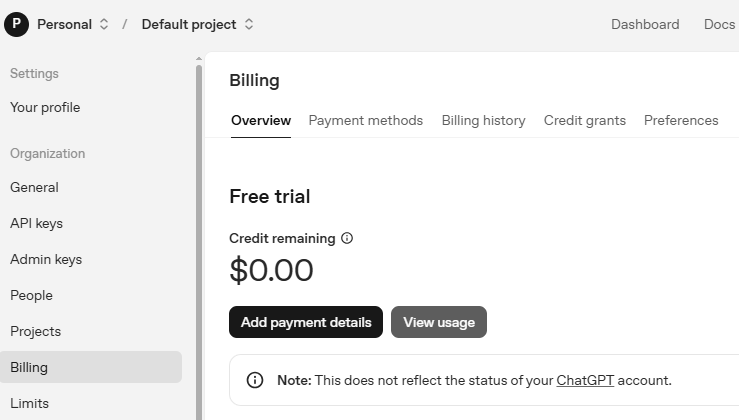
Before using the key, go to the Billing page in your OpenAI account, add your payment details, and top up a small amount of credits.
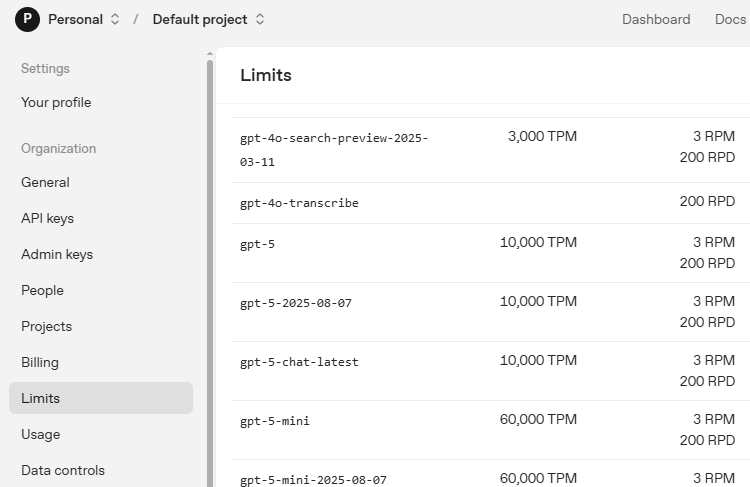
Then go to the Limits page to check which models are available for your account and copy the exact model ID to use in your code.
Test with example code
Open our sample code:
cd ~/fusion-hat/examples sudo nano llm_openai.py
Replace the content with the code below, and update
model="xxx"to the model you want (for example,gpt-4o):from fusion_hat.llm import OpenAI from secret import OPENAI_API_KEY INSTRUCTIONS = "You are a helpful assistant." WELCOME = "Hello, I am a helpful assistant. How can I help you?" llm = OpenAI( api_key=OPENAI_API_KEY, model="gpt-4o", )
Save and exit (
Ctrl+X, thenY, thenEnter).Finally, run the test:
sudo python3 llm_openai.py
Gemini
Gemini is Google’s family of AI models. It’s fast and great for general-purpose tasks.
Get and Save your API Key
Log in to Google AI Studio, then go to the API Keys page.
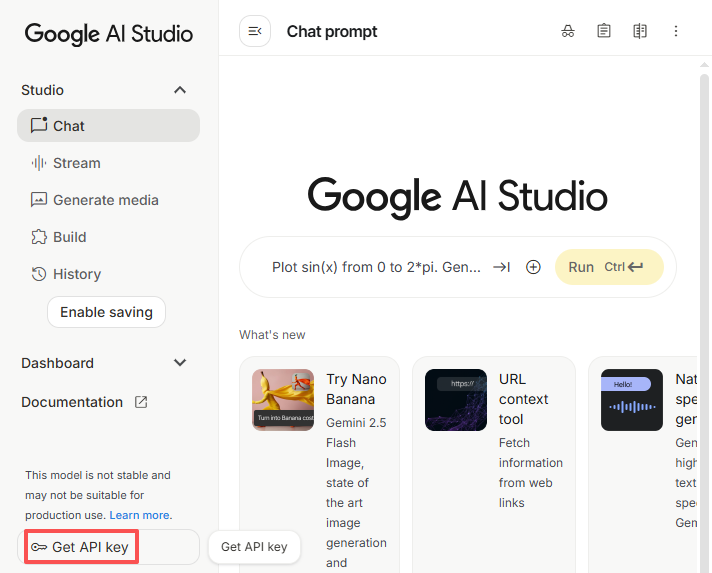
Click the Create API key button in the top-right corner.
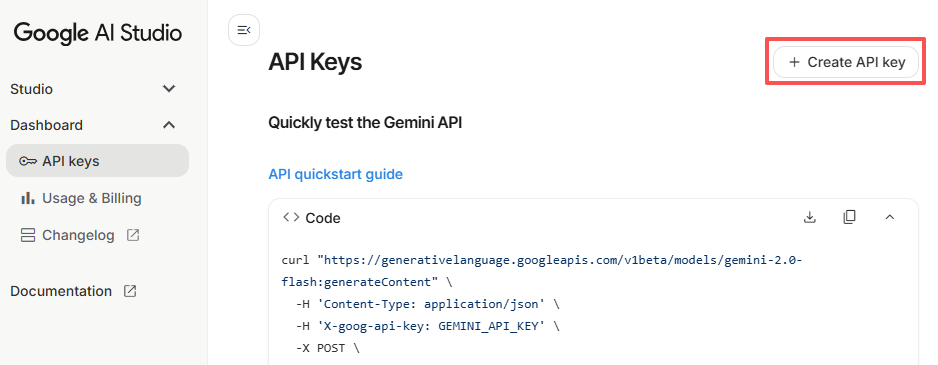
You can create a key for an existing project or a new one.
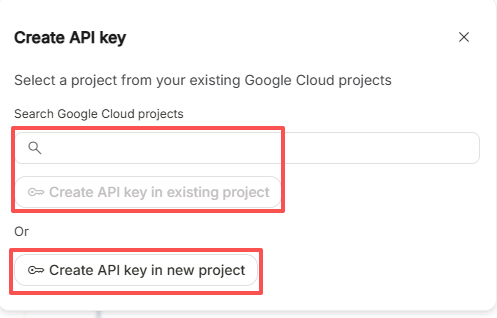
Copy the generated API key.
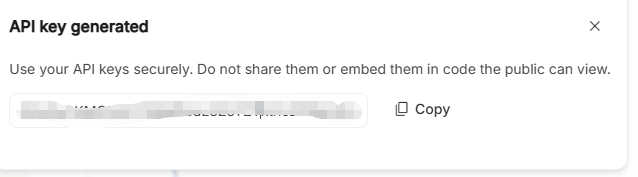
In your project folder:
cd ~/fusion-hat/examples
sudo nano secret.py
Paste the key:
# secret.py # Store secrets here. Never commit this file to Git. GEMINI_API_KEY = "AIxxx"
Check available models
Go to the official Gemini Models page, here you’ll see the list of models, their exact API IDs, and which use case each one is optimized for.
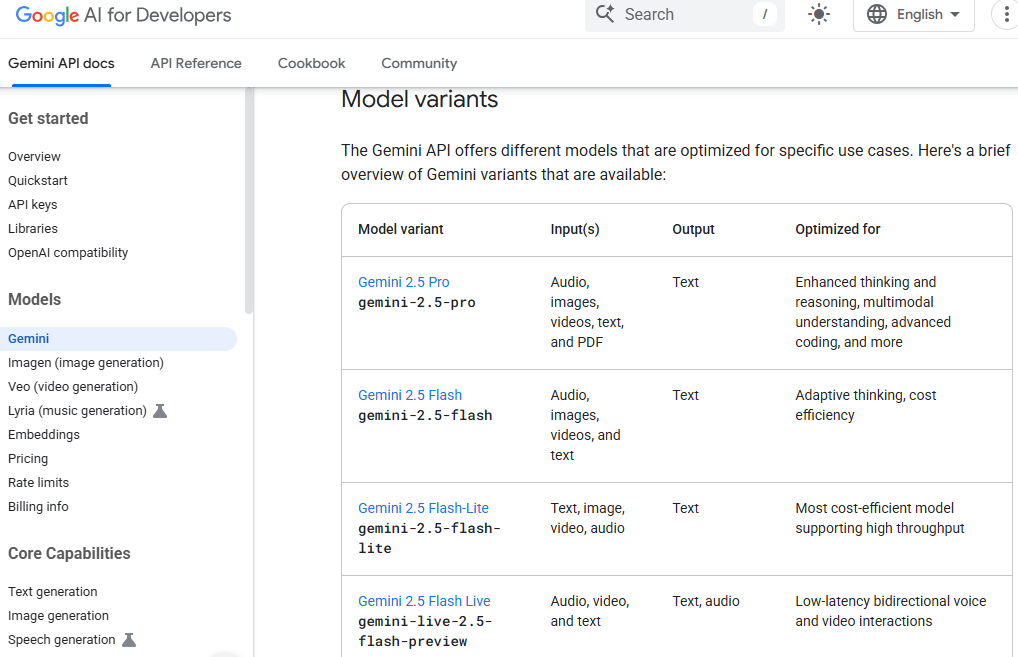
Test with example code
Open the test file:
cd ~/fusion-hat/examples sudo nano llm_gemini.py
Replace the content with the code below, and update
model="xxx"to the model you want (for example,gemini-2.5-flash):from fusion_hat.llm import Gemini from secret import GEMINI_API_KEY INSTRUCTIONS = "You are a helpful assistant." WELCOME = "Hello, I am a helpful assistant. How can I help you?" llm = Gemini( api_key=GEMINI_API_KEY, model="gemini-2.5-flash", )
Save and run:
sudo python3 llm_gemini.py
Qwen
Qwen is a family of large language and multimodal models provided by Alibaba Cloud. These models support text generation, reasoning, and multimodal understanding (such as image analysis).
Get an API Key
To call Qwen models, you need an API Key. Most international users should use the DashScope International (Model Studio) console. Mainland China users can instead use the Bailian (百炼) console.
For International Users
Go to the official Get API Key page on Alibaba Cloud.
Sign in or create an Alibaba Cloud account.
Navigate to Model Studio (choose Singapore or Beijing region).
If an “Activate Now” prompt appears at the top of the page, click it to activate Model Studio and receive the free quota (Singapore only).
Activation is free — you will only be charged after your free quota is used.
If no activation prompt appears, the service is already active.
Go to the Key Management page. On the API Key tab, click Create API Key.
After creation, copy your API Key and keep it safe.

Note
Users in Hong Kong, Macau, and Taiwan should also choose the International (Model Studio) option.
For Mainland China Users
If you are in Mainland China, you can use the Alibaba Cloud Bailian (百炼) console instead:
Log in to Bailian console (Bailian console) and complete account verification.
Select Create API Key. If prompted that model services are not activated, click Activate, agree to the terms, and claim your free quota. After activation, the Create API Key button will be enabled.
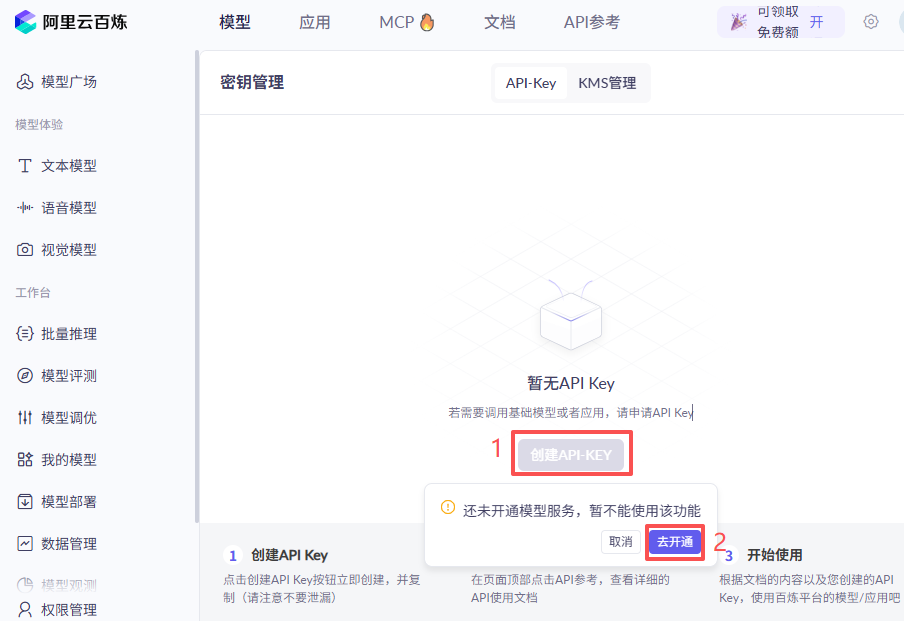
Click Create API Key again, check your account, and then click Confirm.
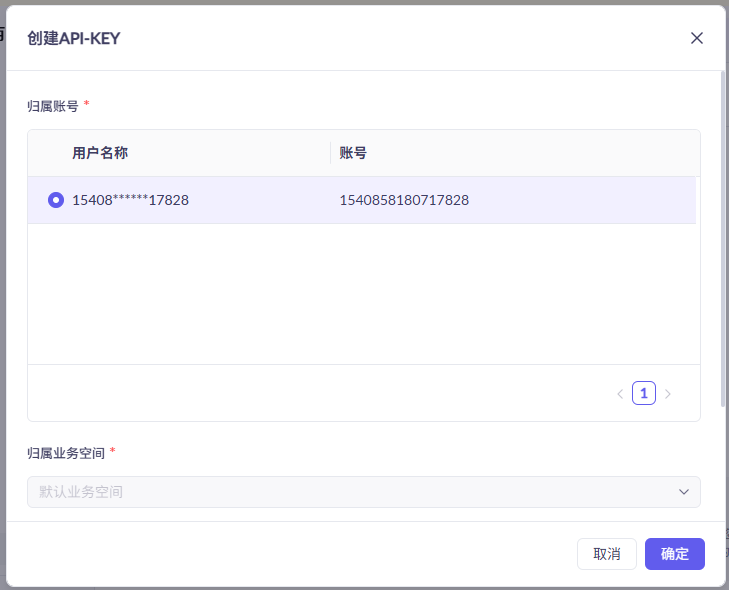
Once created, copy your API Key.
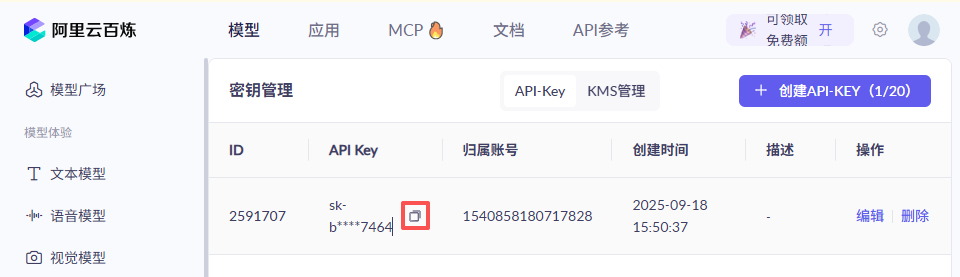
Save your API Key
In your project folder:
cd ~/fusion-hat/examples
sudo nano secret.py
Paste your key like this:
# secret.py # Store secrets here. Never commit this file to Git. QWEN_API_KEY = "sk-xxx"
Test with example code
Open the test file:
cd ~/fusion-hat/examples sudo nano llm_qwen.py
Replace the content with the code below, and update
model="xxx"to the model you want (for example,qwen-plus):from fusion_hat.llm import Qwen from secret import QWEN_API_KEY INSTRUCTIONS = "You are a helpful assistant." WELCOME = "Hello, I am a helpful assistant. How can I help you?" llm = Qwen( api_key=QWEN_API_KEY, model="qwen-plus", )
Run with:
sudo python3 llm_qwen.py
Grok (xAI)
Grok is xAI’s conversational AI, created by Elon Musk’s team. You can connect to it through the xAI API.
Get and Save your API Key
Sign up for an account here: xAI Cloud Console. Add some credits to your account first — otherwise the API won’t work.
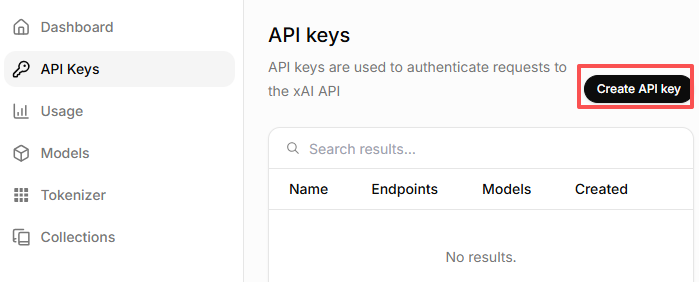
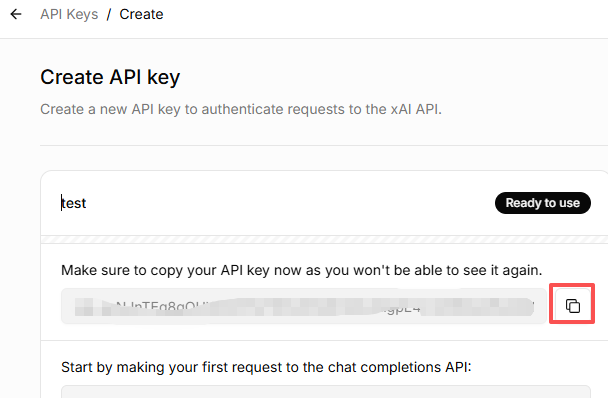
Go to the API Keys page, click Create API key.
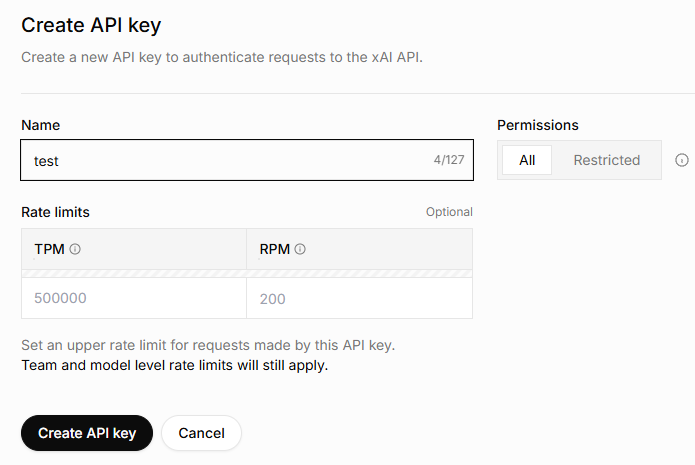
Enter a name for the key, then click Create API key.
Copy the generated key and keep it safe.
In your project folder:
cd ~/fusion-hat/examples
sudo nano secret.py
Paste your key like this:
# secret.py # Store secrets here. Never commit this file to Git. GROK_API_KEY = "xai-xxx"
Check available models
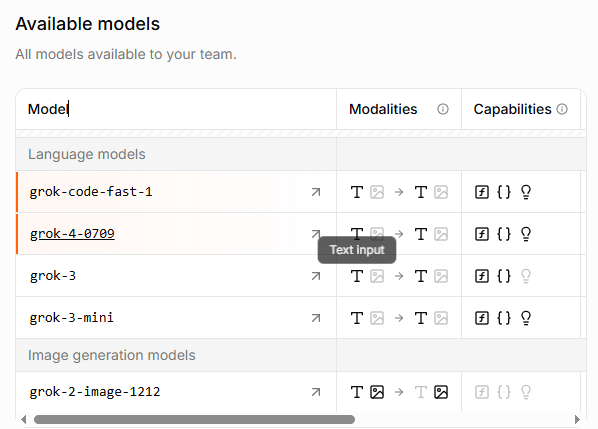
Go to the Models page in the xAI console. Here you can see all the models available to your team, along with their exact API IDs — use these IDs in your code.
Test with example code
Open the test file:
cd ~/fusion-hat/examples sudo nano llm_grok.py
Replace the content with the code below, and update
model="xxx"to the model you want (for example,grok-4-latest):from fusion_hat.llm import Grok from secret import GROK_API_KEY INSTRUCTIONS = "You are a helpful assistant." WELCOME = "Hello, I am a helpful assistant. How can I help you?" llm = Grok( api_key=GROK_API_KEY, model="grok-4-latest", )
Run with:
sudo python3 llm_grok.py
DeepSeek
DeepSeek is a Chinese LLM provider that offers affordable and capable models.
Get and Save your API Key
Log in to Deepseek Platform.
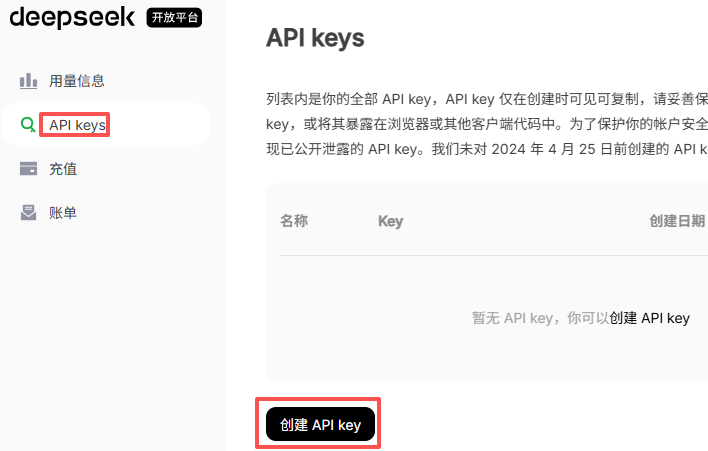
In the top-right menu, select API Keys → Create API Key.
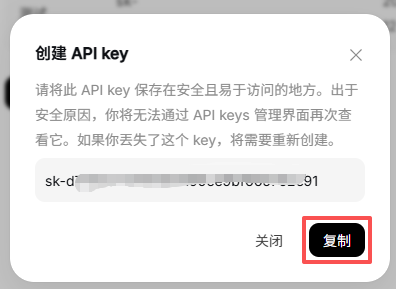
Enter a name, click Create, then copy the key.
In your project folder:
cd ~/fusion-hat/examples
sudo nano secret.py
Add your key:
# secret.py DEEPSEEK_API_KEY = "sk-xxx"
Enable billing
You’ll need to recharge your account first. Start with a small amount (like ¥10 RMB).
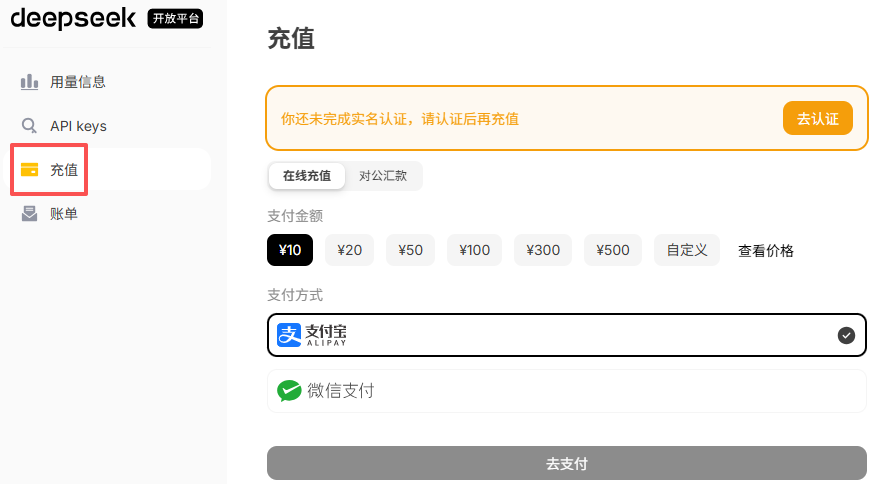
Available models
At the time of writing (2025-09-12), DeepSeek offers:
deepseek-chatdeepseek-reasoner
Test with example code
Open the test file:
cd ~/fusion-hat/examples sudo nano llm_deepseek.py
Replace the content with the code below, and update
model="xxx"to the model you want (for example,deepseek-chat):from fusion_hat.llm import Deepseek from secret import DEEPSEEK_API_KEY INSTRUCTIONS = "You are a helpful assistant." WELCOME = "Hello, I am a helpful assistant. How can I help you?" llm = Deepseek( api_key=DEEPSEEK_API_KEY, model="deepseek-chat", max_messages=20, )
Run:
sudo python3 llm_deepseek.py
Doubao
Doubao is ByteDance’s AI model platform (Volcengine Ark).
Get and Save your API Key
Log in to Volcengine.
In the left menu, scroll down to API Key Management → Create API Key.
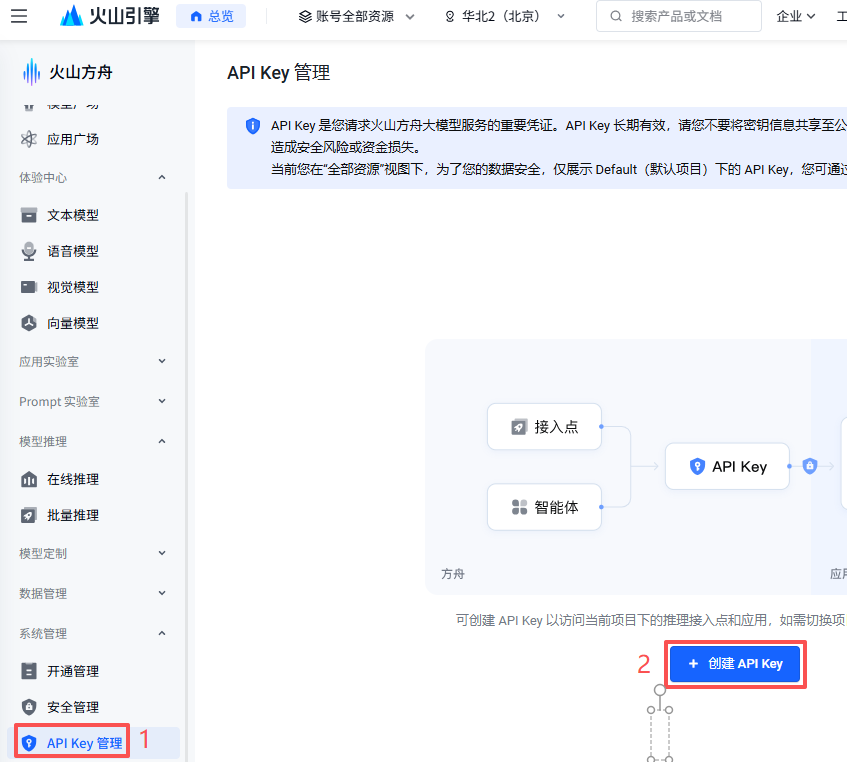
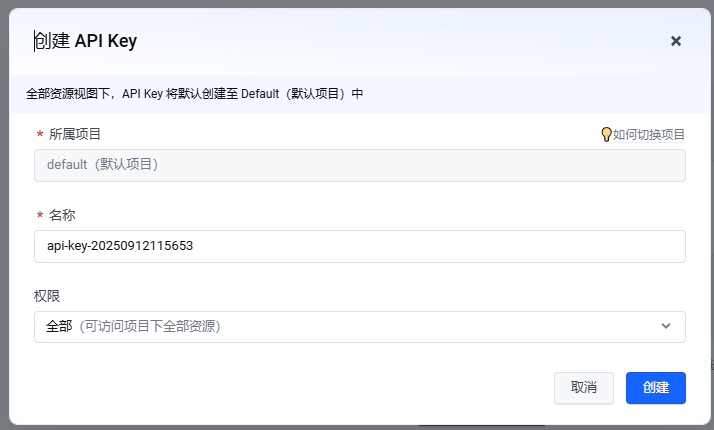
Choose a name and click Create.
Click the Show API Key icon and copy it.
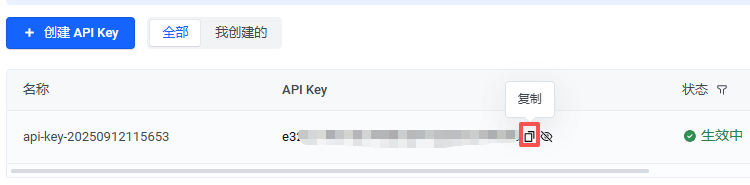
In your project folder:
cd ~/fusion-hat/examples
sudo nano secret.py
Add your key:
# secret.py
DOUBAO_API_KEY = "xxx"
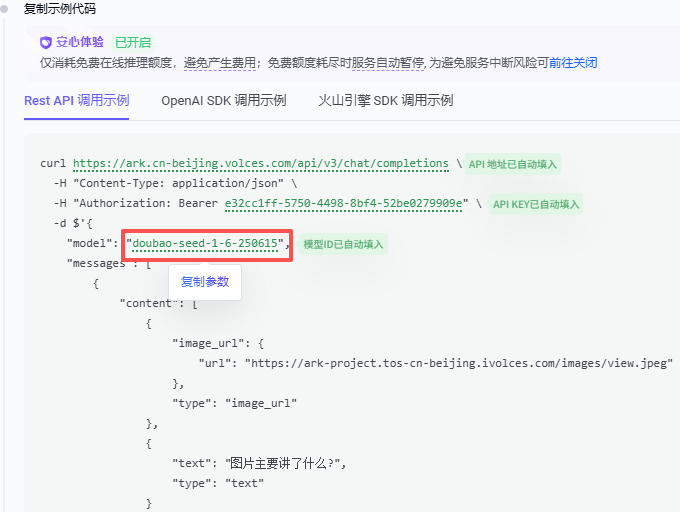
Choose a model
Go to the model marketplace and pick a model.
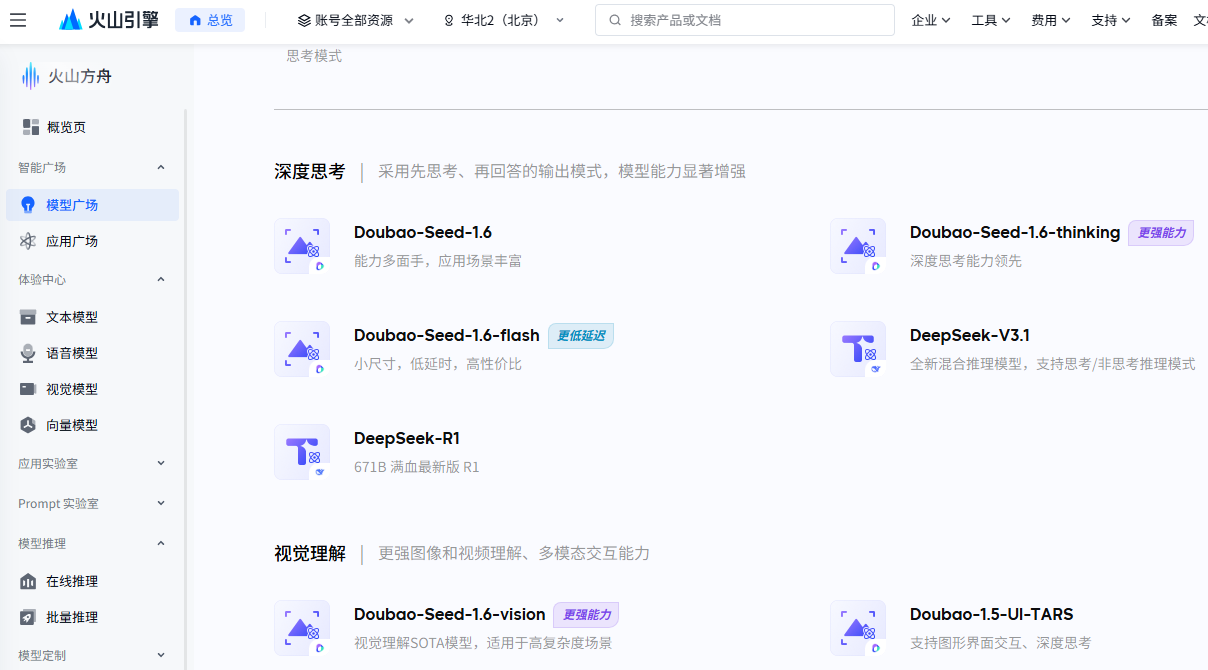
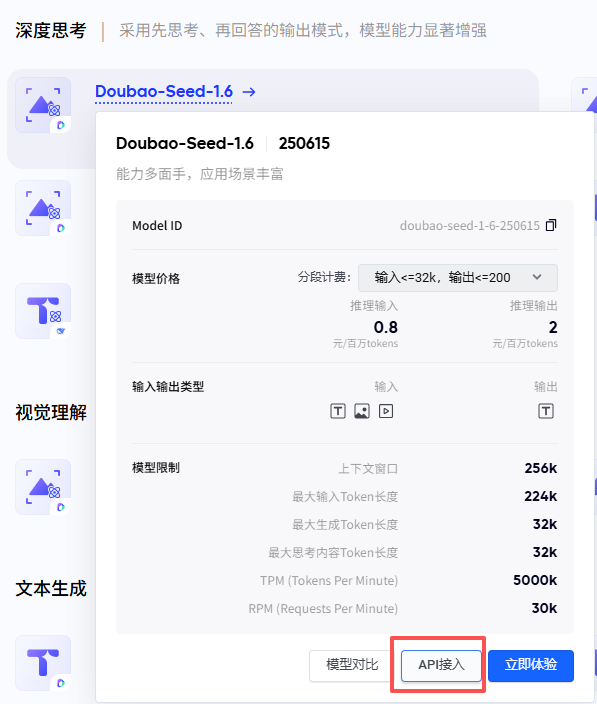
For example, choose Doubao-seed-1.6, then click API 接入.
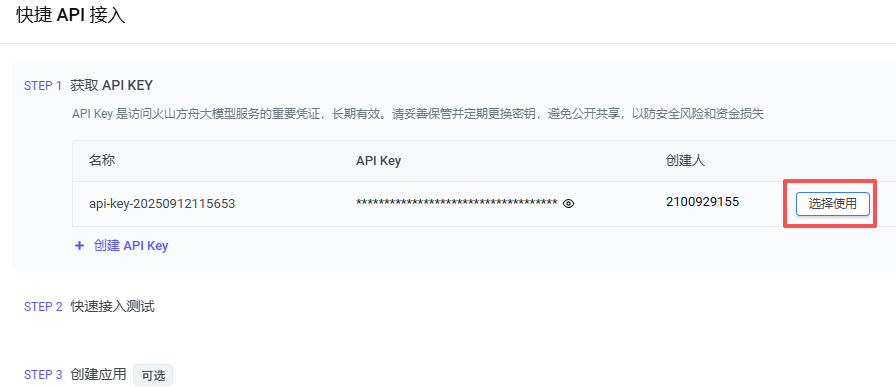
Select your API Key and click Use API.
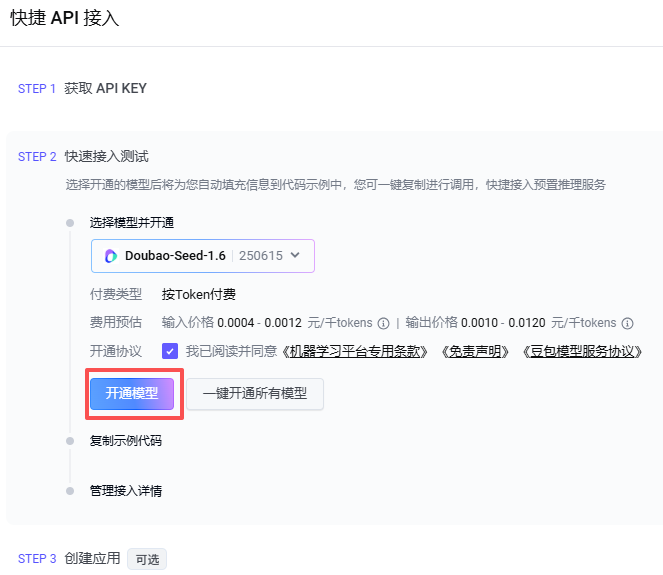
Click Enable Model.
Hover over the model ID to copy it.
Test with example code
Open the test file:
cd ~/fusion-hat/examples
sudo nano llm_doubao.py
Replace the content with the code below, and update
model="xxx"to the model you want (for example,doubao-seed-1-6-250615):from fusion_hat.llm import Doubao from secret import DOUBAO_API_KEY INSTRUCTIONS = "You are a helpful assistant." WELCOME = "Hello, I am a helpful assistant. How can I help you?" llm = Doubao( api_key=DOUBAO_API_KEY, model="doubao-seed-1-6-250615", )
Run with:
sudo python3 llm_doubao.py
General
This project supports connecting to multiple LLM platforms through a unified interface. We have built-in compatibility with:
OpenAI (ChatGPT / GPT-4o, GPT-4, GPT-3.5)
Gemini (Google AI Studio / Vertex AI)
Grok (xAI)
DeepSeek
Qwen (通义千问)
Doubao (豆包)
In addition, you can connect to any other LLM service that is compatible with the OpenAI API format. For those platforms, you will need to manually obtain your API Key and the correct base_url.
Get and Save Your API Key
Obtain an API Key from the platform you want to use. (See each platform’s official console for details.)
In your project folder, create a new file:
cd ~/fusion-hat/examples/
nano secret.py
Add your key into
secret.py:# secret.py API_KEY = "your_api_key_here"
Warning
Keep your API Key private. Do not upload secret.py to public repositories.
Test With Example Code
Open the test file:
cd ~/fusion-hat/examples/
sudo nano llm_others.py
Replace the content of a Python file with the following example, and fill in the correct
base_urlandmodelfor your platform:Note
About
base_url: We support the OpenAI API format, as well as any API that is compatible with it. Each provider has its ownbase_url. Please check their documentation.from fusion_hat.llm import LLM from secret import API_KEY INSTRUCTIONS = "You are a helpful assistant." WELCOME = "Hello, I am a helpful assistant. How can I help you?" llm = LLM( base_url = f"", api_key=API_KEY, model="", )
Run the program:
sudo python3 llm_others.py