Note
Hello, welcome to the SunFounder Raspberry Pi & Arduino & ESP32 Enthusiasts Community on Facebook! Dive deeper into Raspberry Pi, Arduino, and ESP32 with fellow enthusiasts.
Why Join?
Expert Support: Solve post-sale issues and technical challenges with help from our community and team.
Learn & Share: Exchange tips and tutorials to enhance your skills.
Exclusive Previews: Get early access to new product announcements and sneak peeks.
Special Discounts: Enjoy exclusive discounts on our newest products.
Festive Promotions and Giveaways: Take part in giveaways and holiday promotions.
👉 Ready to explore and create with us? Click [here] and join today!
3.1 Reading Button Value
In the previous projects, we used the output function, in this chapter we will use the input function to input read the button value.
Required Components
In this project, we need the following components.
It’s definitely convenient to buy a whole kit, here’s the link:
Name |
ITEMS IN THIS KIT |
LINK |
|---|---|---|
3 in 1 Starter Kit |
380+ |
You can also buy them separately from the links below.
COMPONENT INTRODUCTION |
PURCHASE LINK |
|---|---|
Schematic
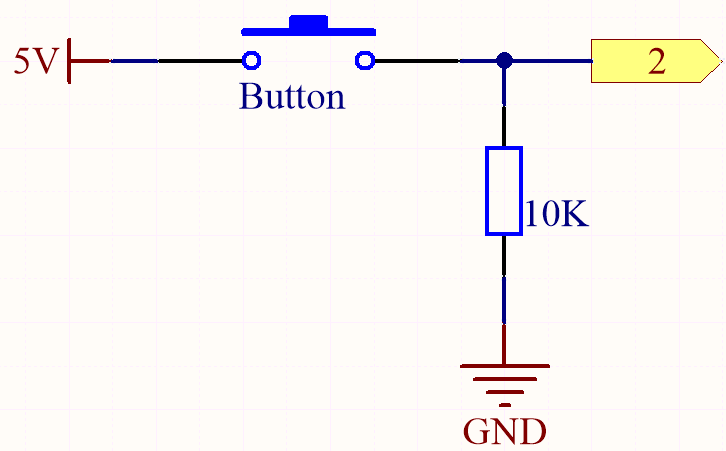
One side of the button pin is connected to 5V, and the other side pin is connected to pin 2, so when the button is pressed, pin 2 will be high. However, when the button is not pressed, pin 2 is in a suspended state and may be high or low. In order to get a stable low level when the button is not pressed, pin 2 needs to be reconnected to GND through a 10K pull-down resistor.
Wiring

Code
Note
You can open the file
3.1.read_button_value.inounder the path of3in1-kit\basic_project\3.1.read_button_value.Or copy this code into Arduino IDE.
Or upload the code through the Arduino Web Editor.
After the code is uploaded successfully, click the magnifying glass icon in the upper right corner of the Arduino IDE (Serial Monitor).

When you press the button, the Serial Monitor will print “1”.